

Issue:
You would like to copy a custom AutoCAD Mechanical Workspace from one system to another to share with another user.
Solution:
Use the CUI and CUIIMPORT commands to add the custom workspace to the menu.
First copy or save the AutoCAD Mechanical acadm.cuix menu to a shared location the other system can access.
Use either of the following options in the CUI command to copy or save the menu:
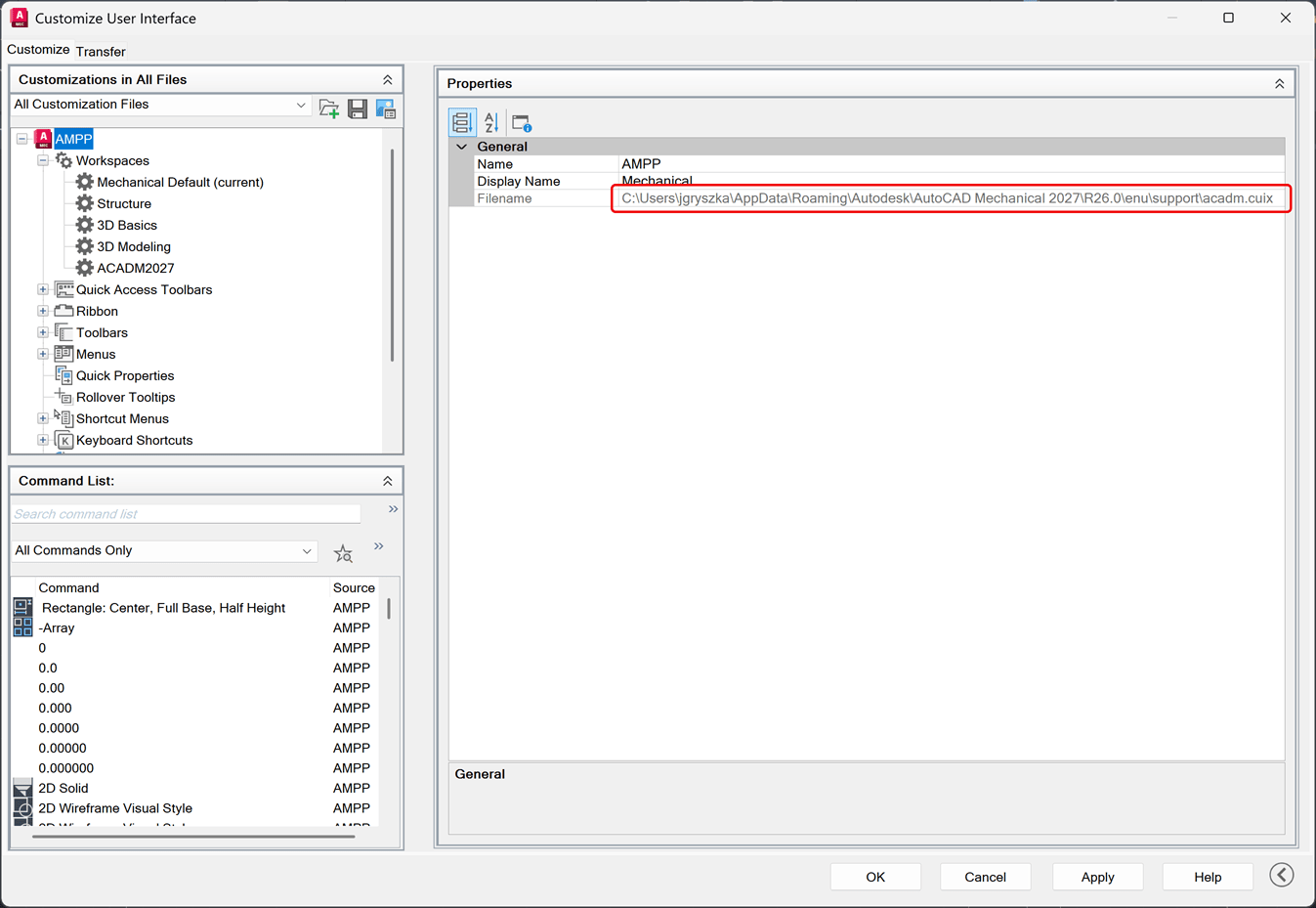
a. On Customize tab get the menu file path in the right pane under Properties. Copy the acadm.cuix menu to a shared location the other system can access.:
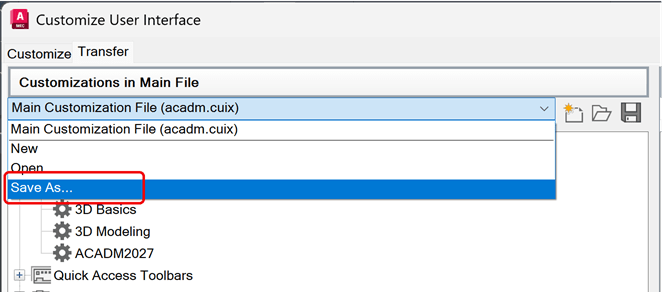
b. Or on the Transfer tab, save the acadm.cuix menu file to another location. In the pull down menu choose Save As... to save to the file out to a shared location:
On the sytem receiving the custom workspace:
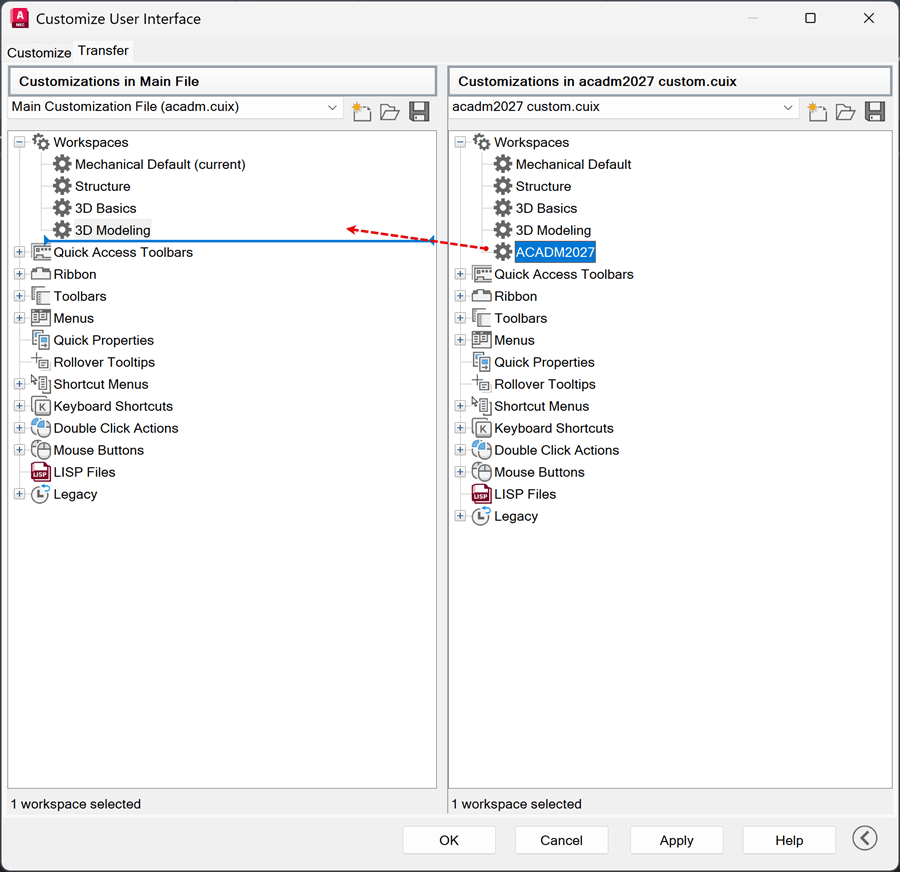
a. Start the CUIIMPORT command. The Customize User Interface dialog box opens on the Transfer tab. In right pane, open the menu saved from the other computer.
b. Drag the custom Workspace from the right to left pane(current menu).
c. Click OK to exit out of the command and save the workspace in the menu.
To migrate a workspace from an older version forward, for example in Civil 3D:
Migrate Workspace forward from older Civil 3D to Newer Version
How to export your profile settings to an arg file: Export ARG file
About the Author
More Content by Joanna Gryszka


