

Profile MFE dialog at startup of AutoCAD products
Issue:
When you launch an AutoCAD-based product such as AutoCAD, Civil 3D, or Map 3D, a dialog titled “Profile MFE” may appear, asking you to choose your Industry and Role.
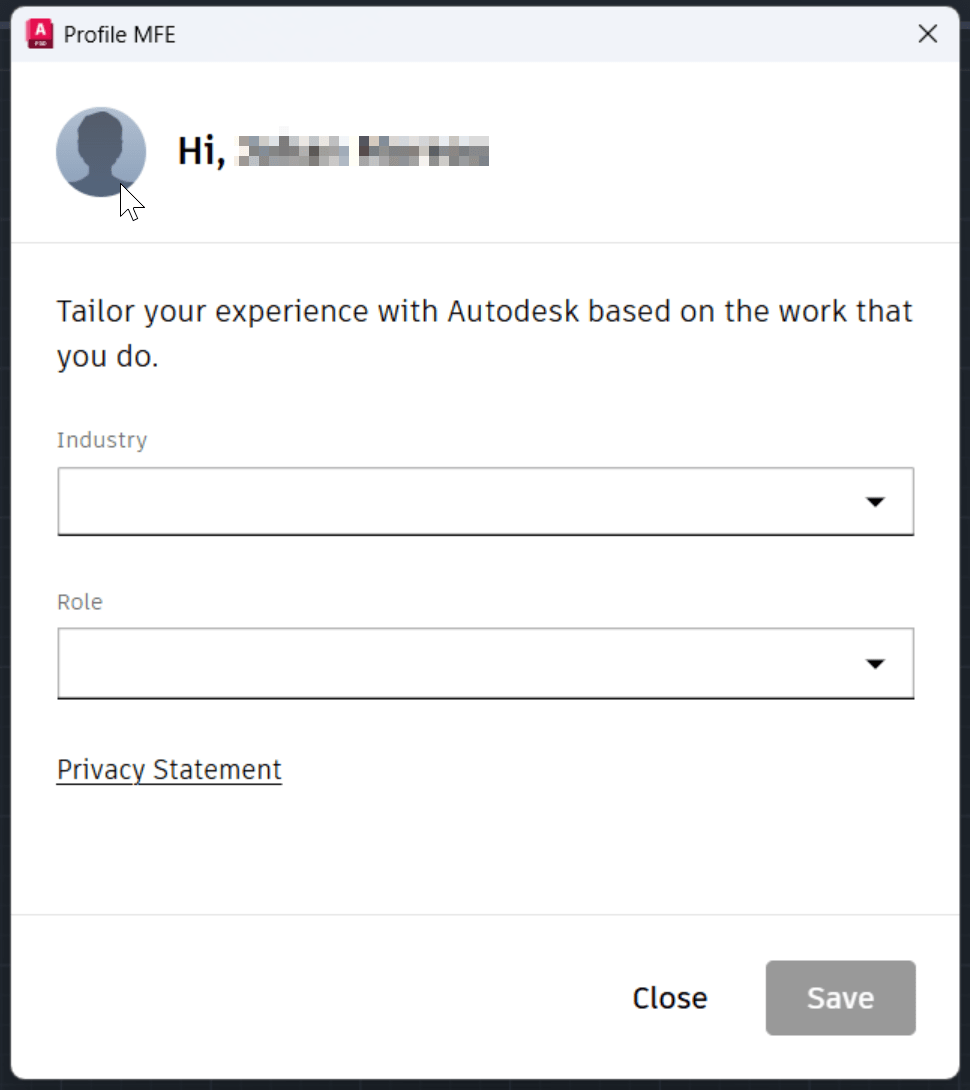
Can this dialog box be disabled?
Solution:
The short answer: no, not officially
From Autodesk’s knowledge base article on the dialog is direct: “There is currently no way to disable this prompted dialog.”
What the dialog actually is:
The name is a little misleading. “Profile” here doesn’t refer to your AutoCAD profile (the .arg file and registry settings under Options > Profiles) or to your Windows user profile. It refers to your online Autodesk Account profile.
“MFE” stands for micro-frontend, a small web-based panel that Autodesk embeds in its desktop products. Autodesk hasn’t documented this dialog for AutoCAD, but its Revit 2027 help describes what appears to be the same feature: if a user’s job role and industry haven’t been updated in their Autodesk Account in the past year, the product asks for them at launch. If the user skips it, it returns after 60 days and appears no more than twice a year.
That explains why hunting for a registry value or local file to suppress it doesn’t get you very far. The product is checking the user’s account online, not the PC.
Option 1: Fill in the Autodesk Account profile up front
If the dialog only appears when Industry and Role are missing or out of date, the simplest fix is to give it nothing to ask about.
Before the rollout, have each user sign in to their Autodesk Account at accounts.autodesk.com, open their profile, and fill in Industry and Role. If the information is current, the dialog shouldn’t appear at their first launch. Expect a reminder about once a year asking them to confirm the details.
Option 2: Click Close and snooze it
Autodesk’s documented workaround is to leave both fields blank and click Close. That hides the dialog for 60 days. When it comes back, clicking Close again extends the reminder to a full year.
About the Author
Follow on Linkedin More Content by Ken Williams


