

Applies to:
Inventor
Issue:
File Save As produces Data Standard Dialogue
Causes:
Enabled Vault Data Standard
Solution:
Disable the Vault Data Standard
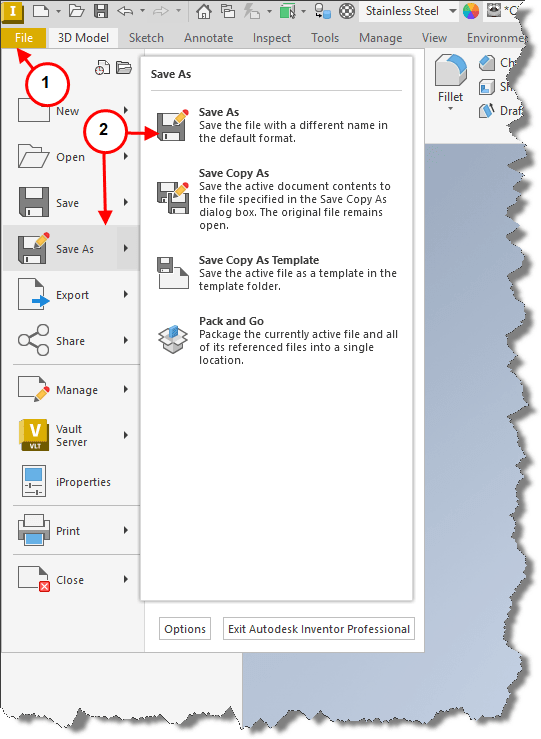
1. Selecting File tab.
2. Followed by Save As.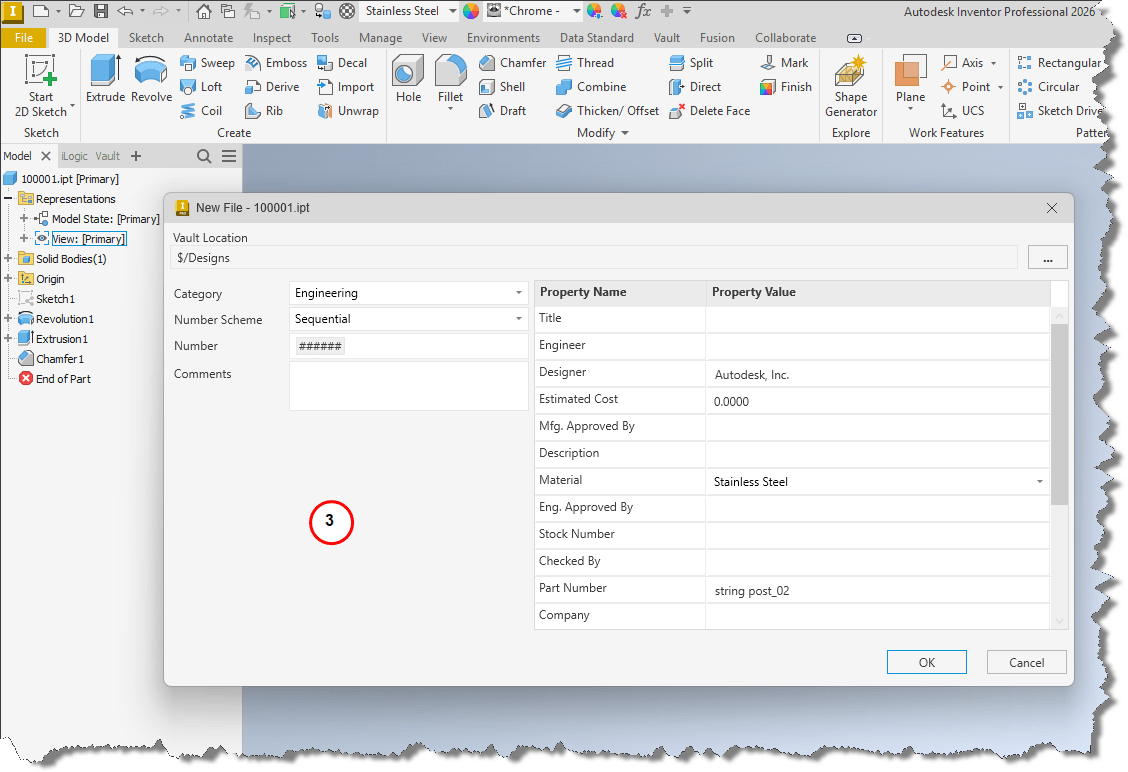
3. Displays the Vault Data Standard New File menu.
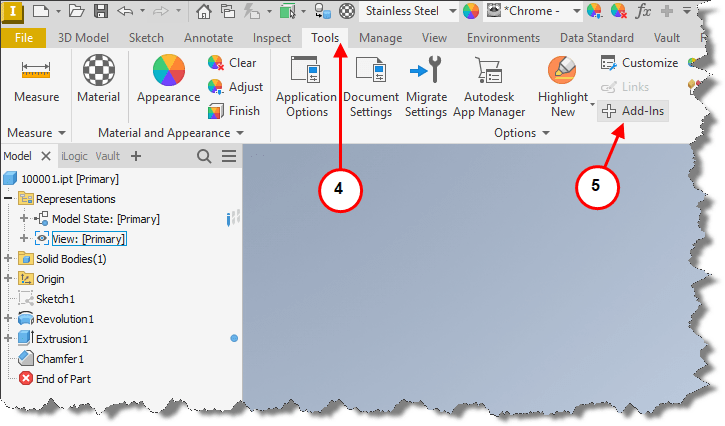
4. To disable Vault Data Standard, select the Tools tab.
5. Followed by Add-Ins in the Options section.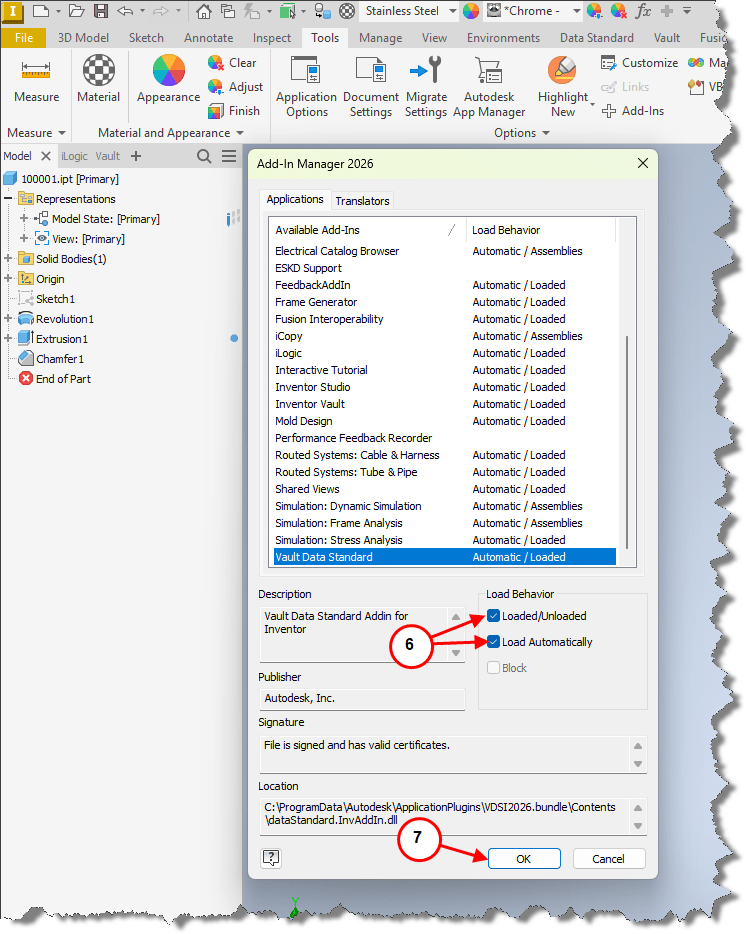
6. Scroll to and highlight the Vault Data Standard Add-In, uncheck Loaded/Unloaded and Load Automatically.
7. Select OK.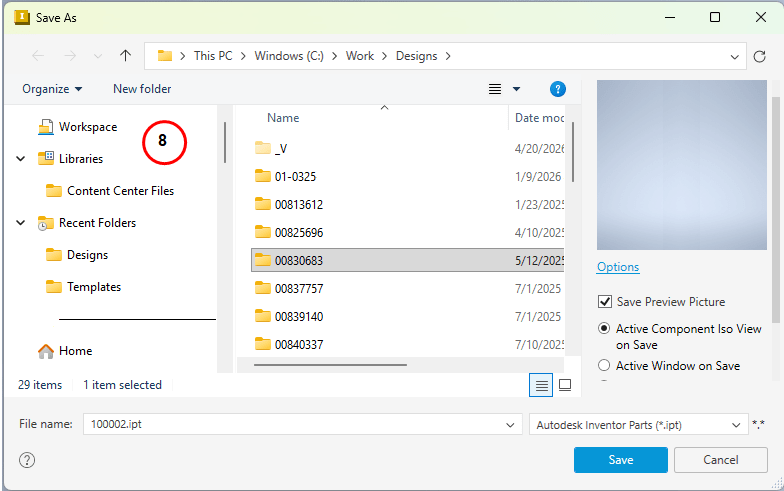
8. Selecting File tab followed by Save As will produce standard Save As menu.


