

Issue:
The model is not showing up in the Model Coordination space.
Causes:
Model Coordination displays views within a model rather than the raw file itself. If a Revit project file does not have any 3D views selected in its publish settings, the model will not display in Model Coordination.
Solution:
1. Open the File: Launch Revit and open the project file.
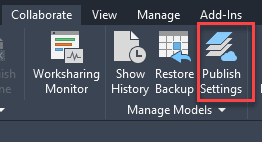
2. Access Publish Settings: Navigate to Collaborate > Publish Settings.
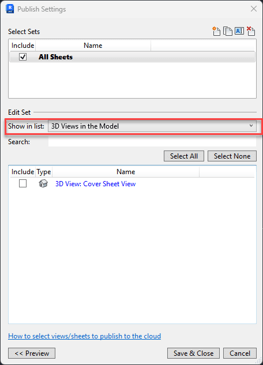
3. Filter Views: Select 3D Views in the Model under the Show in Set drop-down menu.
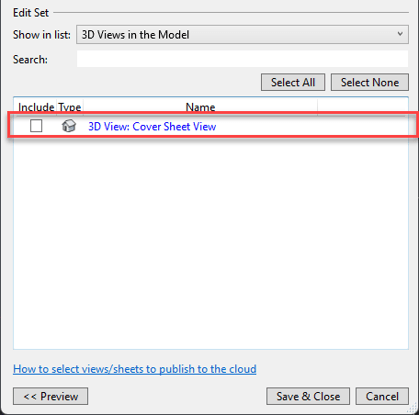
4. Select a 3D View: Check the box next to at least one 3D view to include it for Model Coordination.
5. Sync to Central: Synchronize the model.
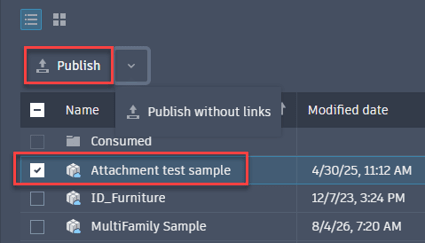
6. Publish: Return to the Revit Home screen and publish the latest model.
7. Verify: Once publishing is complete, the model will be available in the Model Coordination space.
About the Author
Follow on Linkedin More Content by Gregory Lee


