

Many AutoCAD users prefer the Classic View because it provides a familiar interface with traditional menus and toolbars. If you are using a newer version of AutoCAD, the traditional AutoCAD Classic workspace may not be available by default.
However, you can easily create a classic-style interface by customizing your workspace.
Issue: The AutoCAD Classic workspace is not available in some newer versions of AutoCAD.
Cause: Newer versions of AutoCAD primarily use the Ribbon-based interface. As a result, the traditional AutoCAD Classic workspace may not appear in the workspace list.
Solution: You can create your own Classic View by closing the Ribbon, enabling the traditional menu bar, adding the required toolbars, and saving your customized workspace.
Step 1: Close the Ribbon
First, close the Ribbon to create more space for the classic interface.
Type the following command in the Command Line:
RIBBONCLOSE
Press Enter.
The Ribbon will close, giving you more room to work with the traditional menus and toolbars.
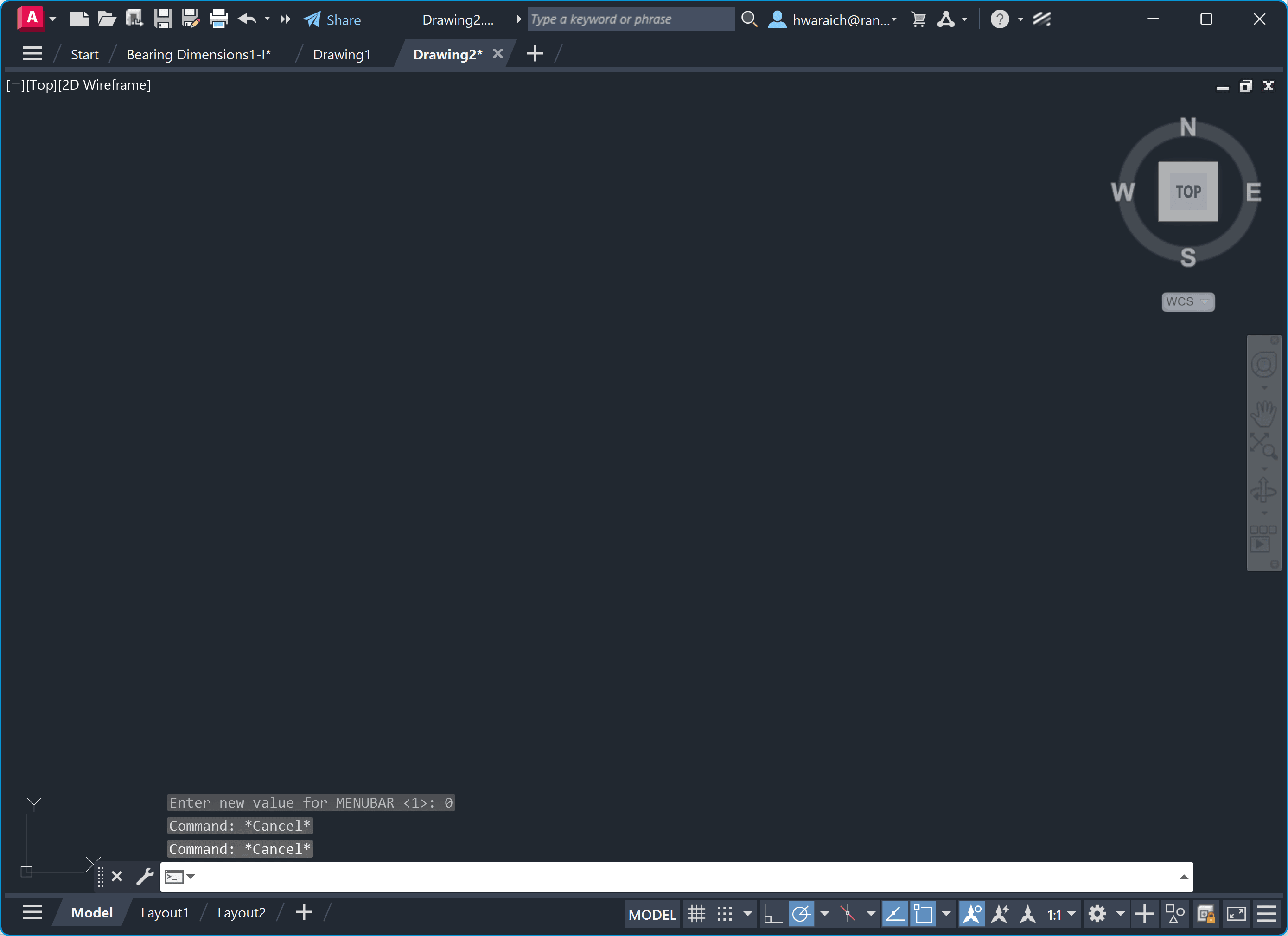
If you want to restore the Ribbon later, type: RIBBON, Press Enter.
Step 2: Display the Menu Bar
Next, display the traditional AutoCAD menu bar.
Type: MENUBAR, press Enter. When prompted for a value, enter: 1, press Enter again.
The traditional menu bar will now appear at the top of the AutoCAD window.
Step 3: Access Toolbars
Now you can add the traditional AutoCAD toolbars.
From the menu bar, select:
Tools → Toolbars → AutoCAD
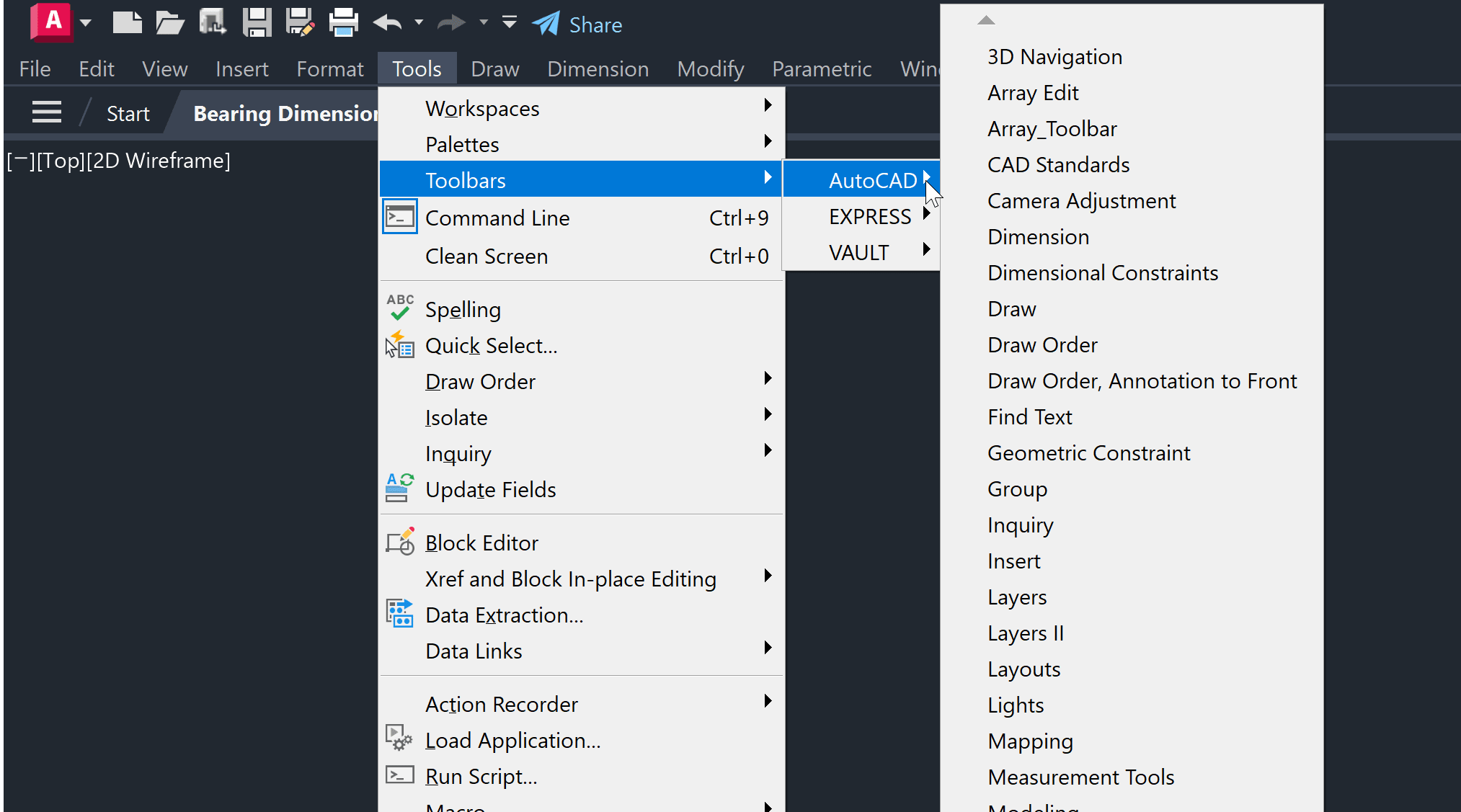
A list of available toolbars will appear. You can select commonly used toolbars such as:
• Draw
• Modify
• Layers
• Properties
• Dimension
Click the toolbar you want to display.
Quick Method to Access Toolbars
There is an even faster way to access the available toolbars.
Right-click on any visible toolbar. A complete list of the available toolbars will appear directly in the shortcut menu.
From this list, simply click the toolbar you want to display. You can repeat the process to enable multiple toolbars, such as Draw, Modify, Layers, Properties, and Dimension.
This method is quicker than going through Tools → Toolbars each time you want to turn on another toolbar.
Step 4: Arrange the Toolbars
Once you have enabled the required toolbars, arrange them according to your preferred workflow. You can dock them along the top, bottom, or sides of the AutoCAD window.
For a traditional Classic View, you may want to keep the Draw, Modify, Layers, Properties, and Dimension toolbars visible.
You can also move or resize the toolbars to create a comfortable and organized workspace.
Step 5: Save the Classic Workspace
Once you have finished customizing the interface, save your workspace so you can easily return to it later.
Type:
WSSAVE
Press Enter.
Enter a name such as:
AutoCAD Classic
Press Enter to save the workspace.
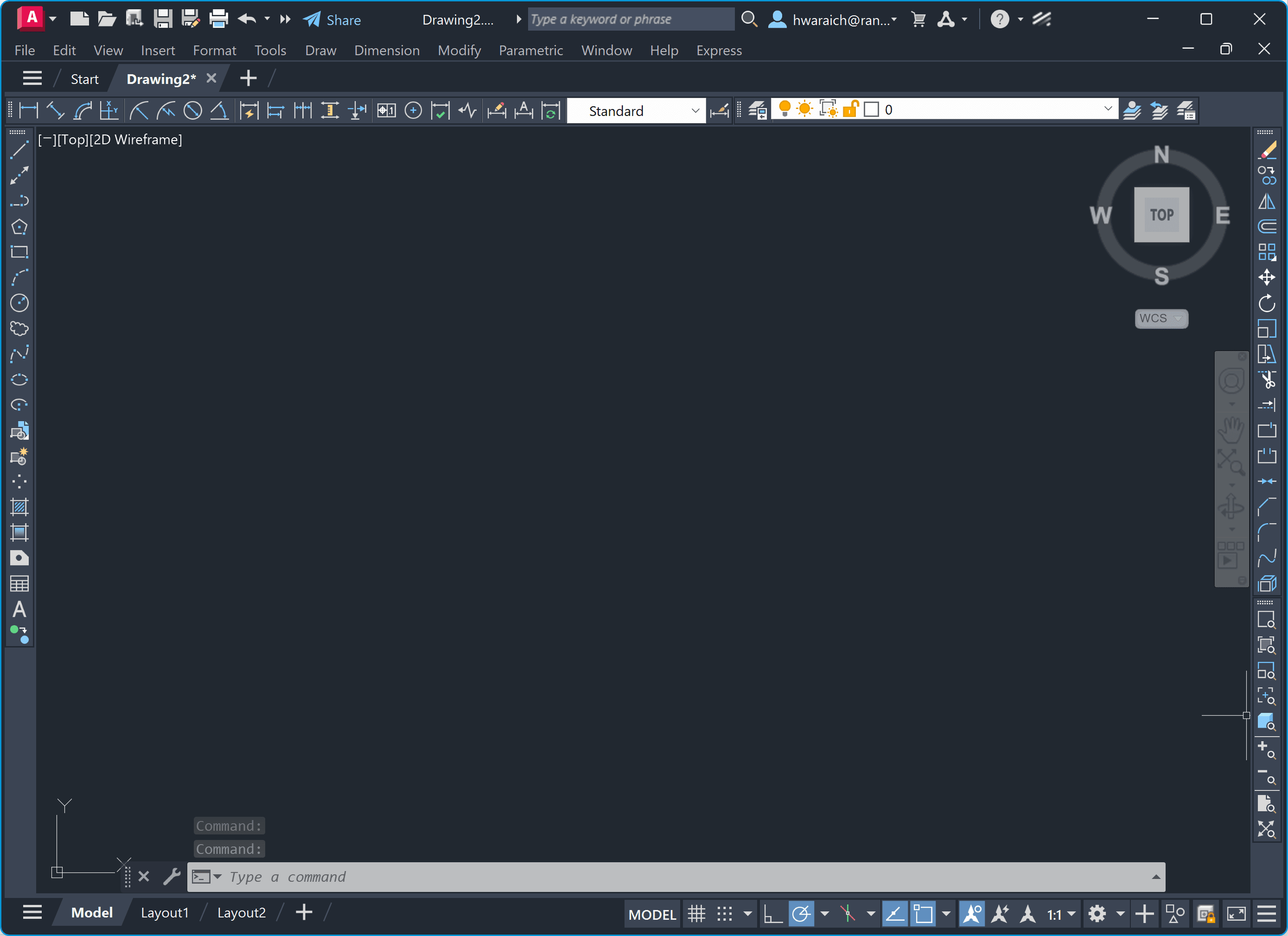
Your customized Classic View is now ready to use.
How to Return to the Modern Interface
If you want to return to the modern AutoCAD interface, restore the Ribbon by typing: RIBBON, press Enter.
You can also use the Workspace Switching controls to select your preferred modern workspace.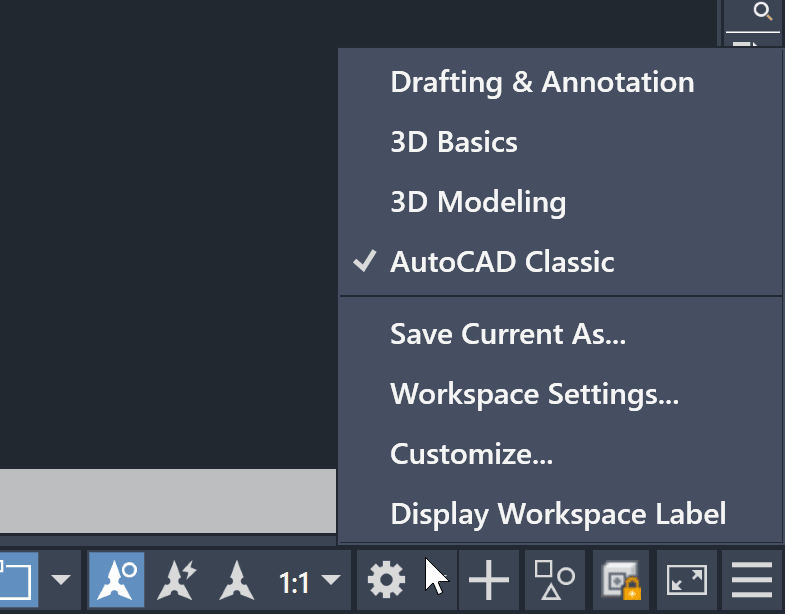 Your custom Classic workspace will remain saved, allowing you to switch between your classic and modern layouts whenever needed.
About the Author
More Content by Harpreet Waraich


