

Issue:
Some Revit families uploaded to Autodesk Content Catalog generate incomplete thumbnails, blank 2D previews, or no 3D preview at all.
Causes:
This behavior, commonly associated with imported geometry appears to be a limitation in how the Content Catalog previews the image of Revit families if they contain imported Geometry.
During testing, we found that imported geometry which does not form a valid solid is often excluded from thumbnail and 3D preview generation.
Even imported geometry that appears as a valid solid may not always be processed correctly by Content Catalog because imported geometry is handled differently than native Revit geometry.
As a result:
-
- Thumbnail previews may be incomplete.
- 3D previews may be blank.
- Portions of the family may be missing from generated previews.
The following behavior is exhibited;
-
-
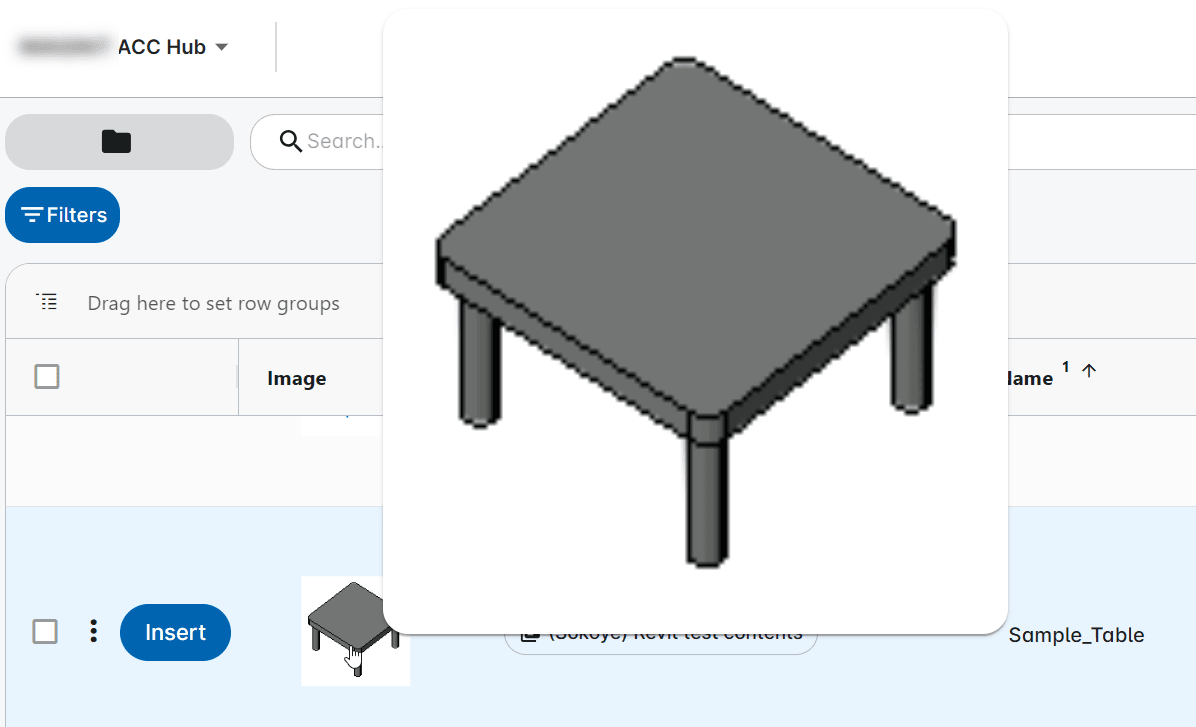
- 2D preview for families containing only imported geometry is available but will continue to appear jagged even after processing is complete.
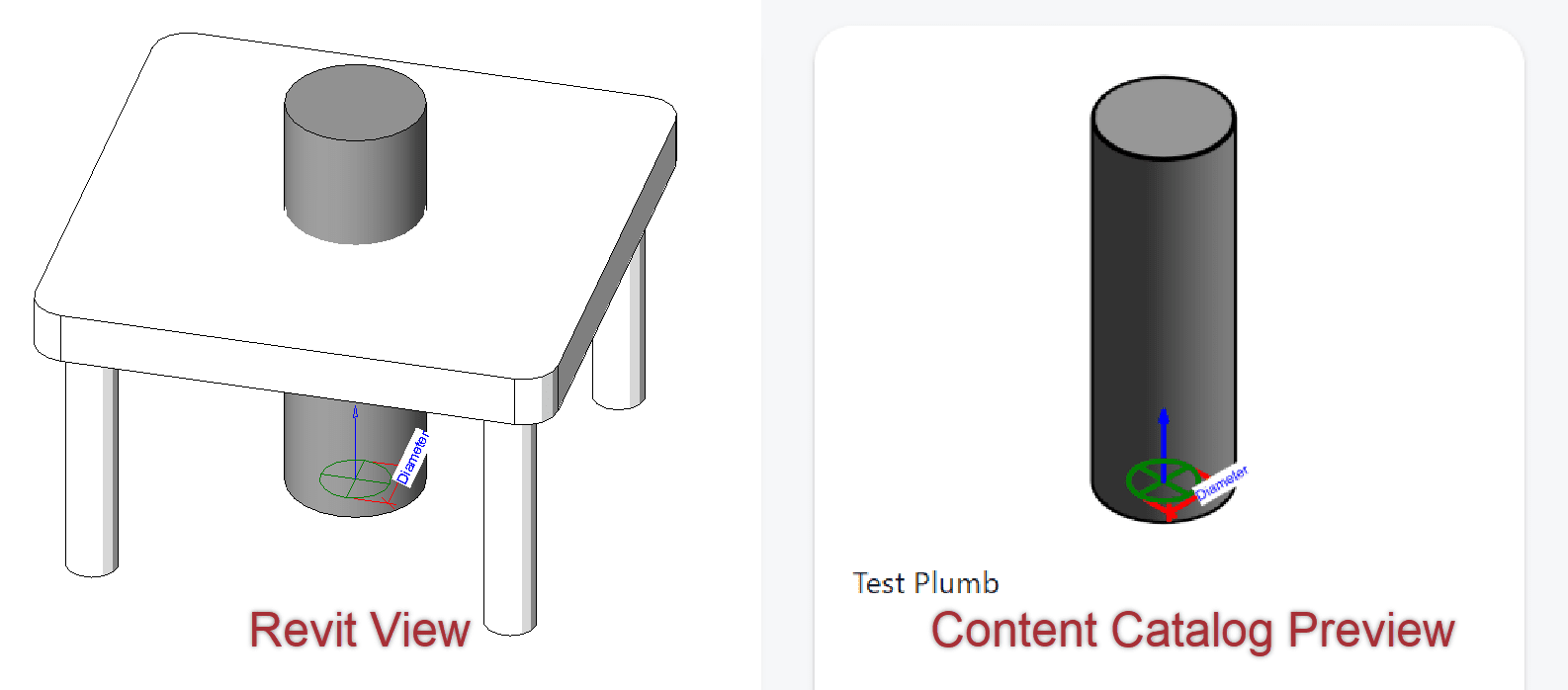
- Partial 2D preview for families containing imported geometry and Revit family connectors - Only native Revit elements and Connectors are displayed in the previews. If there is no native Revit geometry, only connectors will be displayed. Imported geometry will not be visible in preview images.
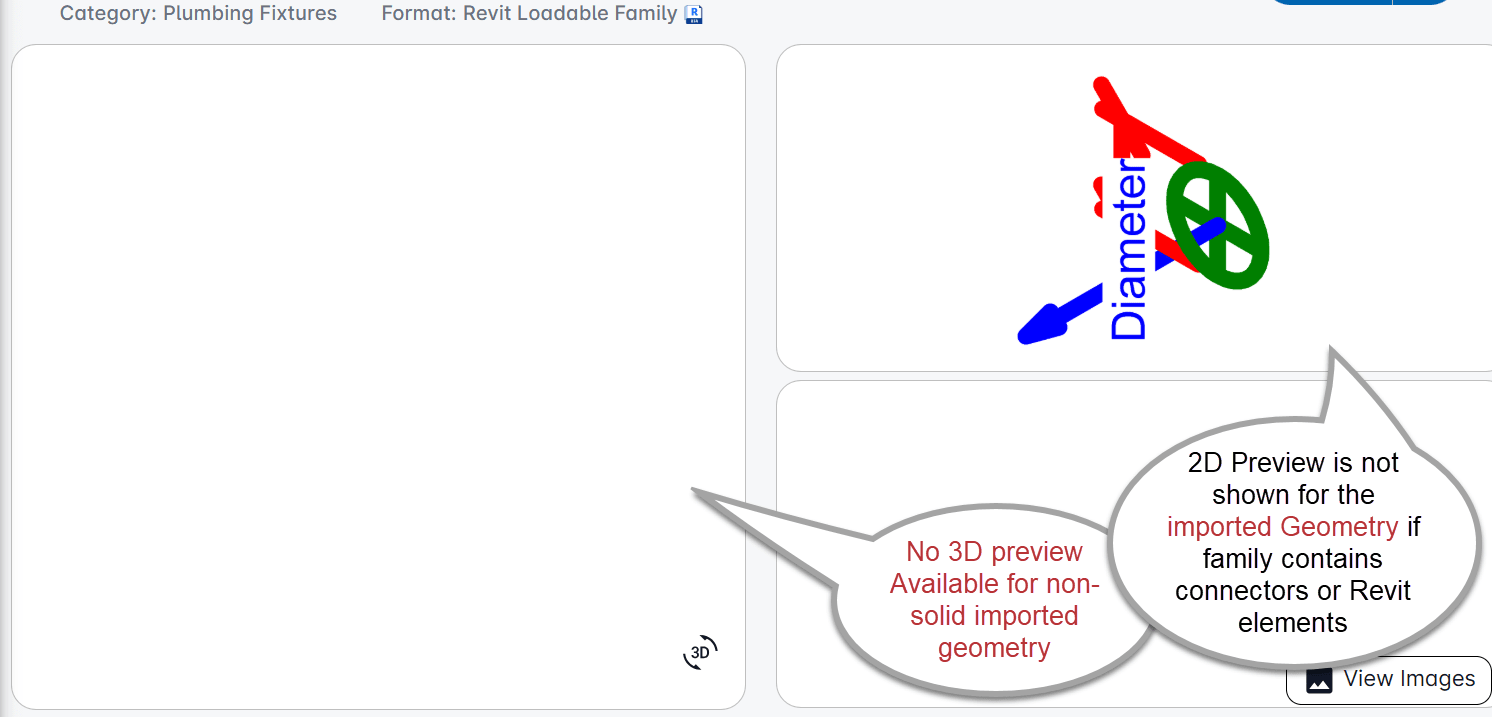
- 3D preview is not available for families containing only Non-solid imported geometry, instead a blank white screen is displayed.
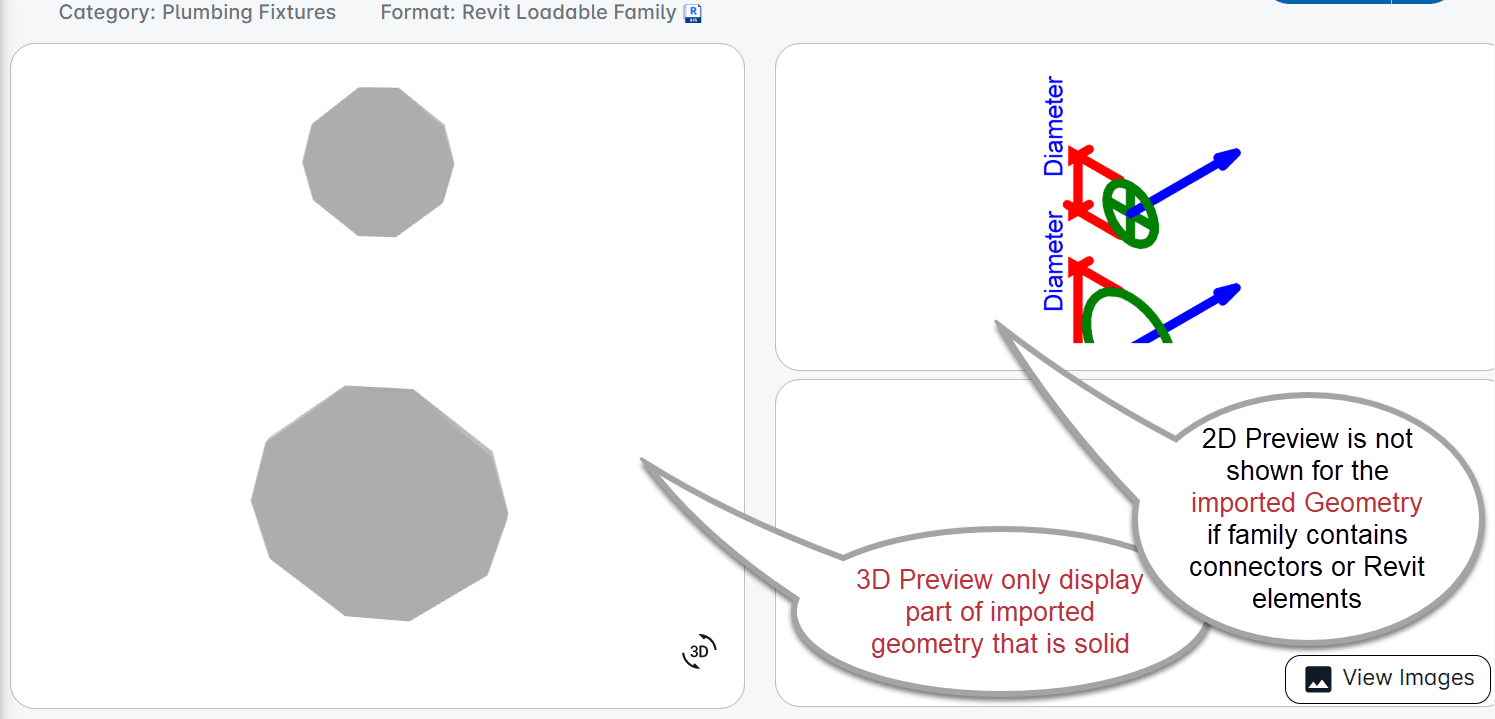
- 3D preview will be displayed for families containing imported geometry if a part or all the imported geometry forms a perfect solid. Only the parts that form a perfect solid are displayed in 3D preview.
- 3D preview is available for any family containing any Revit geometry, even if it also contains imported geometry. The imported geometry will be visible in the preview only if it forms a perfect solid.
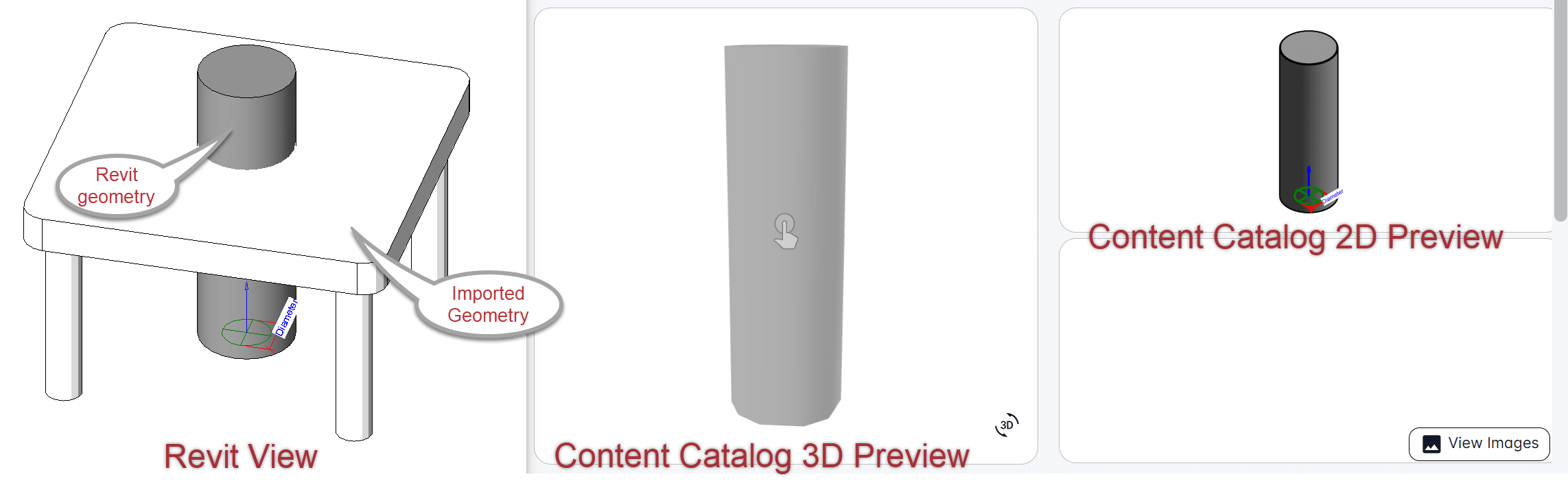
- 2D preview for families containing only imported geometry is available but will continue to appear jagged even after processing is complete.
-
Workarounds:
Option 1: Upload Custom Preview Images (Recommended)
If accurate thumbnails are important, upload custom preview images instead of relying on Content Catalog's automatic preview generation.
This also provides better control over the appearance of the thumbnail.
Option 2: Convert Imported Geometry to Revit objects
When an imported geometry is not a true solid, exploding it in Revit will cause the geometry to disappear. Such geometries are also not processed when generating thumbnails in CC.
Options include:
-
- Re-export families created from 3rd party software as solids,
- Or use AutoCAD to convert to geometry to solids before re-importing the geometry back to the Revit family *.rfa file.
Note that imported geometry even if true solids need to be converted to Revit geometry (by exploding them) before they can be processed by CC.
Option 3: Rebuild the Family in Revit
Remodeling the family in Revit using Revit elements - Recommended for very simple objects or objects that require complex parametric modifications/constraints.
Content Catalog preview generation works most reliably with native Revit geometry. Families containing imported geometry may require custom preview images or conversion to native Revit geometry to achieve consistent thumbnail and 3D preview results.
If you'd like to provide feedback or express the importance of these capabilities, we encourage you to visit the AEC Data Model Roadmap. Under the Content Catalog section, you can mark relevant features as Critical, which sends feedback directly to the Autodesk development team and helps them understand customer priorities.
See also – Incorrect or missing preview images in Content Catalog


