

Issue:
Multiple shared parameter files need to be combined into a single file, which can be a time-consuming and complex task.
Causes:
Exporting shared parameters individually from different files is inefficient and can lead to inconsistencies or errors.
Solution:
To streamline the process, you can manually compile multiple shared parameter files into one by editing the files directly. However, this approach requires careful handling to avoid corrupting the shared parameter files.
Steps to Compile Shared Parameter Files:
1. Backup Your Files:
Before making any changes, ensure you create a backup of your shared parameter files. This will help you recover if any issues arise during the compilation process.
2. Open Shared Parameter Files:
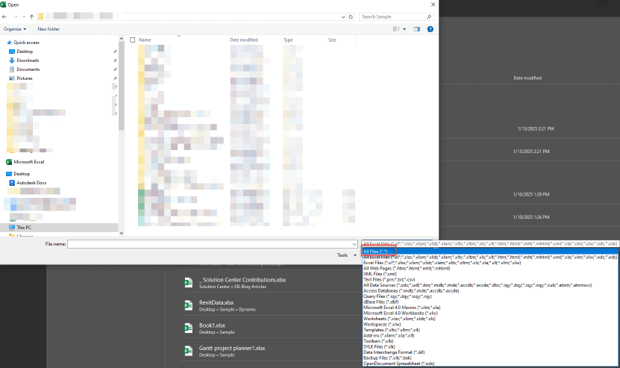
Open both the “From” and “To” shared parameter files in Microsoft Excel. To do this:
Open Excel and set the file type to “All Files” to select the .txt files.
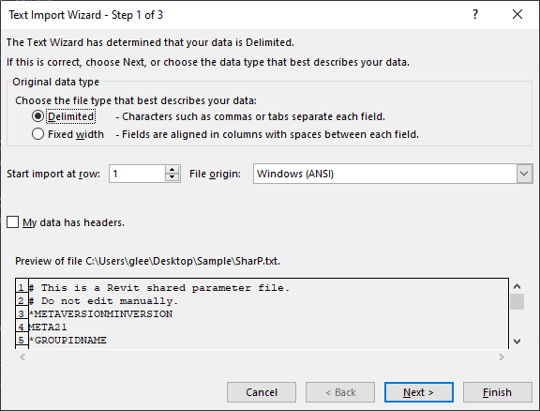
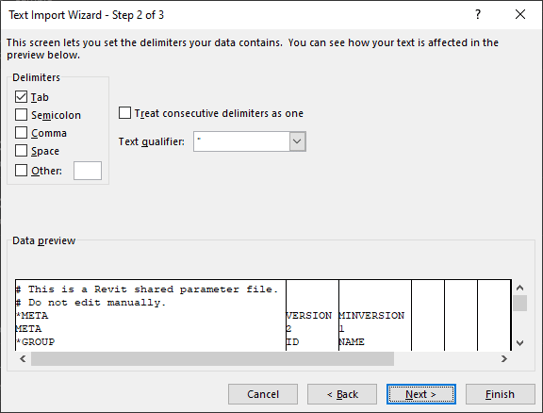
Use the Delimited option to separate the text into columns for better organization.
3. Understand the Structure:
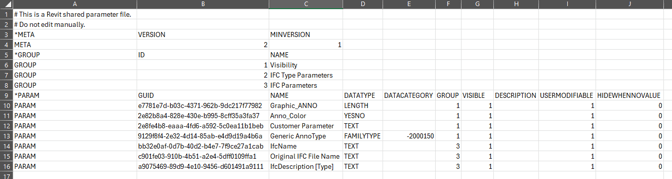
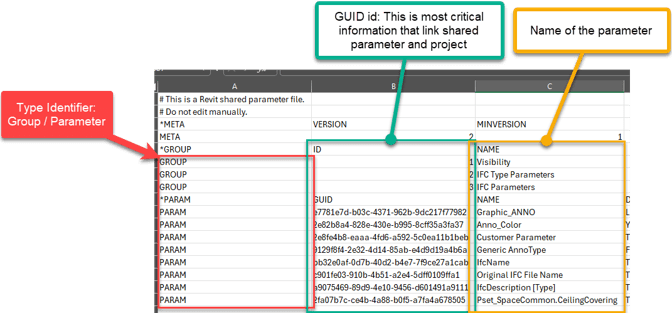
Shared parameter files have a specific structure that includes parameter groups and associated data. It's crucial to understand this structure to make accurate edits.
Parameter Group in Revit:
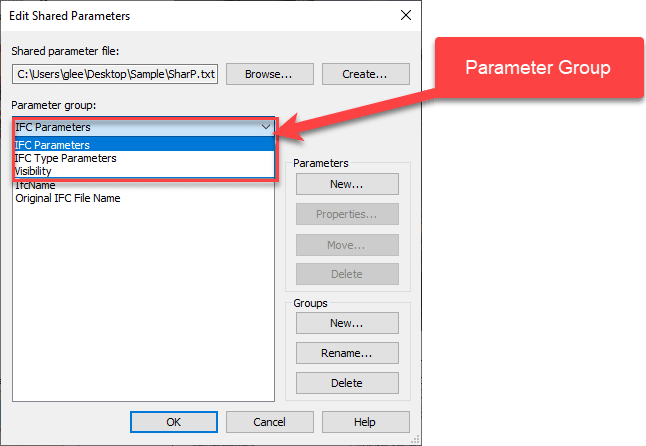
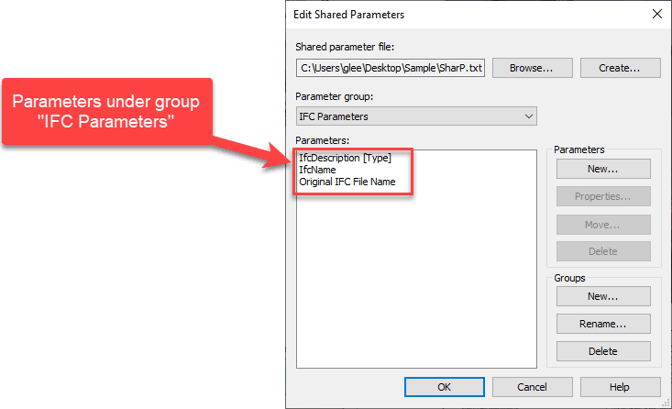
Parameter Group in Shared Parameter file:

Parameters are part of a group and are listed under a specific group.
Shared Parameters file structures:
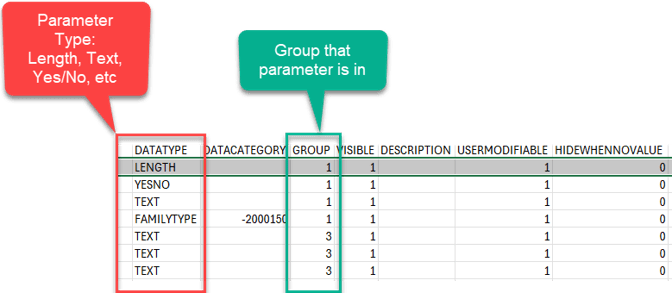
Data type and group column show details about the parameters.
4. Identify Group Discrepancies:
Compare the group numbers and names in both files. For example:
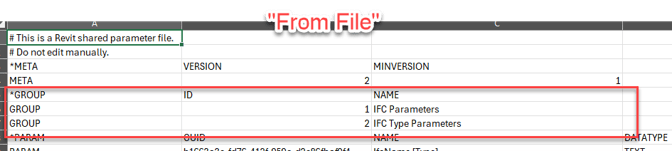
From File: Group 1 (IFC Parameters), Group 2 (IFC Type Parameters)
To File: Group 1 (Visibility), Group 2 (IFC Type Parameters), Group 3 (IFC Parameters)
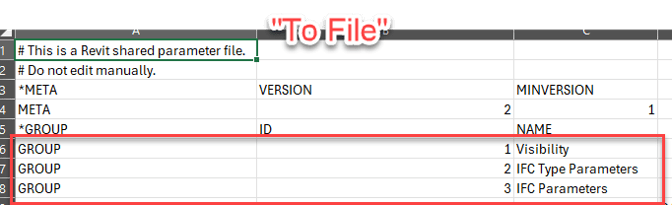
Note any discrepancies in the group numbering and naming between the files.
5. Compile the Files:
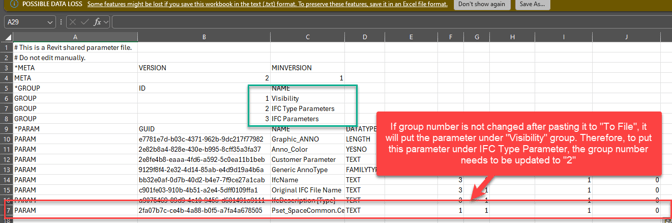
Copy the shared parameters from the “From File” and paste them into the “To File.”

Adjust the group numbers to ensure they match the structure of the “To File.” For instance, if the group numbers differ, reassign the parameters to the correct group.
6. Update in Bulk:
Using Excel’s bulk editing features, you can efficiently update the group numbers and other details across multiple rows. This makes it easier to manage large datasets.
7. Save and Test:
After making all necessary changes, save the compiled shared parameter file.
Test the file in your Revit project to ensure that all parameters are correctly recognized and assigned.
Tips:
-
- Proceed with Caution: Since editing shared parameter files manually can lead to errors, double-check your changes before saving.
- Consistency: Maintain consistent naming conventions and groupings to avoid confusion or errors in your Revit projects.
By following these steps, you can efficiently compile multiple shared parameter files into a single, organized file, streamlining your workflow and improving project consistency.
About the Author
Follow on Linkedin More Content by Gregory Lee


