

Issue:
The PDF Preset dropdown menu becomes greyed out and inactive when selecting the option to Publish to PDF in the Publish dialog in AutoCAD. The following error message may be displayed:
“The plotter configuration cannot be used for one of these reason: the preset cannot be found, the device cannot be found, or the driver has a problem.”
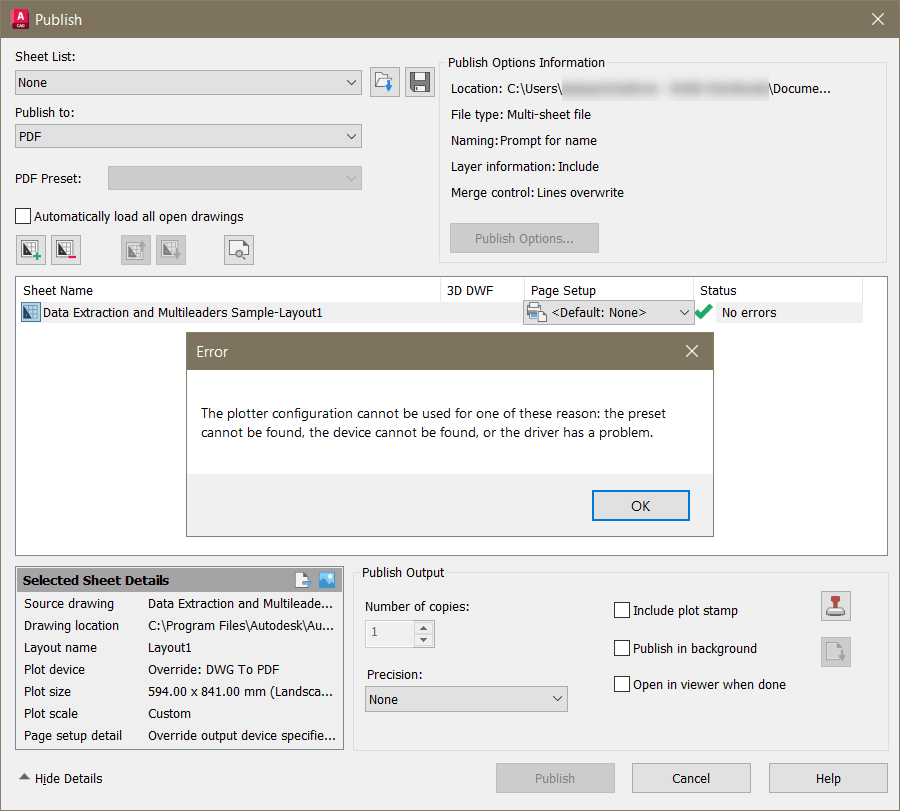
The publish button may also become greyed out.
Causes:
AutoCAD cannot find or read default printer configuration files.
The designated Printer Configuration Search Path has been set to a non-default location.
Solution:
Take the following steps to resolve the issue:
-
- Verify that AutoCAD default Printer configuration (.pc3) files are in the designed support location.
-
- Type PLOTTERMANAGER in the command line and hit enter.
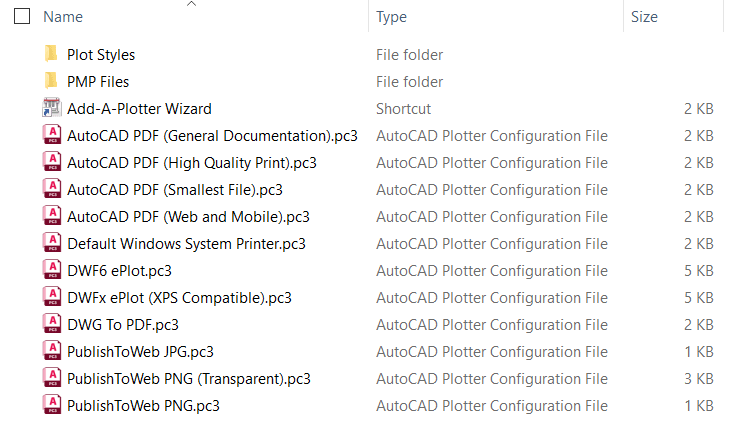
- Check if the following plotter configuration files are listed in the folder that pops up:
- AutoCAD PDF (General Documentation)
- AutoCAD PDF (High Quality Print)
- AutoCAD PDF (Smallest File)
AutoCAD PDF (Web and Mobile) - DWG To PDF
-
- If the files are not present, consider the following options:
-
- Add the default path for AutoCAD PC3 files to the Printer Configuration Search Path:
-
- Type OPTIONS in the command line and hit enter.
- In the Options window, go to the ‘Files’ tab, and expand the Printer Support File Path.
- Select the ‘Printer Configuration Search Path,’ and click on the ‘Add’ button on the right side of the window.
- A new line will be added to the list. Click on the ‘Browse’ button on the right side of the window then navigate to
C:\Users\%username%\AppData\Roaming\Autodesk\AutoCAD <version>\Rxx.x\<language>\Plotters - Click ‘Open’ to select the folder, then apply.
- You may remove other listed Printer Configuration Search Paths after verifying that they don’t contain useful PC3 files for other 3rd party Printers.
- Click ‘OK’ to close the options window.
-
- In an environment where multiple users share common printer configuration files, consider adding the default AutoCAD Printer configuration (.pc3) files to the designated support folder:
-
- Copy the contents of
C:\Users\%username%\AppData\Roaming\Autodesk\AutoCAD <version>\Rxx.x\<language>\Plottersto the shared folder location listed in the Printer Configuration Search Paths.
- Copy the contents of
-
- Add the default path for AutoCAD PC3 files to the Printer Configuration Search Path:
-
- If the default AutoCAD Printer configuration (.pc3) files are missing from the default location in
C:\Users\%username%\AppData\Roaming\Autodesk\AutoCAD <version>\Rxx.x\<language>\Plotters, or are present, but the issue is persistent, please consider the following options:-
- Copy the files from another working machine.
- Reset AutoCAD to default settings. See – How to reset AutoCAD to defaults.
- Apply any pending updates for AutoCAD. See – Where to get Product Updates, Add-ons, and Enhancements.
-
- Verify that AutoCAD default Printer configuration (.pc3) files are in the designed support location.


