

The Color Processing tool allows you to modify and control the colors within a PDF. Using this tool, you can convert selected colors to different values, change full-color documents to grayscale or black and white, adjust color properties such as luminosity, saturation, and hue, and create transparent areas within images.
Be aware that applying Color Processing to a page containing flattened markups will permanently prevent those markups from being unflattened. It is recommended to save a backup copy of the document before applying color processing to ensure recoverability.
Steps:
-
Open your PDF in Bluebeam Revu.
-
Navigate to the Document tab in the menu bar.
-
Select Color Processing from the dropdown menu.
-
In the Process dropdown, choose:
-
Black & White for pure monochrome output, or
-
Grayscale for shaded tones of gray.
-
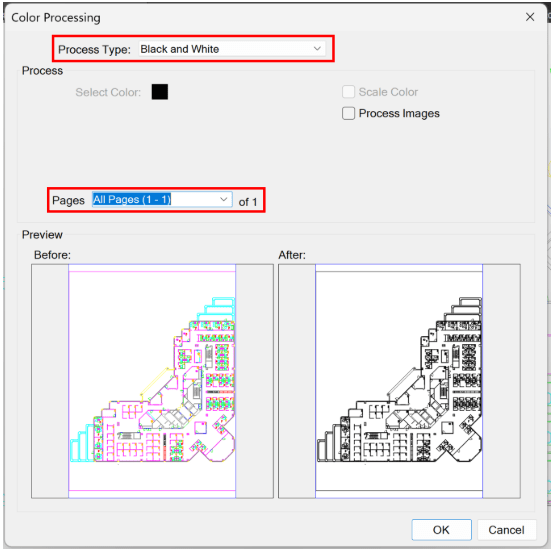
5. Enable Process Images if you want the conversion to affect raster images and photos in addition to vector linework and text.
6. Use the Preview pane to review how the changes will appear before applying them.
7. Click OK to apply the conversion to the document.
Pro Tip:
For large or multi-page documents, use the Batch Processing option within the Color Processing tool to apply changes efficiently across multiple files or pages. Be aware that this process flattens markups, so it’s recommended to save a backup copy if you may need to edit or unflatten annotations later.


