

Issue:
A new issue has been discovered that is specific to IMAGINiT Utilities for Vault Client 2025 and Utilities for Vault Client 2026.
The IMAGINiT Utilities for Vault Client include an IMAGINiT.PDFCREATOR job that is processed by the Vault Job Procesor. Sometimes an error may occur. If the Vault Job Queue displays an error for the Job Type:IMAGINiT.PDFCREATOR, select the job to view the results.
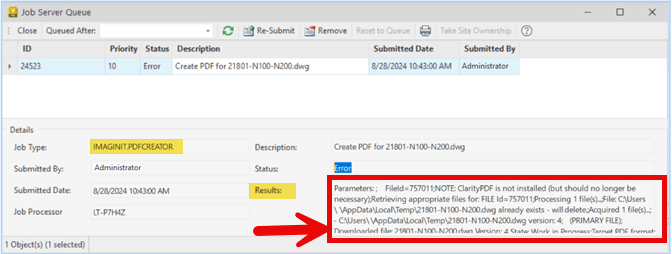
At the end of the “Results” notification, there may be an error that states “Error: ApplicationException: The AutoCAD process did not create the output file”. See example text below of the entire Job Queue error.
Parameters: ; FileId=757011;NOTE: ClarityPDF is not installed (but should no longer be necessary);Retrieving appropriate files for: FILE Id=757011;Processing 1 file(s)...;File: C:\Users\<username>\AppData\Local\Temp\21801-N100-N200.dwg already exists - will delete.;Acquired 1 file(s)...; - C:\Users\<username>\AppData\Local\Temp\21801-N100-N200.dwg version: 4; (PRIMARY FILE);Downloaded file: 21801-N100-N200.dwg Version: 4 State: Work in Progress;Target PDF format: [OriginalFileName] [Date].pdf;Target PDF name: 21801-N100-N200 2024-08-28.pdf;Exception during PrintFile: ApplicationException: The AutoCAD process did not create the output file: C:\Users\<username>\AppDataLocal\Temp\21801-N100-N200 2024-08-28.pdf;Retrying, count=1;Exception during PrintFile: ApplicationException: The AutoCAD process did not create the output file: C:\Users\<username>\AppData\Local\Temp\21801-N100-N200 2024-08-28.pdf;Max # of retries exceeded.;Error: ApplicationException: The AutoCAD process did not create the output file: C:\Users\<username>\AppData\Local\Temp\21801-N100-N200 2024-08-28.pdf
Common troubleshooting steps can be found in the blog below.
If the troubleshooting steps above are not helpful, then please review the problem and solution below.
Causes:
The cause of the new issue is related to a missing IMAGINiT.VaultJobs.Acad.dll file from the Utilities for Vault Client 2020-2026 folders. To check if the missing IMAGINiT.VaultJobs.Acad.dll is the cause of the problem you are experiencing, open File Explorer on the Job Processor system and go to the user Temp folder. Find the recent VaultAcadLogXXXXXXXXXXXXXXXX.txt. See example below.
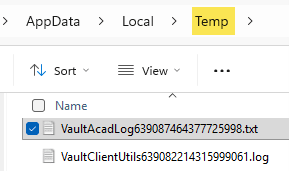
Open the file with Notepad and look for “The system cannot find the file specified. File name: 'C:\ProgramData\Autodesk\Vault 2026\Extensions\IMAGINiT.VaultJobs\IMAGINiT.VaultJobs.Acad.dll'”

This indicates the file IMAGINiT.VaultJobs.Acad.dll is missing from the expected location.
Solution:
The IMAGINiT Utilities for Vault Client installs files for Vault versions 2020 through 2026. The problem occurs because the file ‘IMAGINiT.VaultJobs.Acad.dll' is missing from the IMAGINiT.VaultJobs folder for Vault 2025 and Vault 2026. The file ‘IMAGINiT.VaultJobs.Acad.dll' should exist in older version Vault folders. To resolve the problem, place a copy of the missing file into the Vault 2025 or Vault 2026 folder.
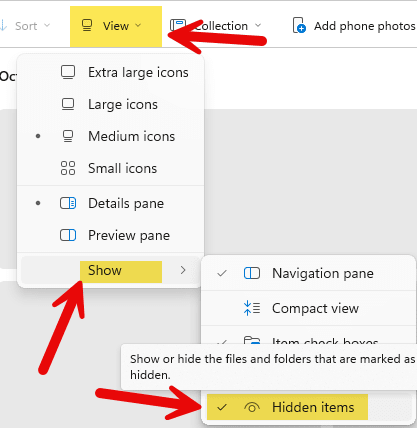
- Open File Explorer and navigate to C:\Program Data. The C:\ProgramData folder is a hidden folder. If you do not see the folder, then turn on Hidden Files. In File Explorer, go to View>Show> and check Hidden Files.
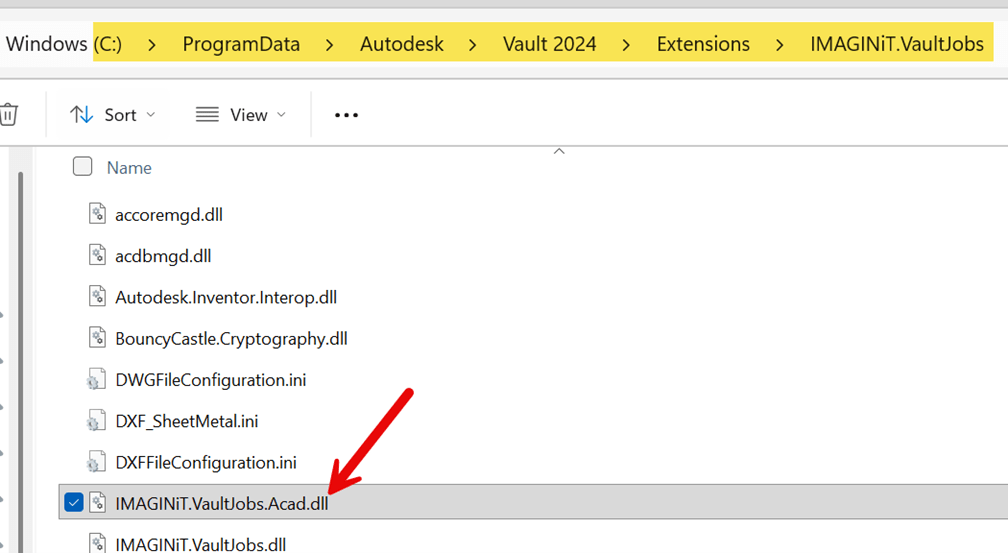
- Navigate to C:\ProgramData\Autodesk\Vault 2024\Extensions\IMAGINiT.VaultJobs, find and select the IMAGINiT.VaultJobs.Acad.dll, and copy the file.
- Depending on the version of your Vault Job Processor, copy the file to the appropriate folder.
If you are using Vault 2025, go to C:\ProgramData\Autodesk\Vault 2025\Extensions\IMAGINIT.VaultJobs
If you are using Vault 2026, go to C:\ProgramData\Autodesk\Vault 2026\Extensions\IMAGINiT.VaultJobs - Paste the IMAGINiT.VaultJobs.Acad.dll file, originally from the Vault 2024 folder, into the appropriate folder that matches your Vault Job Processor version.
- The Job Processor must be completely stopped and restarted to recognize the recent changes. Open the Job Processor, go to File>Pause, and then File Exit, to ensure the Job Processor is completely stopped.
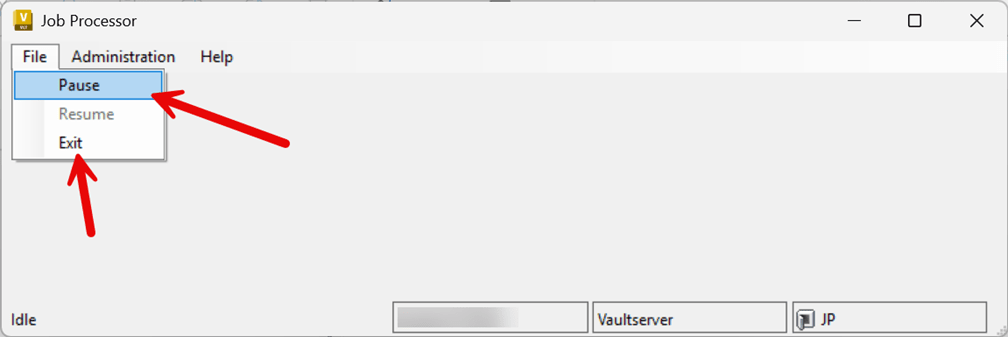
- Restart the Job processor and resubmit the IMAGINiT.PDFCREATOR job that failed.
The job should now process because the IMAGINiT.PDFCREATOR job is able to find the required files.
About the Author
Follow on Linkedin More Content by Shawn Heator


