

Applies to:
All AutoCAD-based Products
Issue:
Running Recover on a drawing shows an AcDbSpatialIndex error was present and repaired:

Audit will not show this, only Recover
Saving the file, closing and reopening with recover shows the issue again.
Causes:
This error stems from a fundamental corruption in how the AutoCAD DWG indexes its data. Because the internal database structure is compromised, the standard Recover command won't fix it.
The file is essentially "unrecoverable" and typically triggers the following issues:
• System instability: Frequent crashing when adding or modifying drawing data
• Integration failures: Errors when attempting to insert the file into another drawing
• Xref limitations: An inability to bind the DWG as an External Reference
Solution:
The only way to cleanly fix the issue and keep all your data is to WBLOCK (Write Block) out the drawing into a new one, then run recover on that file to ensure there’s no other issues.
The process is straight forward and simple.
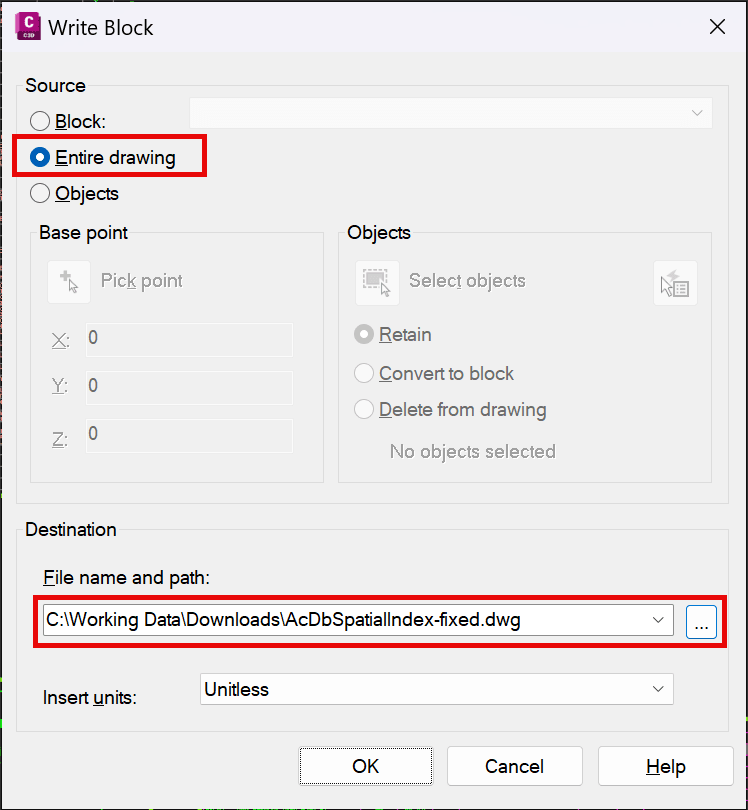
1. Type in WBLOCK into the command line (not BLOCK)
2. Set the Source to Entire Drawing and change the File Name and Path to a location and name that makes sense and is easy to find:
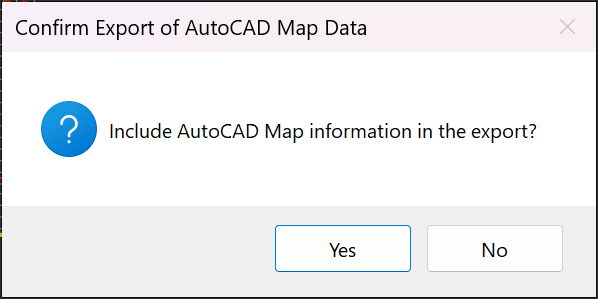
3. Then click OK, if this prompt comes up, click Yes:
4. Now you can close this file and open the WBLOCK’d out file with RECOVER and see if the issue is now gone.
Things to be aware of:
1. When WBLOCKing the entire drawing the following apply to the new file:
a. Saves Model space and all layout tabs
b. Saves any styles (text, dimension, table, multileader), that are current or in use
c. Keeps the assigned coordinate zone and units
d. If using Civil 3D
i. It will save in-use or default Civil 3D styles only
ii. Removes Object Layers
2. If you choose to only WBLOCK selected Geometry the following apply:
a. Saves Model space only and only what was selected
b. Saves any styles (text, dimension, table, multileader), that are current or in use
c. Keeps the assigned coordinate zone and units
d. If using Civil 3D
i. It will save in-use or default Civil 3D styles only
ii. Removes Object Layers
iii. Some Gravity or Pressure network parts may be deleted
iv. It will break Pressure Pipe Runs and convert them to parts-based networks
About the Author
Follow on Linkedin More Content by Ryan Wunderlich


