

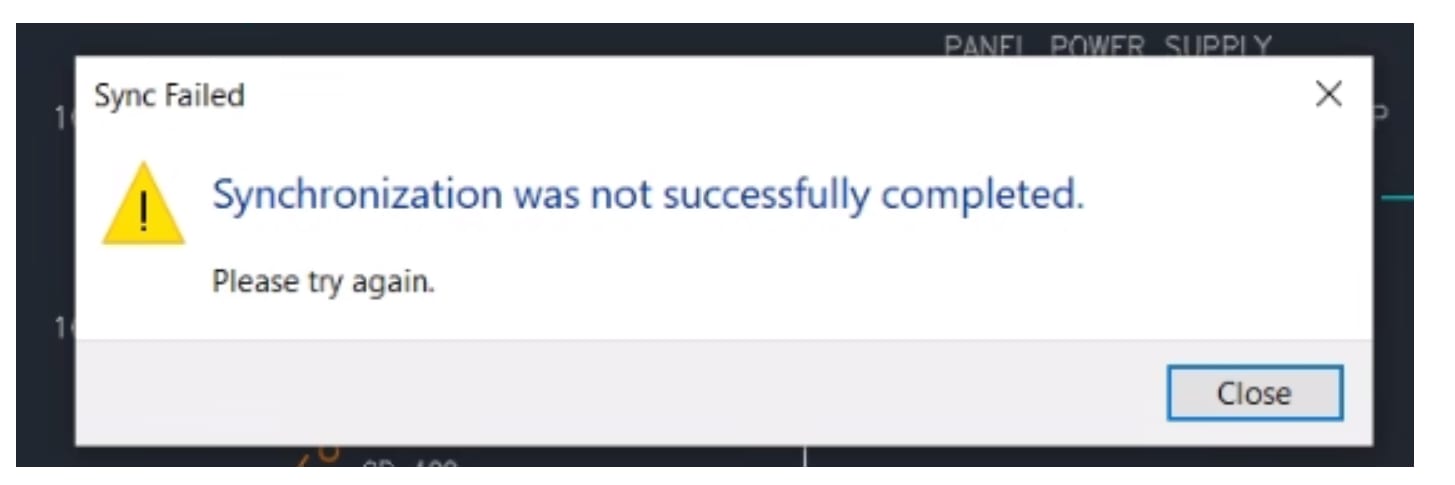
Issue: What Kind of Error is This?
This is a database conflict and data-link timing exception between the 2D schematic environment and the 3D physical modeling space.This can occur whether or not Autodesk Inventor is being used. The message is related to how AutoCAD Electrical handles electromechanical data updates.
AutoCAD Electrical uses a background engine to continuously track changes in your schematics and feed that metadata into an Electromechanical Link (.EMX) file. This file acts as a bridge, allowing Autodesk Inventor to read the electrical logic and route physical cables, wires, and harness assemblies in real-time. When the background sync thread loses its connection to this .EMX bridge, the software throws the synchronization error.
Causes: Why Does This Error Show Up?
The underlying cause is almost an interrupted or blocked communication pipeline between the two programs. The most common technical reasons include:
• Background Thread Failures: AutoCAD Electrical tries to update the .EMX file silently in the background. If a network blip or database lock occurs, the background thread hangs.
• Version Mismatch: AutoCAD Electrical and Autodesk Inventor are running different release versions (e.g., Electrical 2025 trying to sync with Inventor 2026). The data bridge templates are version-locked and will fail instantly if mismatched.
• Cloud Storage File Locking: The active project directory or the shared .EMX file path is hosted on a cloud-sync platform (like Microsoft OneDrive or SharePoint). The cloud tool locks the file during an automatic backup, preventing AutoCAD or Inventor from writing to it.
Solution: The primary solution is to change the electromechanical data update mode.
By default, the software tries to sync changes on a background loop. Forcing it into the foreground stabilizes the link and prevents background crashes.
1. In AutoCAD Electrical, go to the Command Line.
2. Type AEEMXDATAUPDATEMODE and press Enter.
3. Change the value from its default state (0) to 1 and press Enter.
4. Restart AutoCAD Electrical and test the project again.
Note: Changing this to 1 does not disable your link! It simply tells AutoCAD to actively push/pull data during explicit commands rather than letting a silent background thread crash your workspace.
This fixes the error mostly.
If the Issue Persists
If changing the update mode does not resolve the issue, verify that:
• AutoCAD Electrical and Inventor are using the same release version.
• The .EMX file is accessible and has not been moved or renamed.
• If using Vault, the .EMX file is not checked out by another user.
• The project files can be accessed from their expected locations.
These checks can help identify whether the synchronization problem is related to the update mode or to access to the electromechanical project data.
About the Author
More Content by Harpreet Waraich


