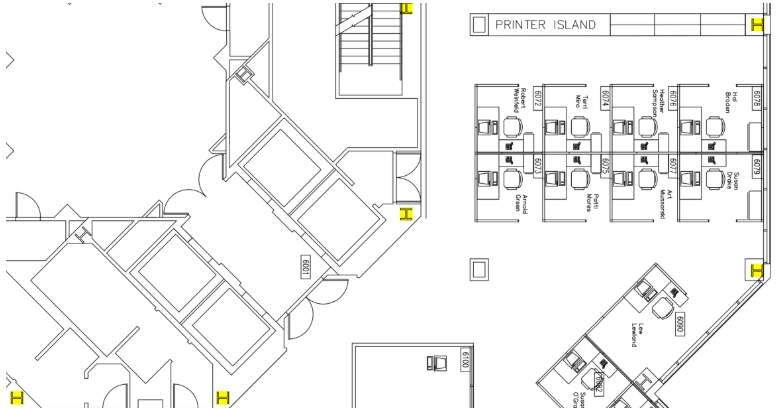
The Search by Visual function provides a streamlined workflow for tasks such as counting fixtures, verifying locations, and performing other graphical analyses. VisualSearch™ enables you to locate matching graphical symbols and shapes within PDF documents.
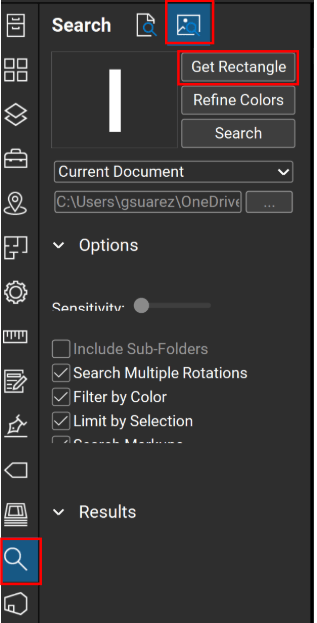
To define the search criteria, select Get Rectangle, then draw a bounding box around the symbol or graphic you want to identify throughout the document.
In the Search Panel > Visual > Get Rectangle > Make selection in PDF
In this Example you can see I searched for a Wide Flange Column--
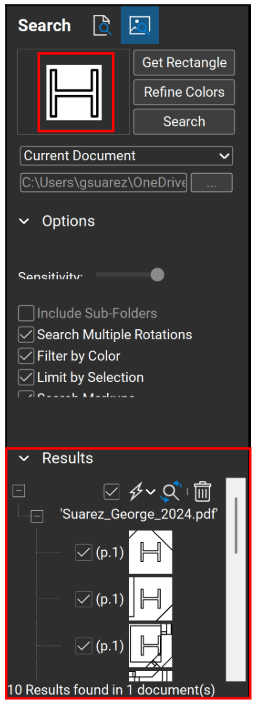
In the  Actions Menu: Apply commands to all selected items or to individual results
Below,  Highlight Checked: Applies a Highlight markup to each result selected.
As illustrated in the example of a Wide Flange Column Visual Search below, this functionality can be applied in various ways depending on the specific use case or workflow requirements.