

Issue:
You have a Table in AutoCAD that has some or all cells showing a solid background that does not match the layer settings, and you are unable to remove the background color, making the table difficult to read.

Causes:
For the case we will look at in this example, the issue is caused by cell formatting in a Datalinked Excel spreadsheet that has been inserted into the AutoCAD drawing.
Solution:
If you're using Data Links, then check your settings as shown below. The cells that show in white are likely getting the Fill from the Excel formatting.
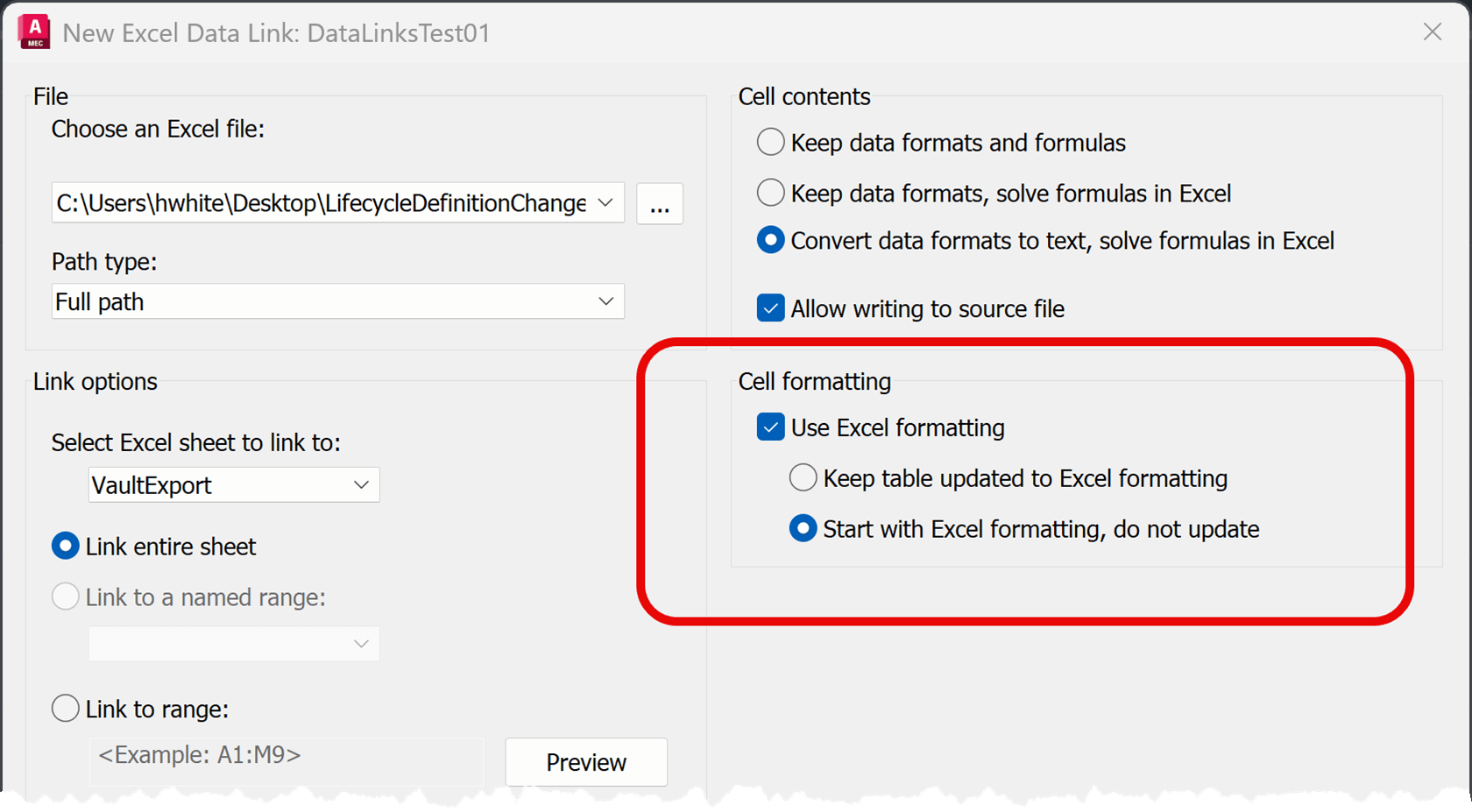
If the settings are as shown in the image above, you will need to switch to “Keep table updated to Excel formatting” in order for changes to the spreadsheet to carry over to your drawing.

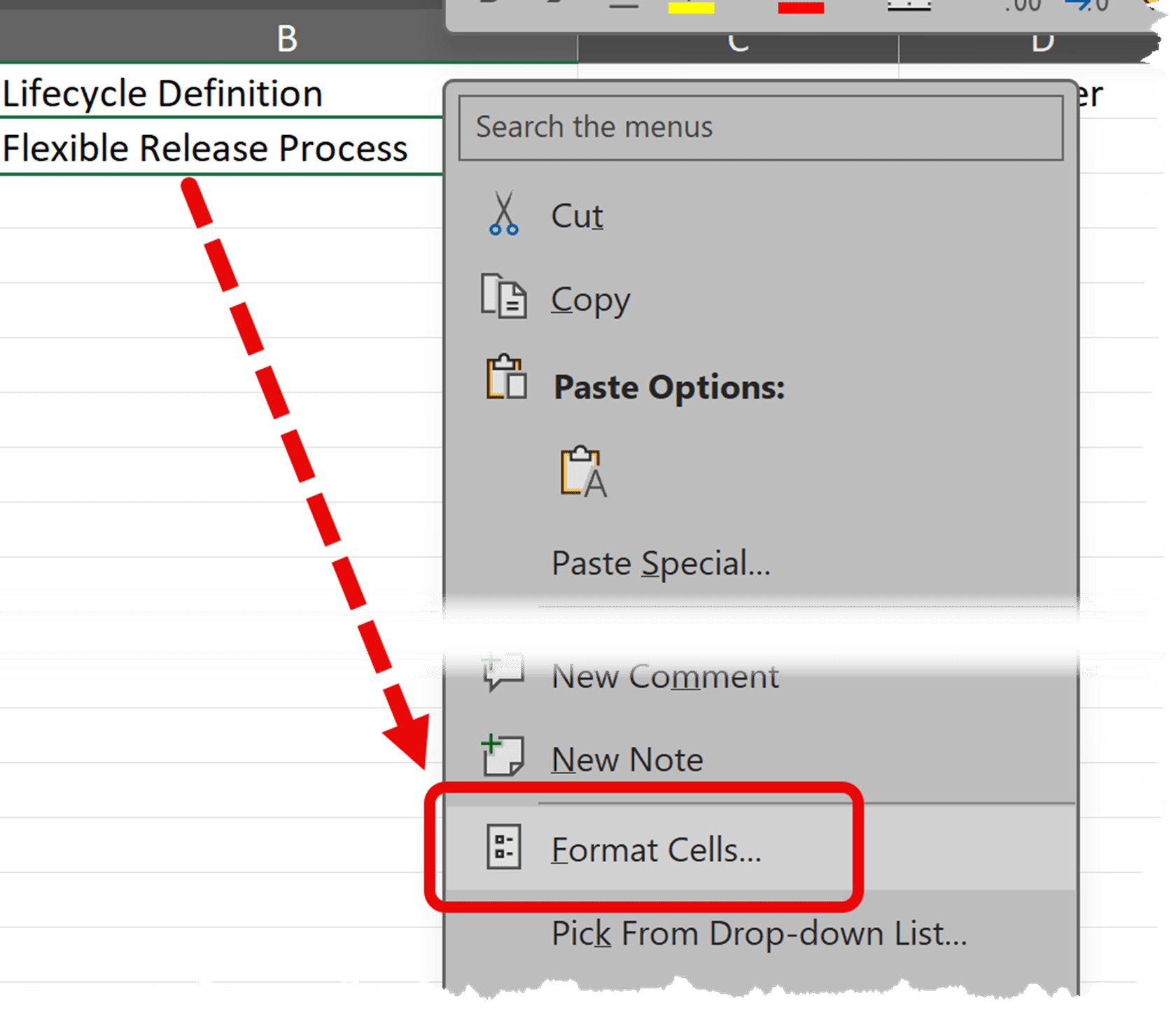
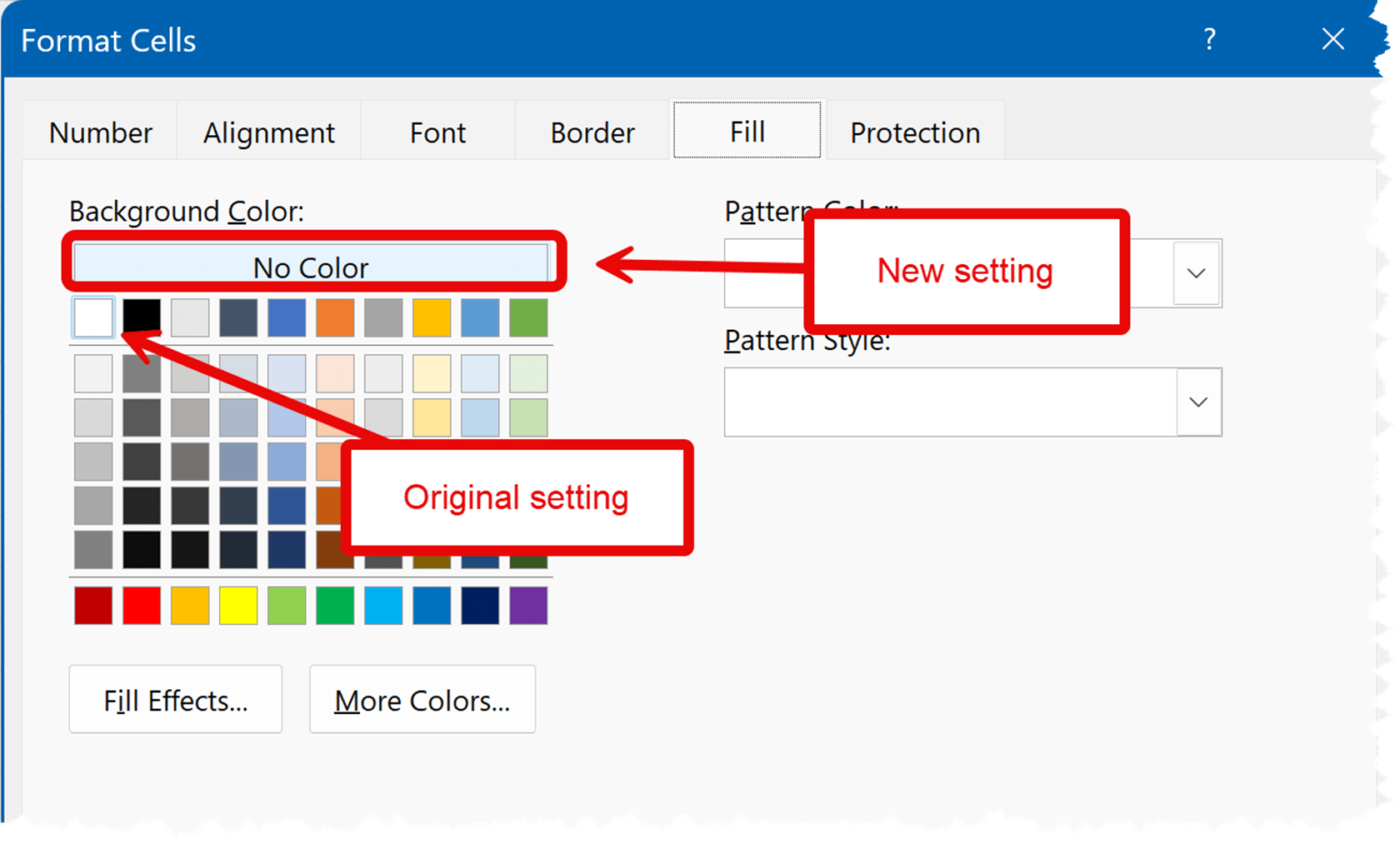
Open the linked Excel file and select the cells that show a background Fill, then edit their format:
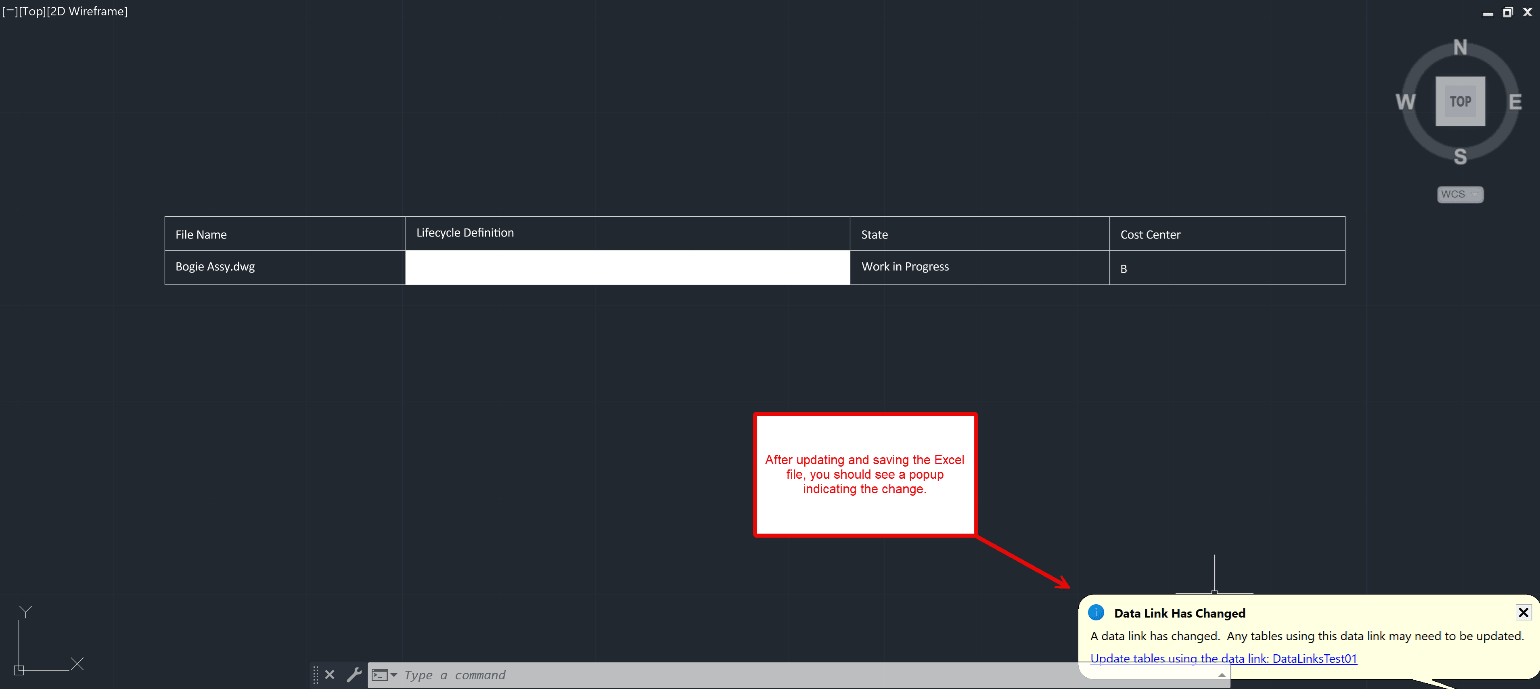
If you don't get the notification, you can edit the table and retrieve the update.

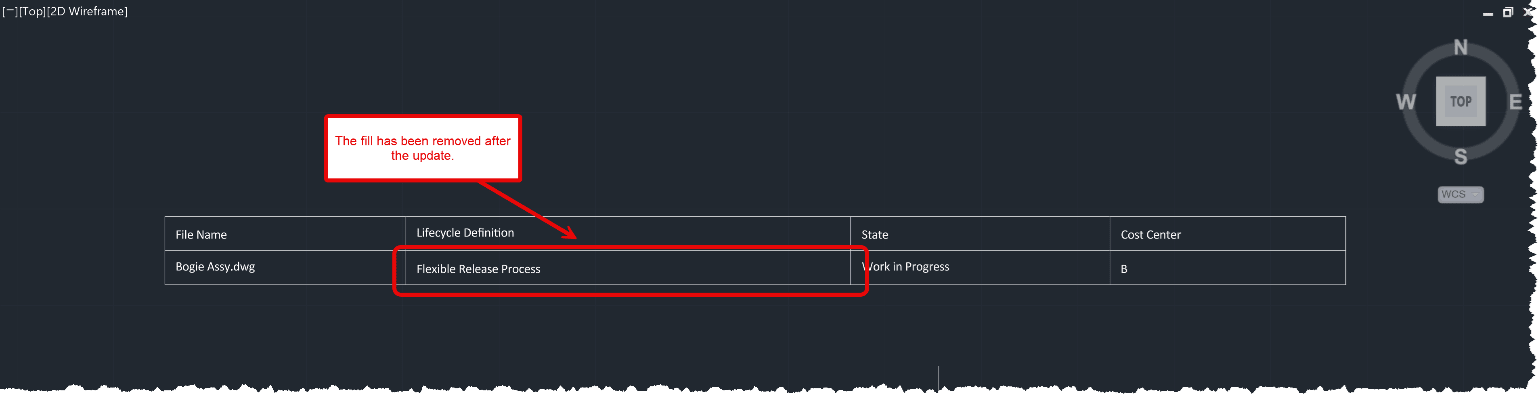
If you don’t see the “Table Cell” Tab when selecting your table, you do not have a Datalinked Table inserted. When you have a Datalink table inserted, the "Table Cell" Tab will become available if you Left-click on one of the cells within the Table. That will activate the tab you're looking for, and the "Data" panel will be the last panel on the right in the ribbon, on the “Table Cell" Tab.
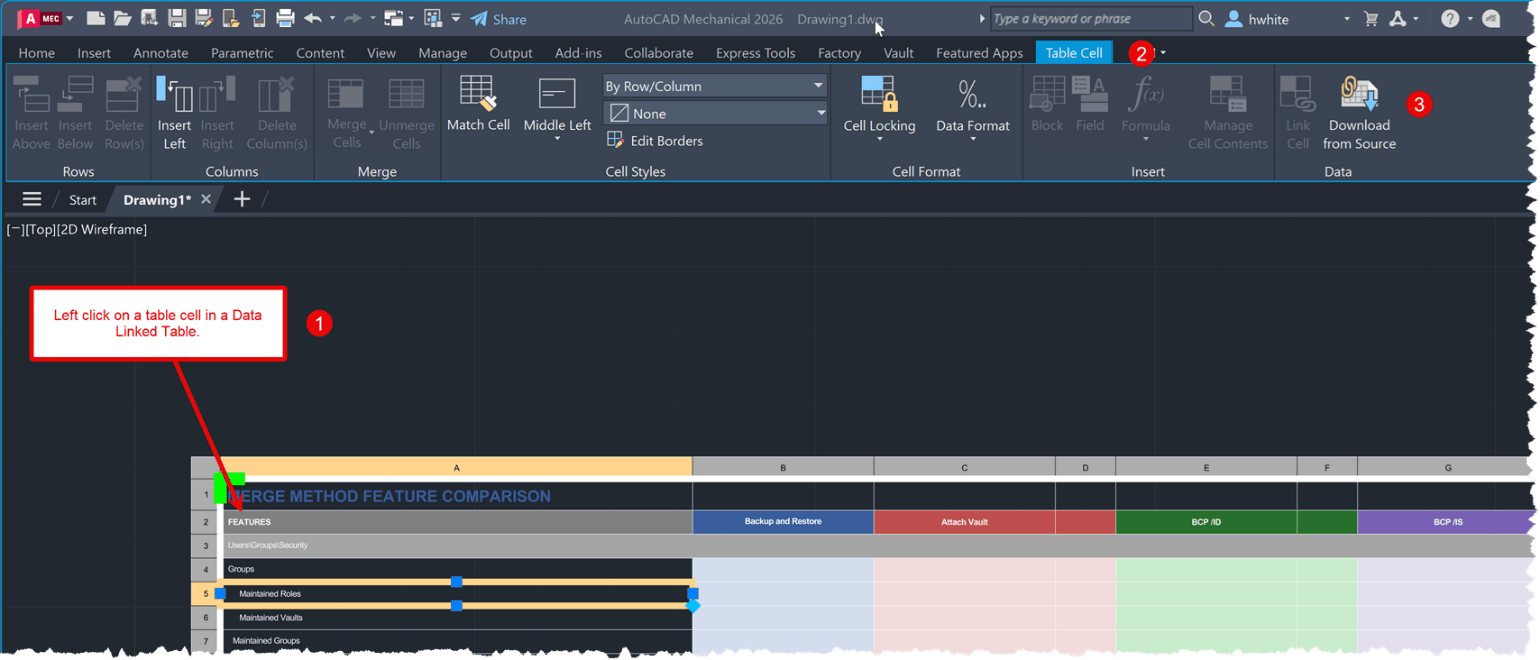
You can also input the "DATALINKUPDATE" command at the command line, which cause the linked data to update the table as well.

About the Author
Follow on Linkedin More Content by Heath White


