

Issue:
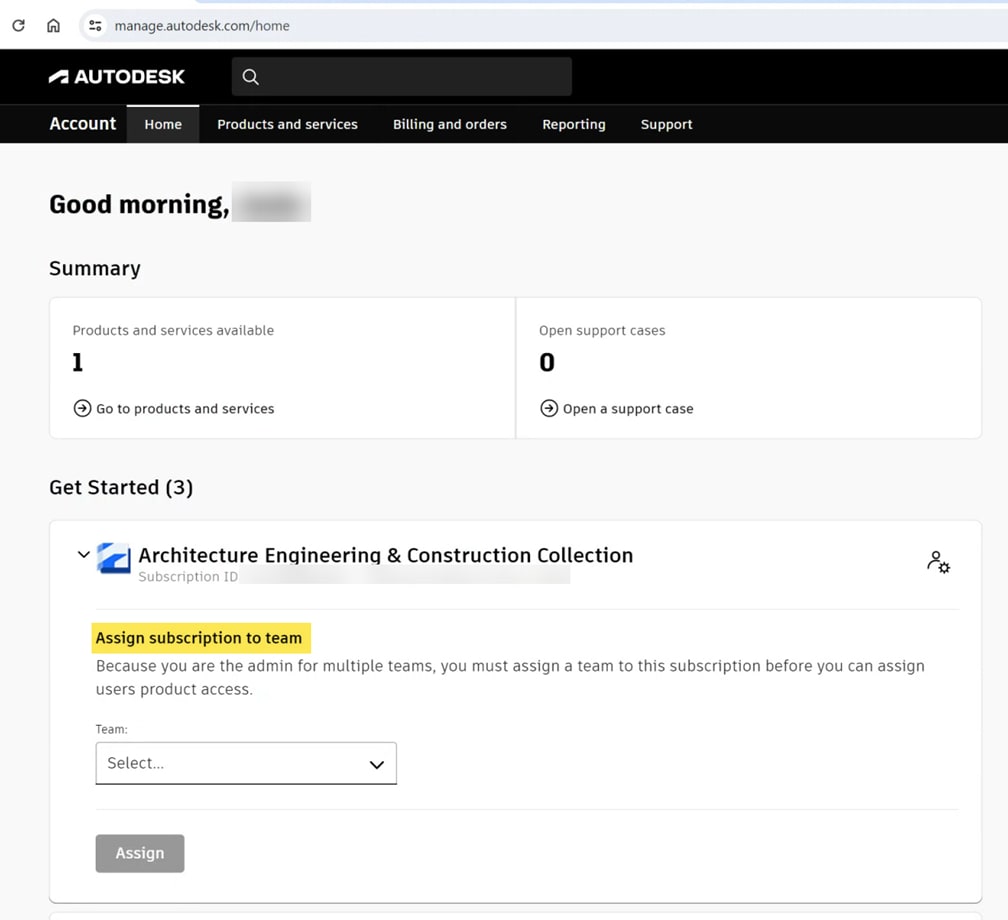
After purchasing an Autodesk subscription, the Autodesk Home page shows “Assign subscription to team”. The license is unable to be assigned to a user. The example image below shows a Team needs to be selected to assign the subscription. In this example, the “User Management” section is missing from the account because there is only one seat and it has not been properly assigned to a team.
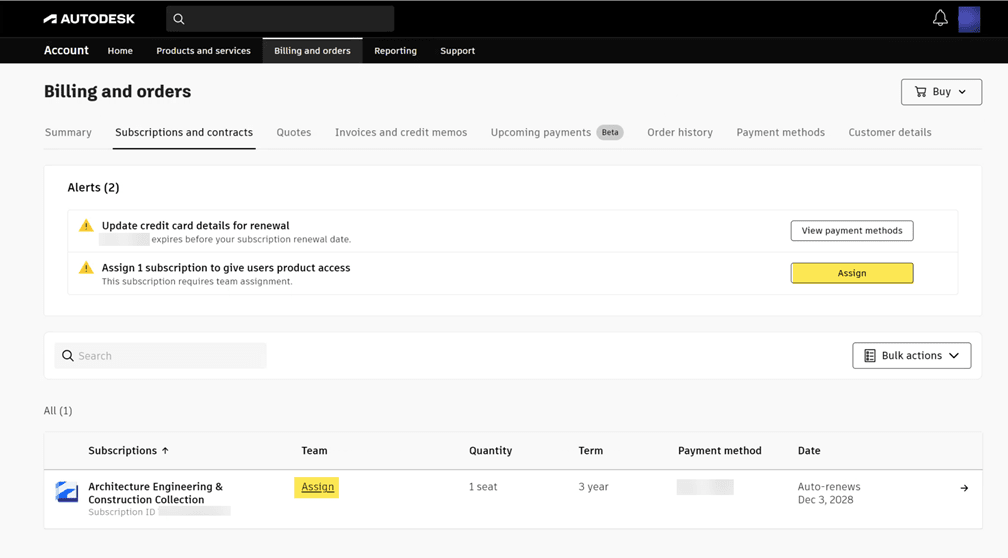
The image below, from Billing and orders> Subscriptions and contracts, also shows the subscription needs to be assigned. Notice the Team name is missing and is replaced with the Assign option.
Causes:
The license was purchased and associated to an Autodesk Admin account but the license was never associated to an Autodesk Team. Since the license is not associated to a team, a user cannot be assigned to the license.
Solution:
The license must be assigned to a Team.
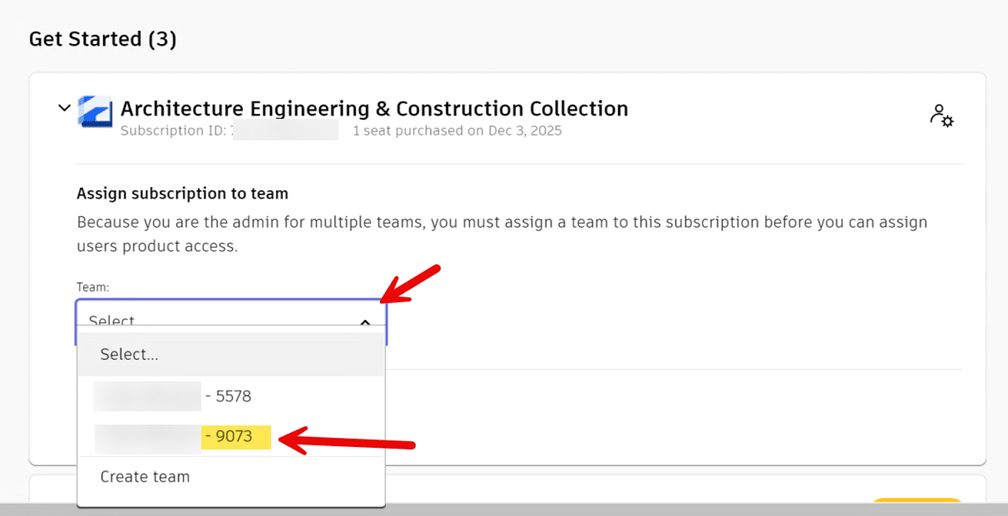
1. From the initial Home screen, select the drop down arrow and select the desired Team for the license.
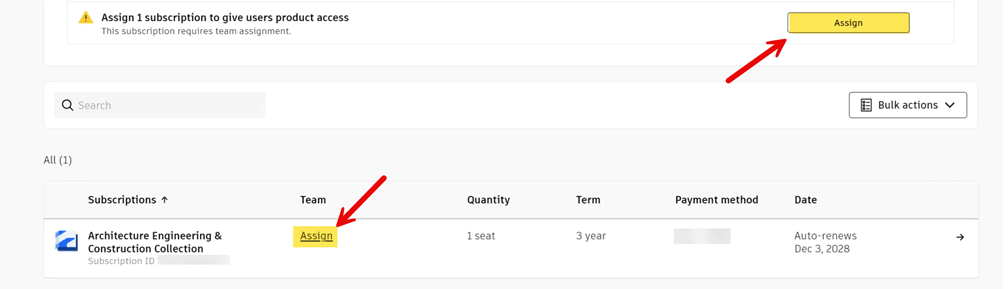
Or from the Contracts and Subscription page, select Assign.
2. Select the checkbox for the unassigned subscription that needs to be assigned to a Team. The image below shows the AEC Collection license has been selected.
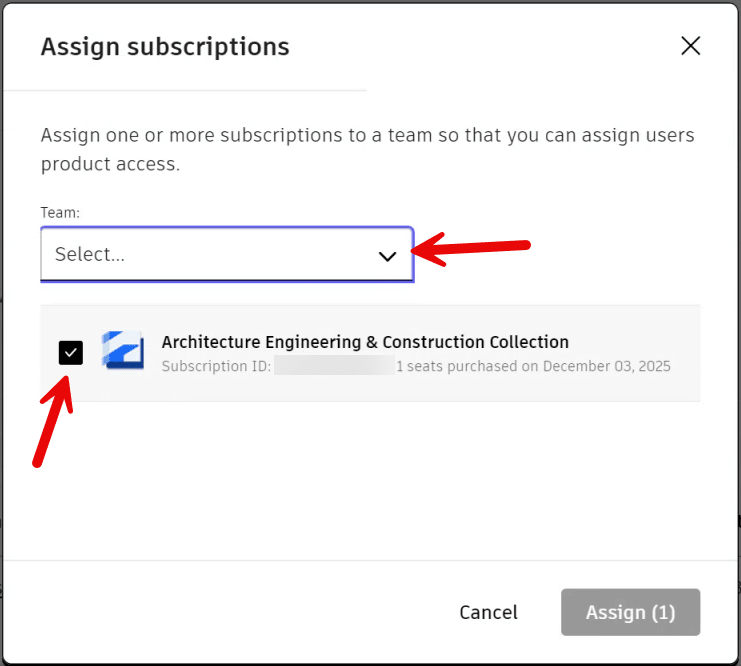
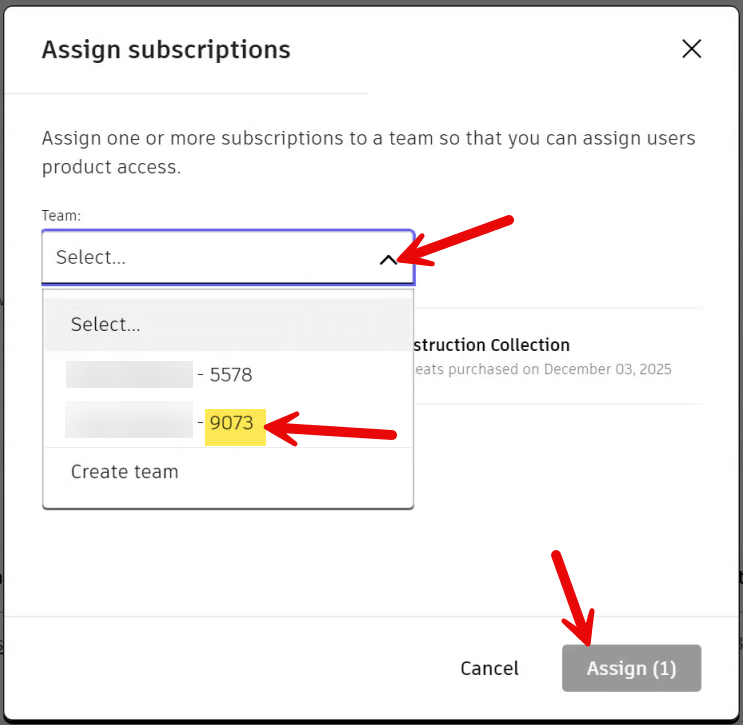
3. Select the drop arrow to select the desired Team. Then select Assign.
4. As shown in the image below, the license is now associated to a team.

After the license is assigned to a team, it may take a minute or two for the license to sync to the Team. If the products are not visible in Products and Services, either refresh the web page or close the browser and sign back into your account. This will refresh the account status and the license should be available to be assigned.
About the Author
Follow on Linkedin More Content by Shawn Heator


