

Problem:
You need to create a Scheduled Update Policy for your Autodesk software that can be applied to your users within the Autodesk Portal.
Solution:
- Access the Scheduled Updates Section:
Log in to the Autodesk Portal and navigate to Products and Services > Scheduled Updates. - Create a New Policy:
Select Create Policy. -
Configure Policy Settings
-
Enter a descriptive name for the policy.
-
From the policy type dropdown menu, select Schedule Updates.
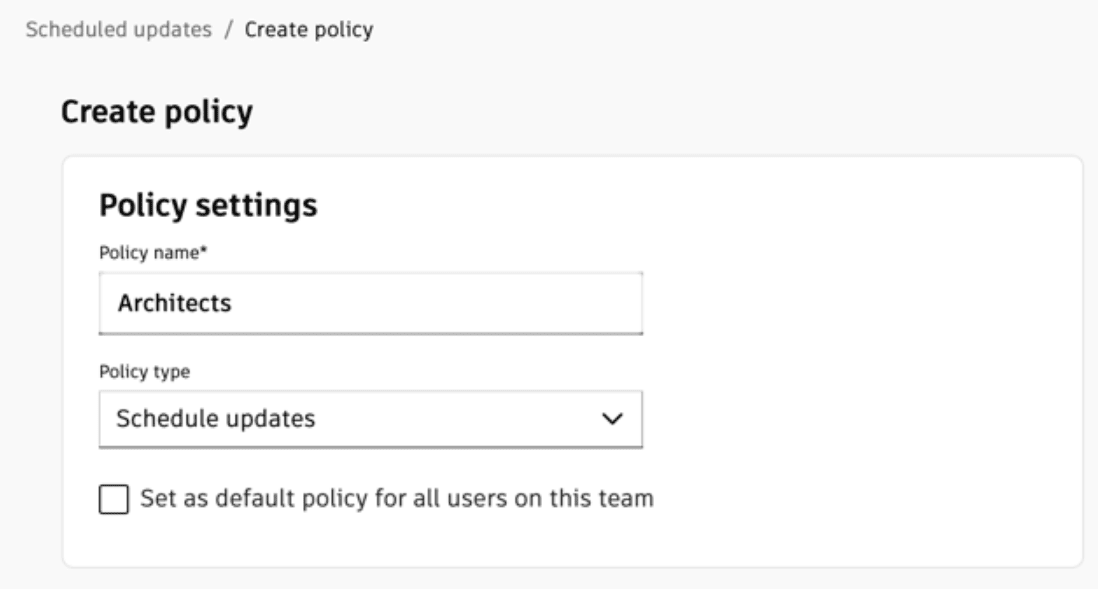
-
-
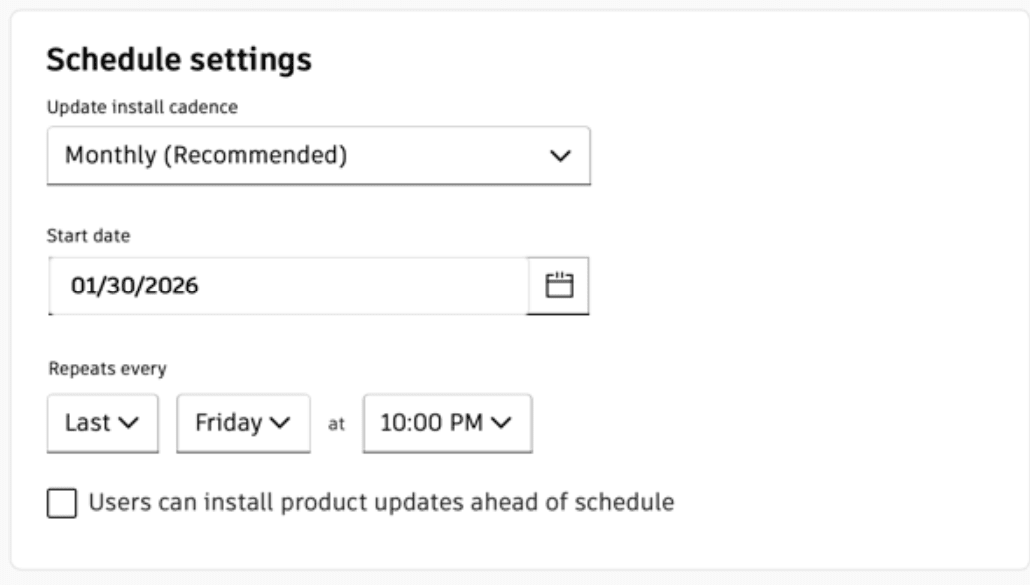
Define the Update Cadence
Under Schedule Settings, select the desired installation cadence from the dropdown menu. Available options include:-
Weekly
-
Monthly
-
Quarterly (once every three months)
-
-
Set the Schedule Parameters
-
Select the start date.
-
Specify the day and time at which updates will recur.
Important: The selected start date must be at least 48 hours from the time of configuration.
-
- Allow Early Installation (Optional)
If users should be permitted to install updates prior to the scheduled time, enable the option:
Users can install product updates ahead of schedule. -
Assign Users or Groups
Under Assigned Users, select the individual users or user groups to which the policy will apply.To create a new group, navigate to:
User Management > By Group, then select Create Group. - Select Products and Versions
Under Updates to Schedule, choose the products for which updates should be managed.
If multiple versions of a product are available, specify the version(s) to be included in the policy. - Finalize the Policy
Select Create in the bottom-right corner of the screen to complete the policy configuration.
About the Author
Follow on Linkedin More Content by Derek Piccininni


