

Applies to:
Vault
Issue:
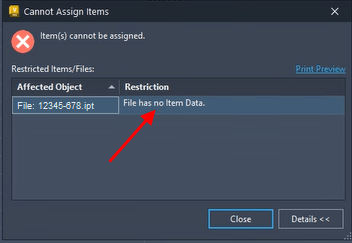
Right clicking on file to Assign/Update Item… produces Error.
Causes:
CAD files added to the Vault using non-approved methods are missing data.
Solution:
Assign file to new Item produces Error: File has no Item Data
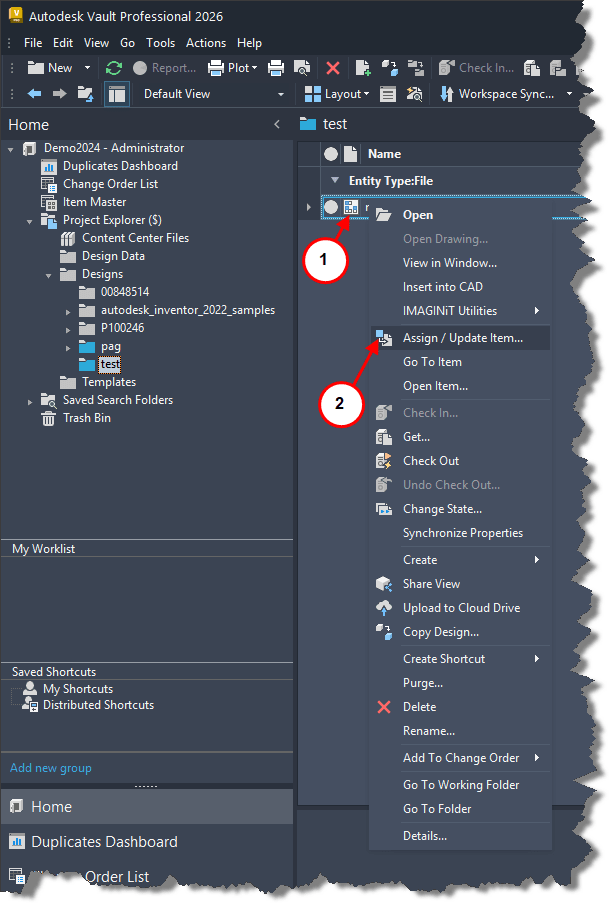
1. Right click on a CAD file in Vault.
2. Selecting Assign / Update Item…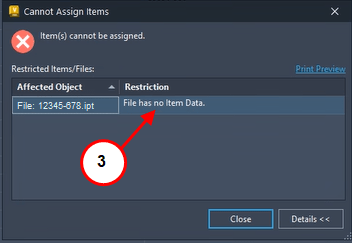
3. Produces Error: File has no Item Data.
The correct way of resolving this error is to open the file with the program it was created with. Check the file out, save the file and check the file back into Vault. The following setting should only be used if tested and verified, it could cause issues with existing files and items. Disabling the setting will allow the Files with no Item Data to be assigned to an Item. 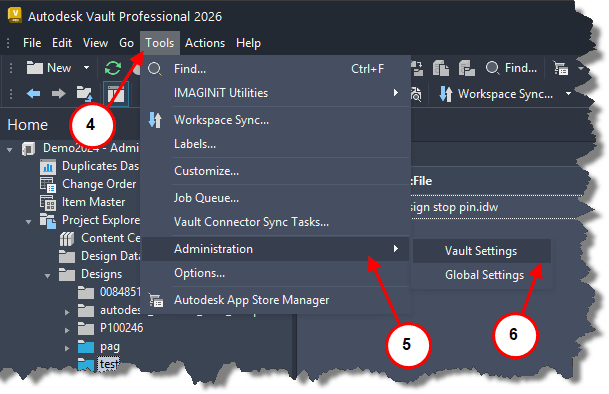
4. Select Tools.
5. Select Administration.
6. Vault Global settings. 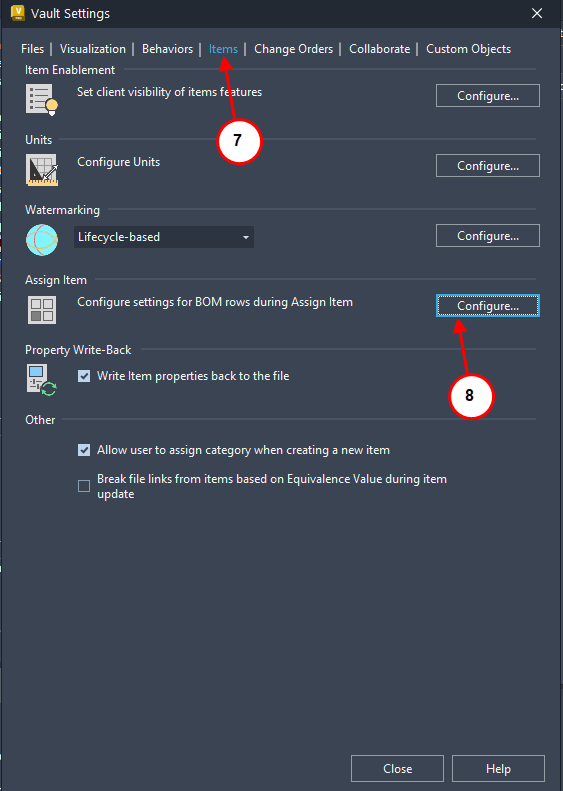
7. Select Items tab.
8. Select Configure…
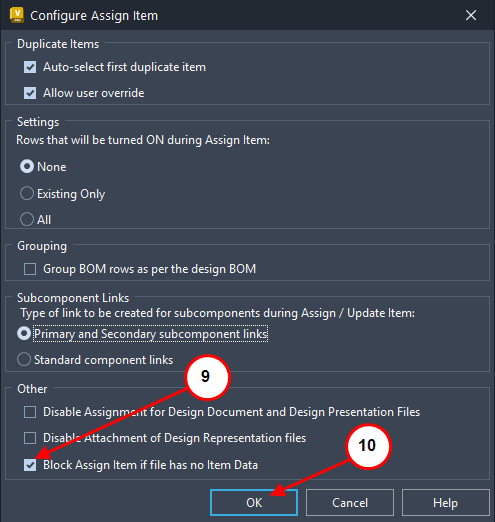
9. Uncheck Block Assign Item if file has no Item Data selection
10. Select OK and close previous menus.
Disclaimer: This setting could cause unexpected results.


