ACC: How to Customize Logo on Project Reports

February 28, 2026 Jeremy Smith

Issue:
Reports in BIM 360/ACC projects display the logo associated with the ACC Account by default.  Users want to have a project=specific logo appear on the report.

Cause:
This behavior is working as designed.  It is not possible to change the logo on reports on the BIM 360 platform.  However, it is possible to customize the logo on ACC.

Solution/Workaround:

  1. From within the project on ACC (acc.autodesk.com), select Insight from the Module Selector on the upper-left.

  2. Select Reports.

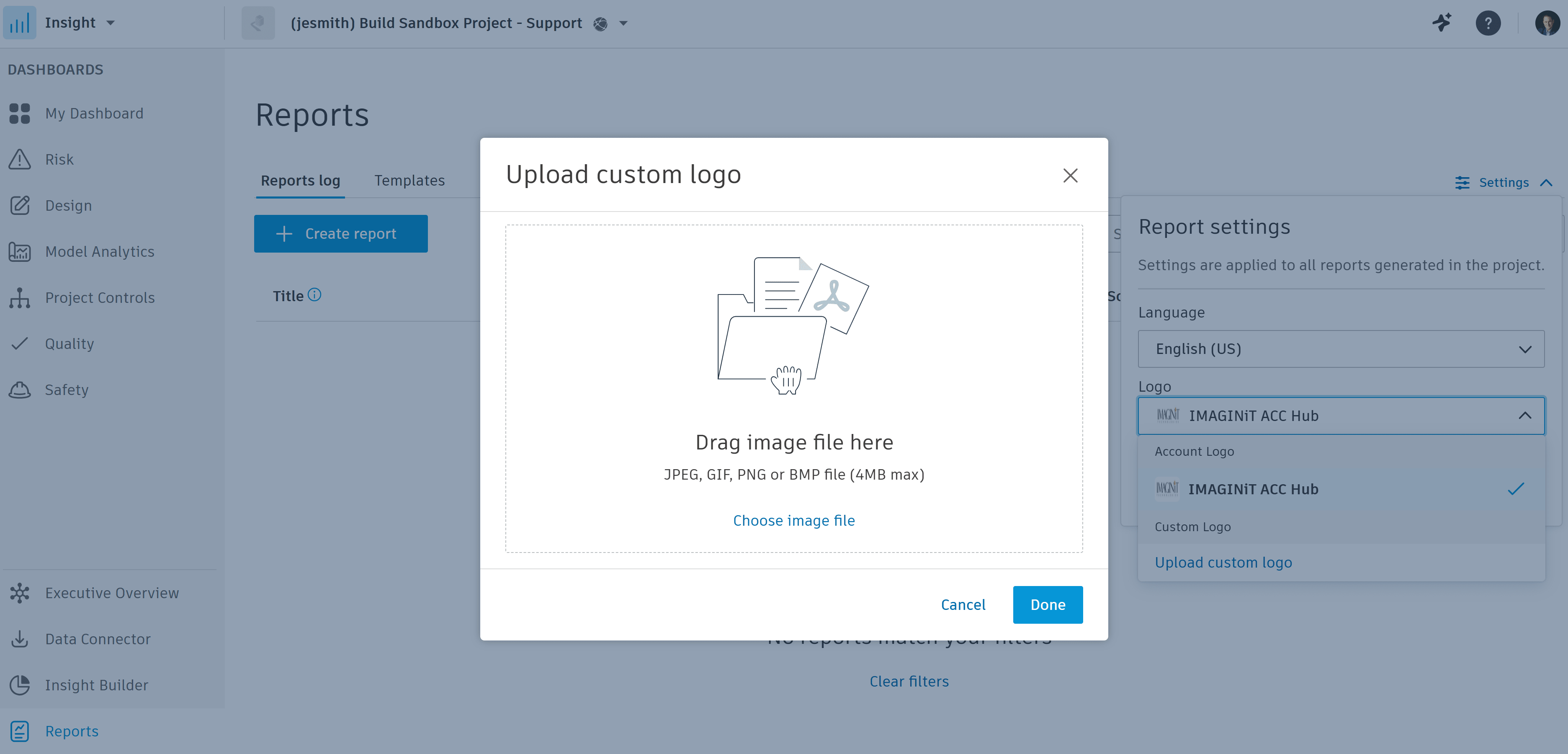
  3. Select Settings and then click on the Logo pull-down and select Upload custom logo.

  4. Drag the image or select "Choose image file" to browse to the image file.

  5. Select the image and select Open.

  6. Select Done.

About the Author

Jeremy Smith

Sr. Technical Support Specialist, AEC<br><br>Jeremy has been delivering service and technical support to customers in the AEC industry for over 25 years. He gained much of his AutoCAD/Revit experience serving as CAD Manager at multiple MEP/FP engineering firms in the Greater Boston Area. He then worked at Autodesk as a Technical Support Specialist, eventually becoming a manager overseeing the Revit and Vault support teams. Jeremy is excited to be in his current role as Sr. Technical Support Specialist at IMAGINiT, as it allows him the opportunity to work directly with customers every day and help them successfully leverage Autodesk’s solutions to achieve their business goals.

More Content by Jeremy Smith
Previous Article
ACC:  Docs Subscription Not Available to Assign on ACC Platform
ACC: Docs Subscription Not Available to Assign on ACC Platform

Next Article
Unsupported Products using AllowSystemContextInstall Installs via Access

×

Get Tips Delivered.

Subscribe to Email Updates.

First Name
Last Name
Country
Thank you!
Error - something went wrong!