

Issue:
Autodesk has recently introduced a new feature, in User Management, that allows an Autodesk Admin to assign an Autodesk user to a specific subscription instead of a “Pool” of licenses.
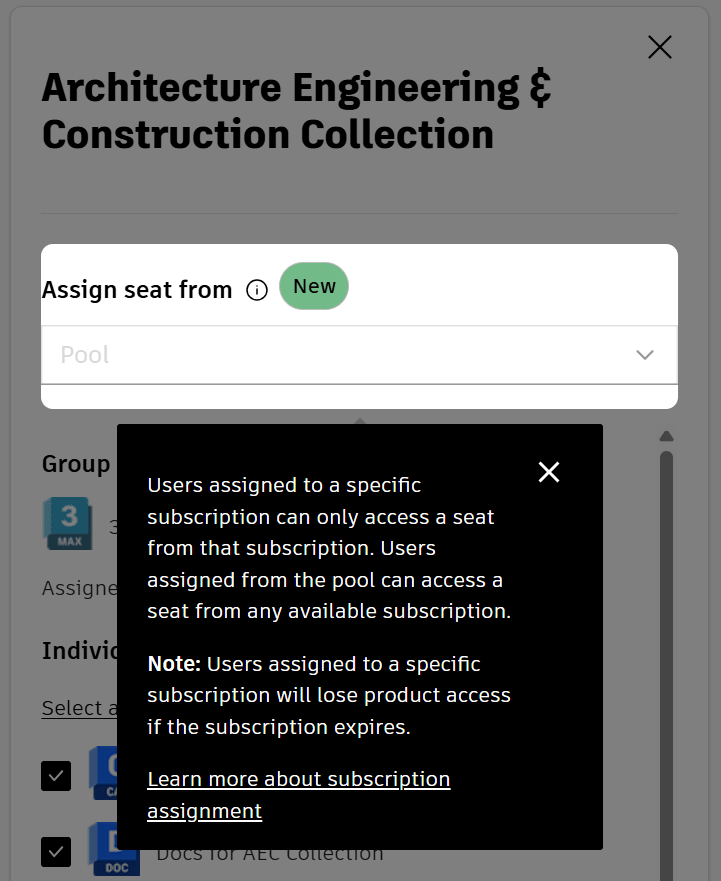
Until now, all Autodesk licenses were using the "Pool" method and there was no option to assign a user to a specific subscription with a specific expiration date. The “Pool” method groups similar licenses together, regardless of expiration date, into a large group of licenses. A user assigned to the “Pool” of licenses will not know which subscription they are using. If some licenses in the pool expired, then the user would automatically be assigned to an active license in the pool.
The “Pool” method usually did not cause a problem unless a subscription was not being renewed. If a user's license expired, the total number of licenses in the pool would go down. In theory, the user's license should automatically switch to an available active license in the "pool" of licenses. However, a problem could occur if there were more users assigned to pool licenses than active subscription licenses. The subscription licenses would then be over-assigned, and admins would need to review the user assignment. It is possible a user could encounter a licensing error if licenses were over assigned.
In some instances, an organization may want to associate specific users with specific licenses. This is common when licenses are purchased for a specific project. By specifying a specific subscription to a specific user, Autodesk admins can ensure the correct license is assigned to the correct user. With the introduction of the new feature, a user can still be assigned to the "Pool" of available licenses, or they can be assigned to a specific subscription.
Solution:
The instructions below can be used to change the default user licensing assignment from “Pool” to a specific subscription.
1. Log into an Autodesk admin account at https://manage.autodesk.com.
2. Go to User Management.
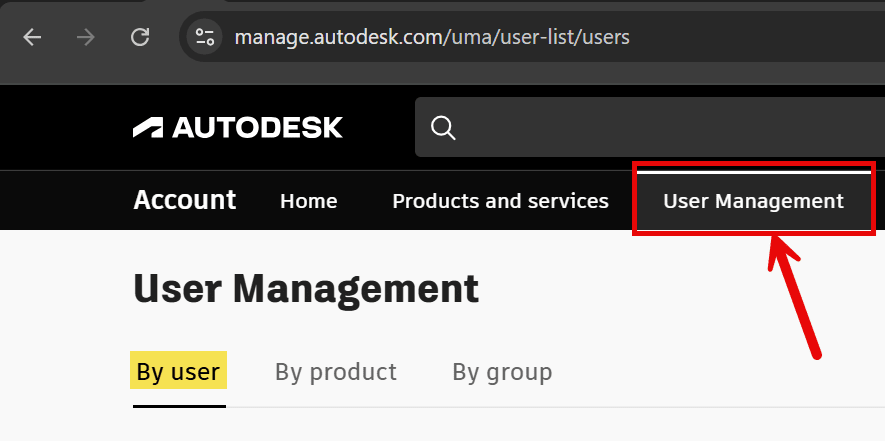
3. Select a user to view the license assignment.
4. Select the angle bracket symbol on the right side of the license.

5. Then select the caret in the “Pool” dialog box to display available subscriptions. See example image below that displays multiple subscription options for the user to be assigned. In the example image below, the checkmark shows the user is assigned to the "Pool" of licenses.
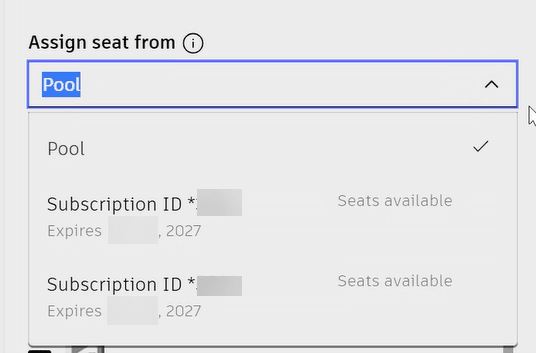
Select the desired Subscription ID for the user so the checkmark changes from the Pool selection. The user will now only have a license from the assigned subscription ID instead of the “Pool” method.
About the Author
Follow on Linkedin More Content by Shawn Heator


