

Issue:
IMAGINiT Utilities: How to Authorize your IMAGINiT utilities.
Causes:
Authorization Network and Standalone version of IMAGINiT Utilities.
Solution:
When you install the Utilities on the user system. You will be asked to Authorize the Utilities. (See Figure 1)
• This will also happen when you attempt to use the Utilities.
• You can also go to C:\ProgramData\Autodesk\ApplicationPlugins\IMAGINiT.RevitUtils<or utility in question>.bundle\Contents and double click LicenseRequester.exe.
All three methods will start the LicenseRequester.
How to Authorize Standalone IMAGINiT Utilities
- Select the Button that says, “Activate Standalone with Authorization Code”. (See Figure 2)
- Type in the Code you were sent when you requested the Utilities.
- Select the “Authorize” Button. (See Figure 3)
Your Standalone IMAGINiT Utilities should now be authorized.

Figure 1

Figure 2
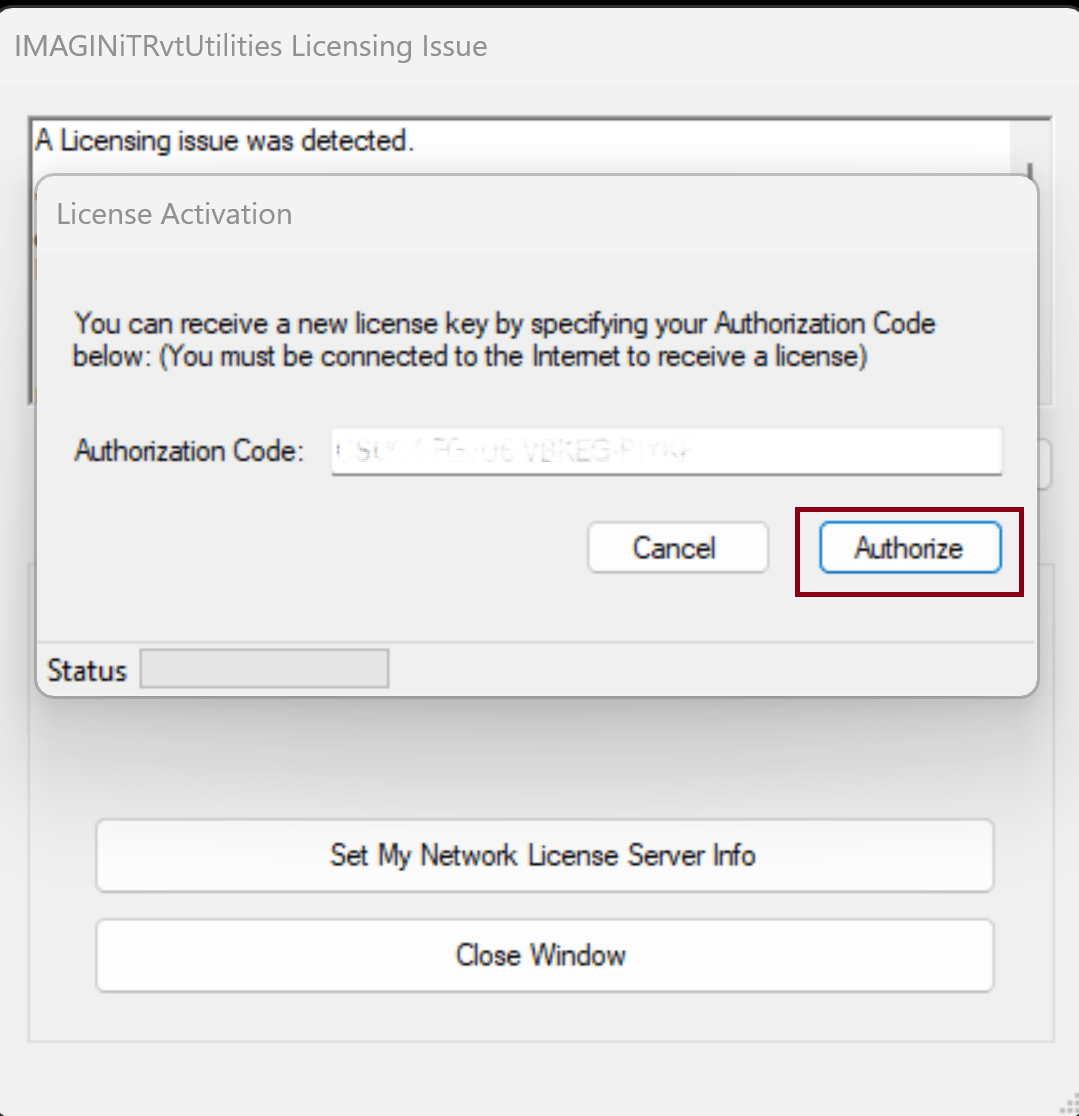
Figure 3
How to Authorize Network IMAGINiT Utilities
- Select the Button that says, “Set My Network License Server Info””. (See Figure 4)
- Type in the 27051@ <Server Name> (Server name meaning the Server you setup to host the IMAGINiT Utilities Reprise License Server). (See Figure 5) (See example under Figure 1)
- Select the “OK” Button.
Your Network IMAGINiT Utilities should now be authorized.
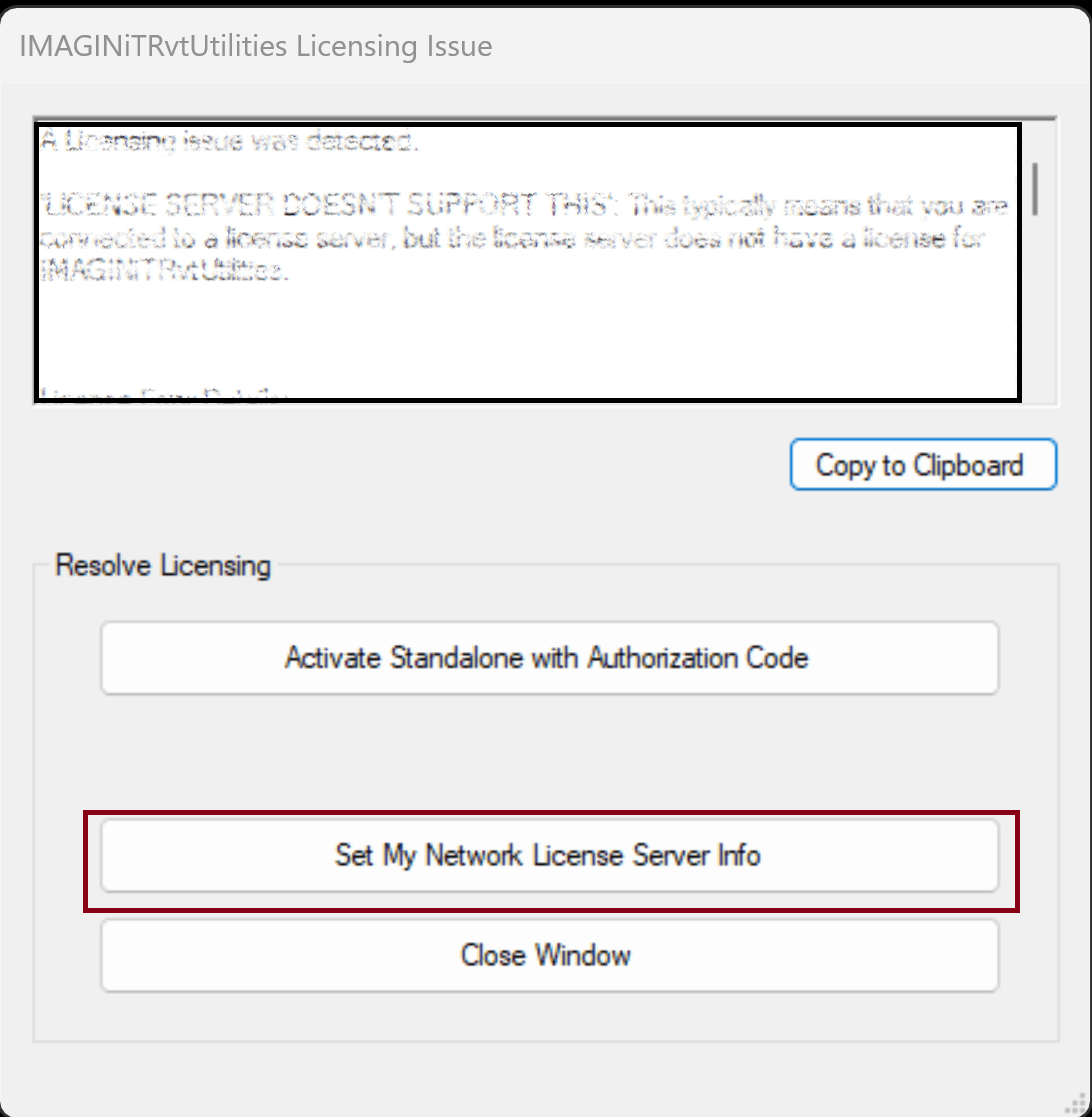
Figure 4

Figure 5
Example:
If the Reprise License Server is on a sever named “RP-Lic1”. Then you would type in 27051@RP-Lic1.
If the default port 27051 has been changed from the default 27051.
Example:
If you have changed the default port from 2701 to another port, then you would use the other port in this same line. Let’s say you change the default port from 27051 to 22038. Then you would type in 22038@RP-Lic1 using the example above.
IMAGINiT Utilities – How to point a network install to the license server
IMAGINiT Utilities – How to point a network install to the license server
About the Author
Follow on Linkedin More Content by Jeff Arbogast


