

Issue:
When uploading files to Forma Data Management or BIM 360 through Desktop Connector, the files are not automatically processed for viewing. Instead users need to process the files manually or "on demand" in a web browser or using Desktop Connector.
Users can work with unprocessed files except for:
- Viewing
- File Comparison
- Publish to Build Sheets
- Markups
Also, files not processed for viewing cannot be viewed on an iOS or Android device.
Cause:
This intended change, effective September 1, 2025, was implemented by Autodesk in order to avoid unnecessary automatic processing of files for viewing on Forma/BIM 360, which improves the queueing time for files that don't need to be viewable immediately. Since not every version or "in progress" file needs to be viewed during design or collaboration, users can benefit from a faster upload performance without having to wait for automatic processing.
Note: This change only affects files uploaded through Desktop Connector. Files are still automatically processed for viewing when uploaded from a web browser or mobile device.
The following files will continue to automatically process for viewing:
- Files used in a coordination space in Model Coordination will be automatically processed for viewing so there won't be disruptions to the existing Model Coordination workflows.
- Files with extension .shared.dwg used in Civil3D > Revit Topology workflow.
Solution/Workaround:
To process files uploaded from Desktop Connector for viewing, users can use one of the following options:
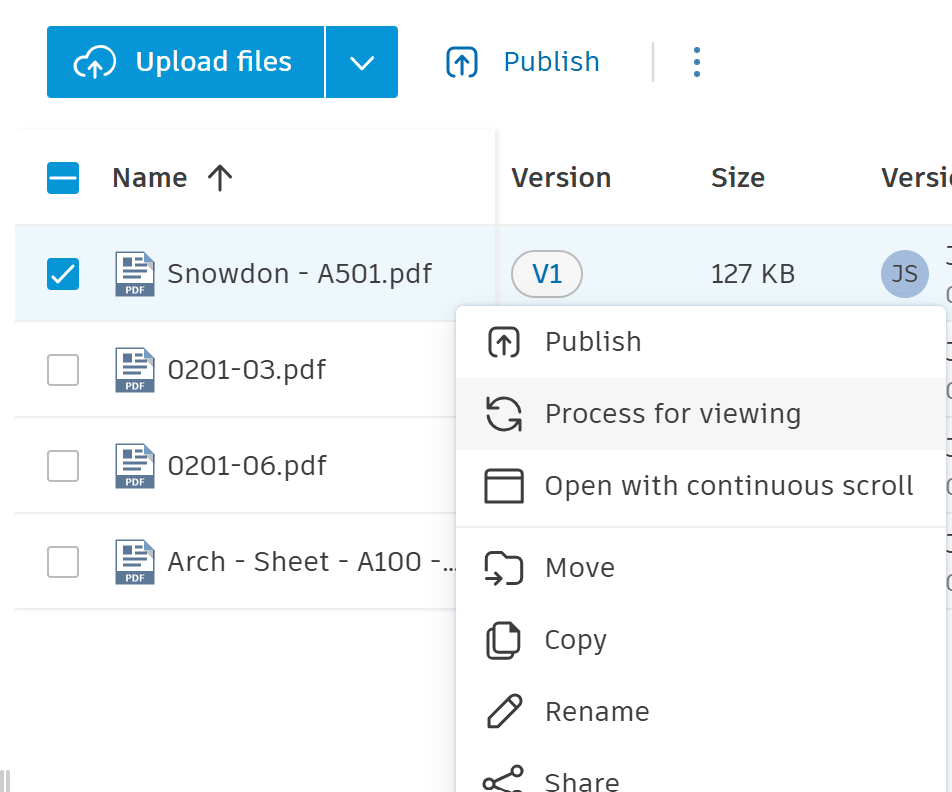
1) From web browser: Right-click on or select the file(s) and select Process for viewing
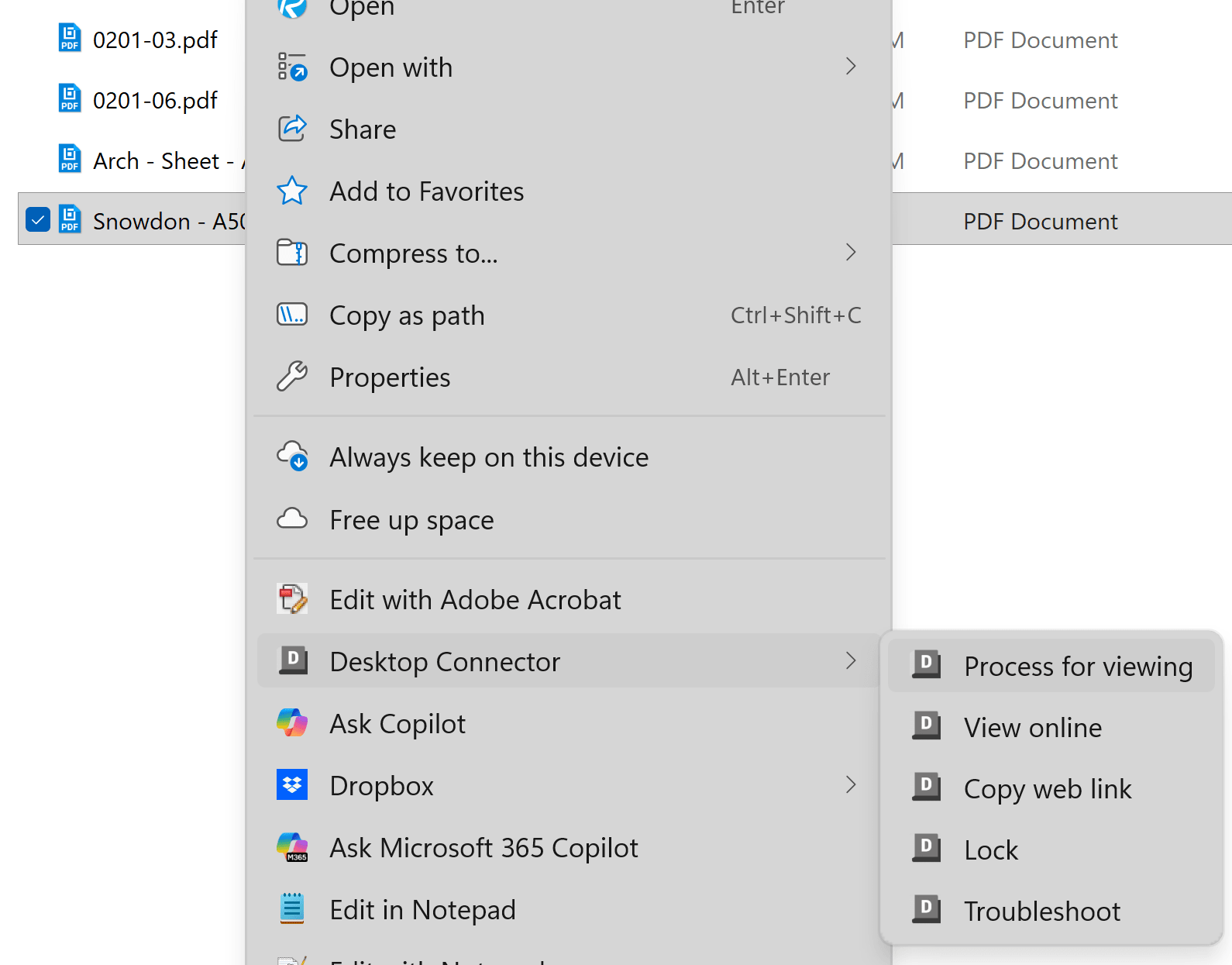
2) From Desktop Connector drive in Windows Explorer: Right-click on or select the files in the project folder, select Desktop Connector > Process for viewing
3) Upload from a web browser to ensure automatic processing
Additional Resources:
About the Author
More Content by Jeremy Smith


