

Applies To
- Autodesk Civil 3D
- AutoCAD
- Windows 11
- NVIDIA Graphics Cards
- Workstations with Multiple GPUs
Issue
Civil 3D becomes very slow when switching between layout tabs or sheets within a drawing.
The drawing itself may open and operate normally in Model Space, but selecting another layout can result in a noticeable delay while Civil 3D regenerates or displays the sheet.
This can occur even on a high-performance workstation with a dedicated NVIDIA graphics card.
Causes
One possible cause is that Windows is not actually assigning Civil 3D to the dedicated NVIDIA graphics processor.
Many workstations and laptops contain more than one graphics adapter, such as:
- Integrated Intel graphics
- Integrated AMD graphics
- Dedicated NVIDIA graphics
Even when an NVIDIA GPU is installed and the correct driver is present, Windows may assign acad.exe to another graphics processor.
Civil 3D relies heavily on graphics processing for drawing display, layout regeneration, viewports, surfaces, XREFs, and other visual elements. Using the incorrect GPU can therefore result in poor performance when switching between sheets.
Solution
Force Civil 3D to use the dedicated NVIDIA graphics card through Windows Graphics Settings.
1. Open Windows Graphics Settings
Go to:
Windows Settings > System > Display > Graphics
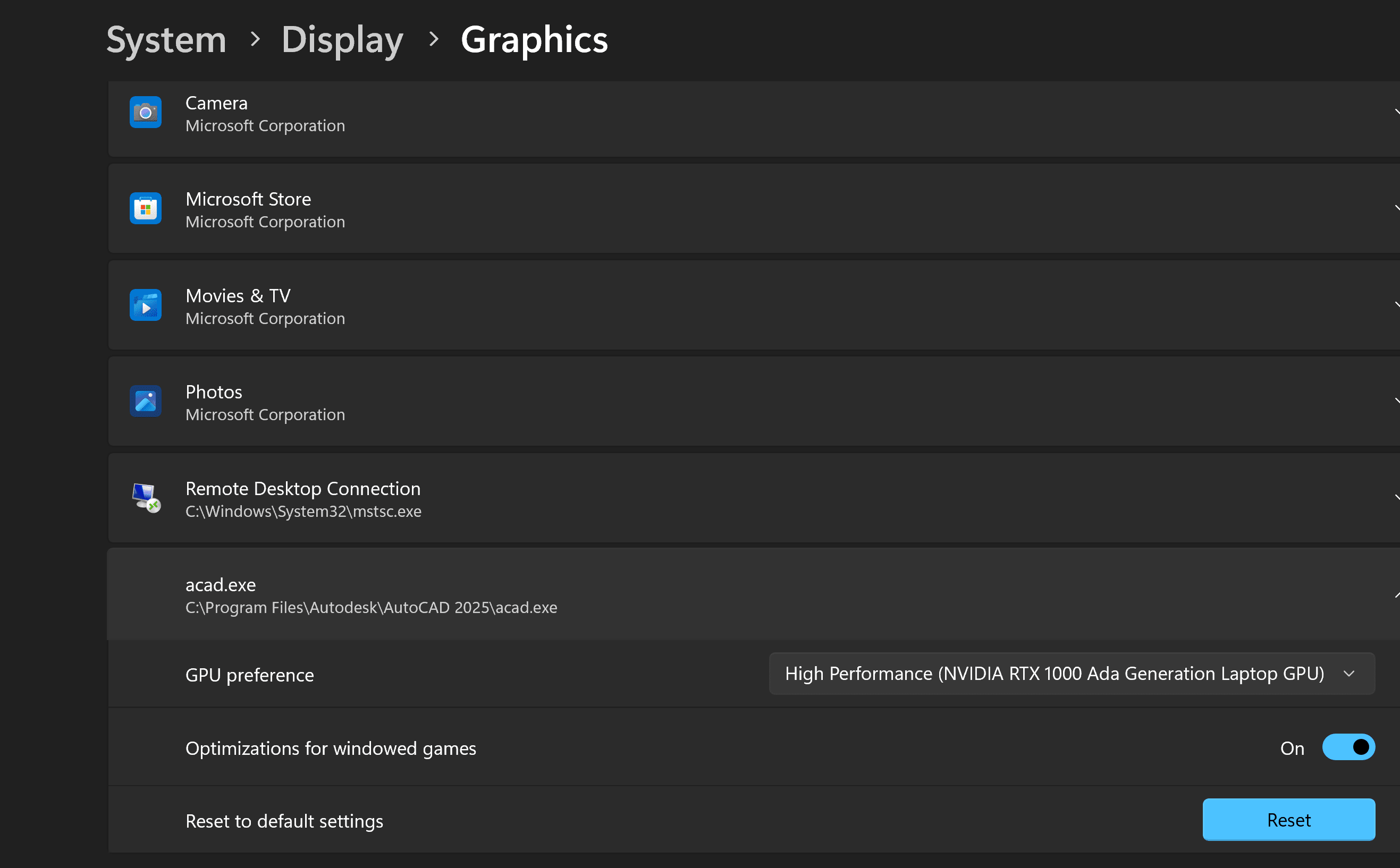
Under the application graphics settings, locate Civil 3D/AutoCAD.
If it is not listed, select the option to add a Desktop app and browse to the Civil 3D installation directory.
Select:
acad.exe
The path will vary depending on the installed Civil 3D version.
2. Set Civil 3D to High Performance
Once acad.exe has been added to the Windows Graphics application list, select it and open its graphics options.
Choose:
High Performance
Windows should identify the dedicated NVIDIA graphics card as the High Performance GPU.
Save the setting.
3. Restart Civil 3D
Completely close Civil 3D and reopen it.
Open the same drawing and test switching between the layout tabs again.
In this particular case, explicitly assigning Civil 3D to the NVIDIA GPU resolved the slow sheet-switching behavior.
Verify the Graphics Configuration
Inside Civil 3D, enter:
GRAPHICSCONFIG
Verify that Hardware Acceleration is enabled and confirm that Civil 3D recognizes the expected graphics hardware.
It may also be useful to verify that the workstation has the appropriate NVIDIA driver installed.
Additional Settings to Check
If changing the GPU does not resolve the issue, another setting worth checking is:
LAYOUTREGENCTL to a value of: 2
allows AutoCAD/Civil 3D to cache the Model tab and layouts, which can improve performance when moving between previously viewed layouts.
However, if layout switching suddenly becomes extremely slow on a workstation that should have adequate hardware, verify the graphics processor before making extensive changes to the drawing.
Other troubleshooting steps can include:
- Update or clean-install the NVIDIA graphics driver.
- Test GRAPHICSCONFIG settings.
- Temporarily disable Hardware Acceleration as a diagnostic test.
- Check whether the problem occurs in all drawings or only one project.
- Test the drawing locally if it normally resides on a network or cloud storage system.
- Check XREFs and large raster images used by the layouts.
Conclusion
Having a dedicated NVIDIA graphics card installed does not necessarily mean Civil 3D is using it.
If Civil 3D is unexpectedly slow when switching between layout tabs, check Windows Graphics Settings and explicitly assign acad.exe to the High Performance NVIDIA GPU.
In this case, this simple change resolved the slow sheet-switching problem without requiring a Civil 3D reinstall, profile reset, or modification of the drawing.


