

Applies To
- Autodesk Civil 3D 2026/2027
- Autodesk Forma
- Forma Data Management
- Forma Design Collaboration
- Collaboration for Civil 3D
- Autodesk Desktop Connector
- Civil 3D Data Shortcuts
Issue
A Civil 3D user is working in an Autodesk Forma project and is unable to properly set the expected Data Shortcuts working folder.
The Forma project is visible through Desktop Connector and the user can browse the project folders normally. However, when attempting to set the Civil 3D Data Shortcuts working folder to the intended project location, Civil 3D does not accept or retain the location as expected.
Interestingly, selecting a folder several levels higher in the project structure may work.
Standard troubleshooting such as resetting Civil 3D settings, installing available updates, clearing temporary files, and restarting the workstation does not resolve the issue.
Causes
When this occurs in a Forma-hosted project, the problem may not be with the Civil 3D installation itself.
Possible causes include:
- The Working Folder is being set at the wrong level of the project hierarchy.
- The user does not have sufficient permissions on one of the parent folders.
- The user can see the project through Desktop Connector but does not have all required Civil 3D collaboration entitlements.
- The Data Shortcuts project folder is not properly associated with the current drawing.
- An existing _Shortcuts folder was copied from another project or included in a project template.
- Desktop Connector is displaying the project, but Civil 3D cannot perform the required operations at the intended folder location.
Seeing a Forma project in Windows File Explorer does not necessarily confirm that the user has everything required to create and manage Civil 3D Data Shortcuts.
Solution
1. Verify the Working Folder Level
The Civil 3D Working Folder and Data Shortcuts Project Folder should not normally be the same folder.
For example, consider the following project structure:
Forma Project
└── Project Files
└── Civil
└── Projects
└── Project 123
├── _Shortcuts
├── Design
├── Survey
└── Production
A typical configuration would be:
Working Folder:
Do not set the Working Folder directly to the _Shortcuts folder.
In Civil 3D, use:
Toolspace > Prospector > Data Shortcuts > Right-click > Set Working Folder
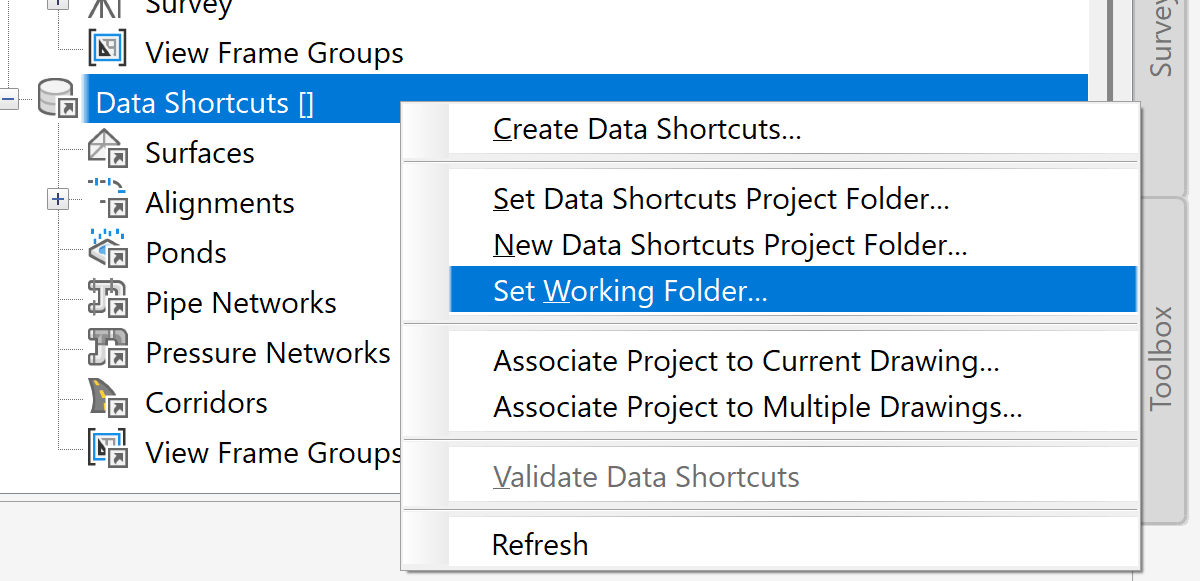
Then:
Data Shortcuts > Right-click > Set Data Shortcuts Project Folder
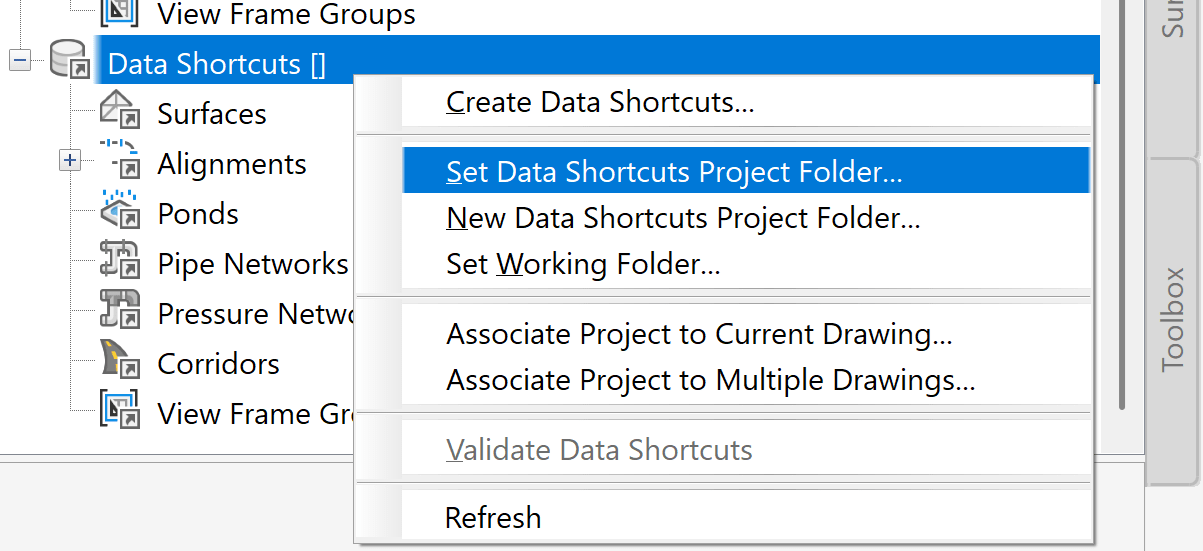
2. Verify Forma Design Collaboration Licensing
If the user has Forma Design Collaboration, a separate Forma Data Management license should not normally be required just to support this workflow.
However, verify the user's Autodesk Account assignment and make sure the appropriate Collaboration for Civil 3D entitlement associated with the product is available to the user.
This is important because there is a difference between being able to browse cloud project files and having the entitlement necessary to perform Civil 3D collaboration operations.
A user may therefore be able to see:
Forma > Project > Project Files
in File Explorer while still having problems creating or managing Civil 3D Data Shortcuts.
3. Check Folder Permissions
Check permissions on more than just the intended Data Shortcut project folder.
Verify the user's access throughout the folder hierarchy:
Project Files > Civil > Projects > Project 123
A permissions issue on a parent folder can result in unexpected behavior even though the user can browse to the lower-level folder through Desktop Connector.
Compare the affected user's project and folder permissions with another user for whom Data Shortcuts work correctly.
4. Test With Another User
This is one of the quickest ways to determine where the problem exists.
Have another Civil 3D user attempt to set the exact same Working Folder and Data Shortcuts Project Folder.
If:
User A = Does not work
User B = Works
focus troubleshooting on the affected user's permissions, Autodesk entitlements, Desktop Connector, or local environment.
If:
User A = Does not work
User B = Does not work
focus on the Forma project structure, folder permissions, or the existing Data Shortcuts configuration.
5. Test the Affected User in Another Project
Perform the reverse test as well.
Have the affected user access another known-good Forma project and attempt to set its Civil 3D Data Shortcuts working folder.
This provides a useful troubleshooting matrix:
One user + multiple projects fail
Multiple users + one project fails
Multiple users + multiple projects fail
This is often more useful than repeatedly resetting Civil 3D.
6. Check the _Shortcuts Folder
Pay particular attention to the existing _Shortcuts folder.
If the Forma project was created from a project template, determine whether _Shortcuts was included in that template or copied from another project.
An existing Data Shortcuts structure should not simply be copied from one cloud project into another and assumed to represent a new Civil 3D Data Shortcut project.
If the problem occurs only with one project while other Forma projects work correctly, the existing _Shortcuts configuration should be investigated.
7. Associate the Drawing With the Correct Project
Once the proper Working Folder and Data Shortcuts Project Folder have been established, verify the current drawing's project association.
In Toolspace:
Prospector > Data Shortcuts > Right-click > Associate Project to Current Drawing
Save the drawing, close Civil 3D, reopen the drawing, and verify that the correct Data Shortcuts project remains associated.
Additional Troubleshooting
If the problem continues, test the workflow in a controlled manner before reinstalling Civil 3D.
Confirm:
- Another user can access the same Forma project.
- The affected user can use Data Shortcuts in another Forma project.
- Desktop Connector is current.
- The user is signed into the correct Autodesk account.
- The user's project membership and folder permissions are correct.
- Collaboration for Civil 3D is available to the user.
- The project was not created with an existing _Shortcuts folder copied from another project.
These tests help determine whether the problem follows the user, computer, or Forma project.
Conclusion
When Civil 3D can browse a Forma project but cannot correctly establish the intended Data Shortcuts working folder, resetting Civil 3D may not address the actual problem.
The key is to separate the workflow into three components:
Civil 3D configuration + Autodesk entitlement + Forma folder permissions
The fact that a user can see a Forma project through Desktop Connector confirms file visibility, but it does not by itself confirm that the user has the correct Civil 3D collaboration access or folder permissions.
Testing the same project with another user and the same user with another project is often the fastest way to identify which side of the workflow is causing the problem.


