Autodesk Forma: How to Customize Logo on Project Reports

November 30, -0001 Jeremy Smith

Issue:
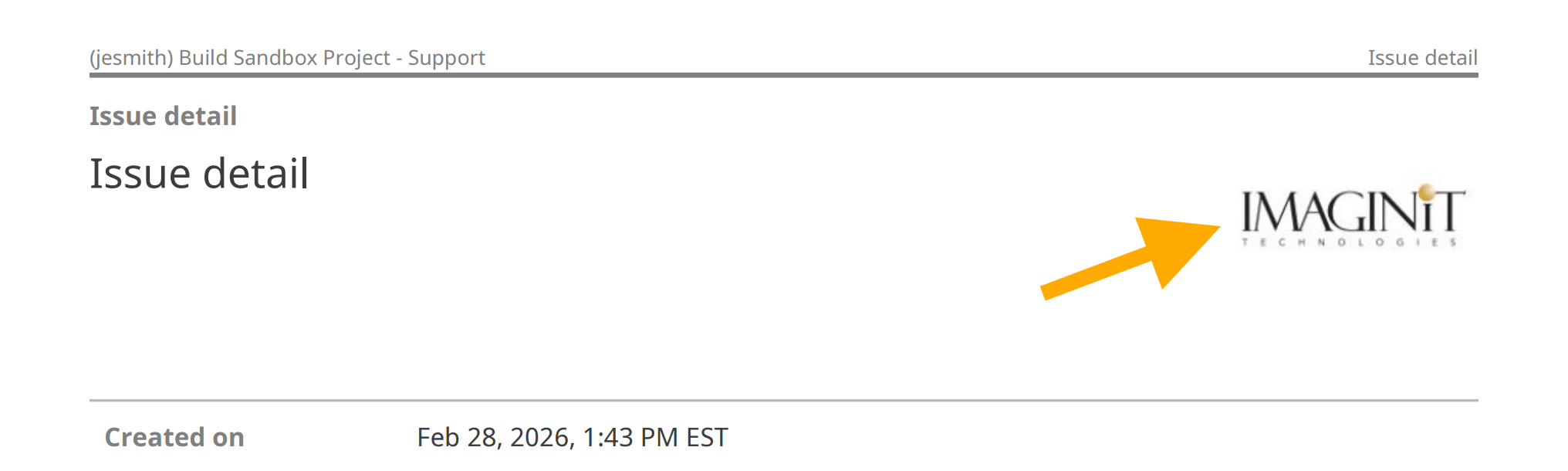
Reports in BIM 360/Forma projects display the logo associated with the Forma Hub by default.  Users want to have a project-specific logo appear on the report.
Cause:
This behavior is working as designed.  It is not possible to change the logo on reports on the BIM 360 platform.  However, it is possible to customize the logo on Forma.

Solution/Workaround:

  1. From within the project on Forma (acc.autodesk.com), select Insight from the Module Selector on the upper-left.

  2. Select Reports.

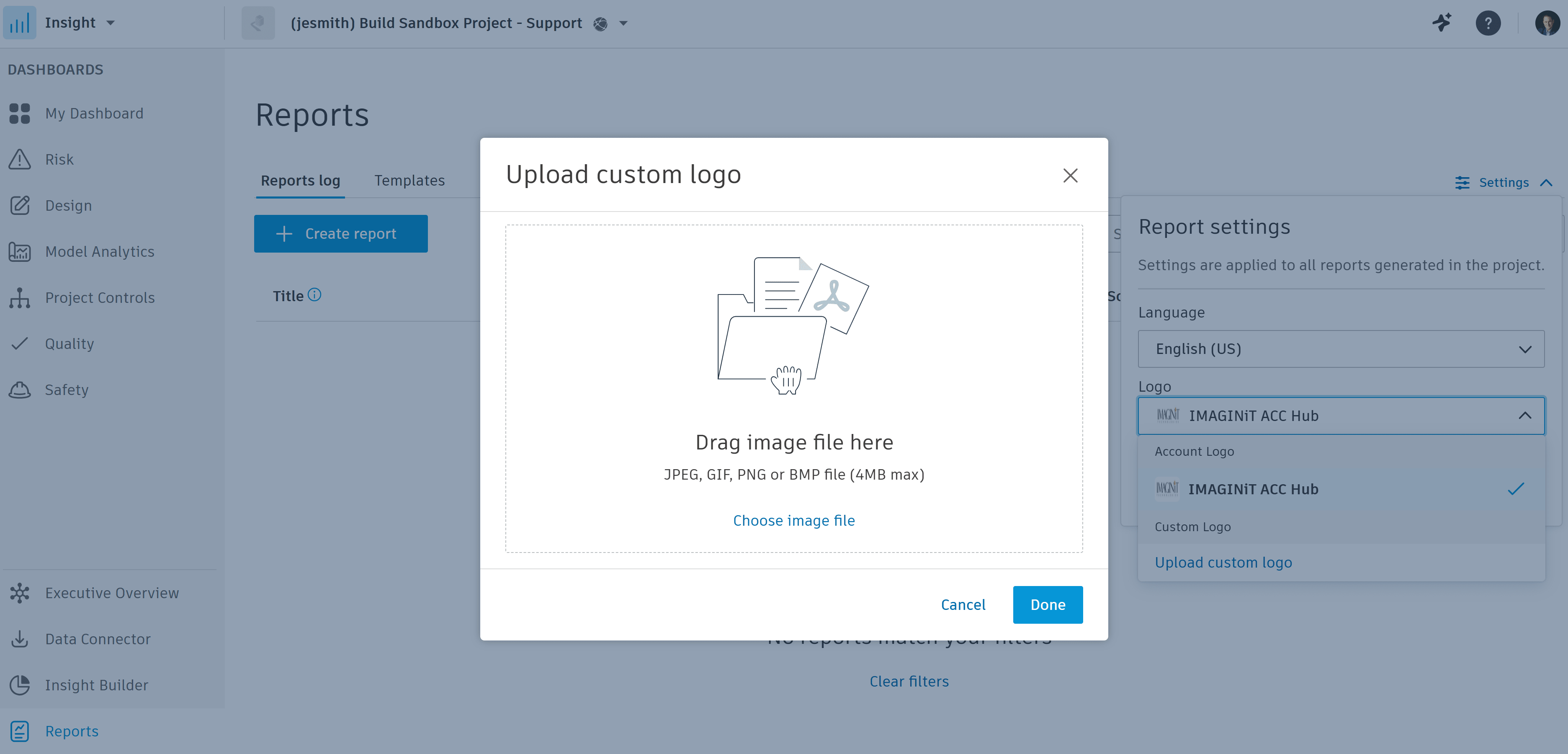
  3. Select Settings and then click on the Logo pull-down and select Upload custom logo.

  4. Drag the image or select "Choose image file" to browse to the image file.

  5. Select the image and select Open.

  6. Select Done.

About the Author

Jeremy Smith

Sr. Technical Support Specialist, AEC<br><br>Jeremy has been delivering service and technical support to customers in the AEC industry for over 25 years. He gained much of his AutoCAD/Revit experience serving as CAD Manager at multiple MEP/FP engineering firms in the Greater Boston Area. He then worked at Autodesk as a Technical Support Specialist, eventually becoming a manager overseeing the Revit and Vault support teams. Jeremy is excited to be in his current role as Sr. Technical Support Specialist at IMAGINiT, as it allows him the opportunity to work directly with customers every day and help them successfully leverage Autodesk’s solutions to achieve their business goals.

More Content by Jeremy Smith
Previous Article
Data Management Subscription Not Available to Assign on Forma Platform

Forma Data Management is only available to assign from the Forma platform if the customer has a subscriptio...

Next Article
Unsupported Products using AllowSystemContextInstall Installs via Access

After enabling users with install permissions in Autodesk Access using the AllowSystemContextInstall regist...

×

Get Tips Delivered.

Subscribe to Email Updates.

First Name
Last Name
Country
Thank you!
Error - something went wrong!