

Issue:
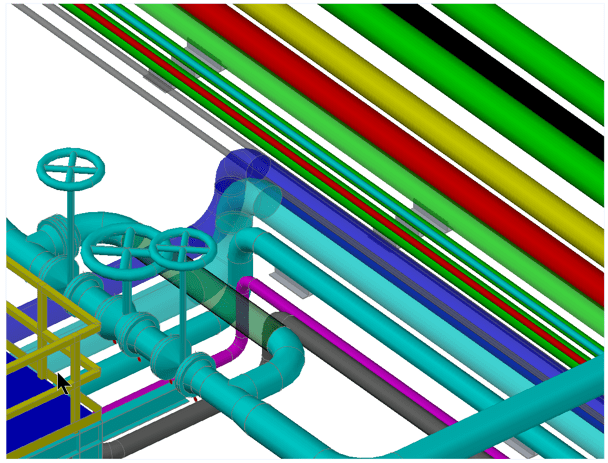
When the Visual Style is set to Conceptual, the view quality appears rough. Additionally, the model has some layers set to 50% transparency, causing the display to appear very grainy, and the silhouette lines are visible within the transparent layers. You try Realistic, Shade, or Shaded with Edges and the quality of these styles look like the graininess of Conceptual visual style.
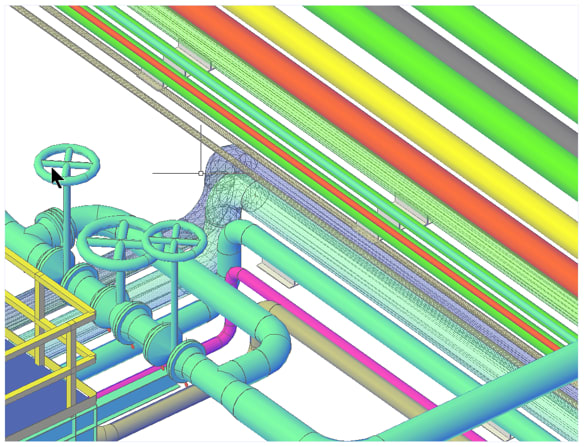 Conceptual Visual Style.
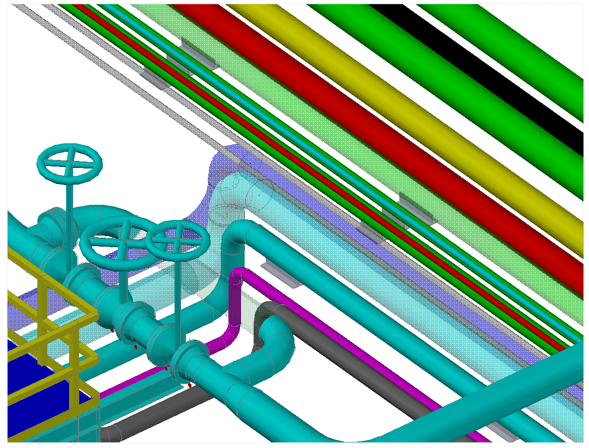 Realistic Visual Style.
Solution:
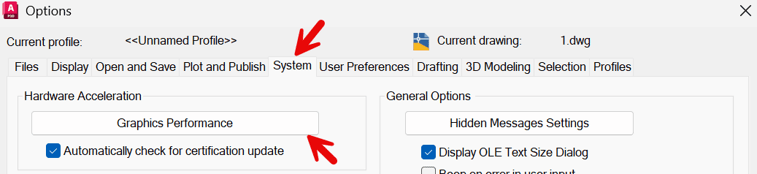
To resolve this issue, we enabled Hardware Acceleration for a much cleaner display. To turn on Hardware Acceleration, go to Options by typing OP and pressing Enter, or by right-clicking the command line and selecting Options. In some AutoCAD verticals, you can also right-click in the drawing area and choose Options. These are just a few of the ways to access the Options dialog.
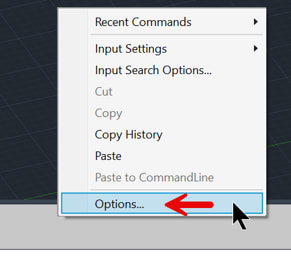
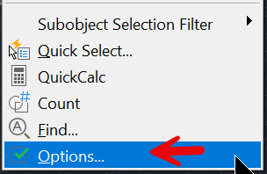
In the Options dialog, select the System tab, then click Graphics Performance.
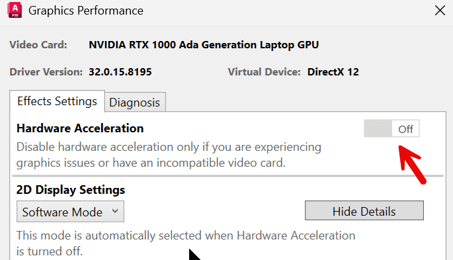
In the Graphics Performance dialog box, switch the Hardware Acceleration setting from Off to On.
This resolves the display quality issue in the shaded visual style.
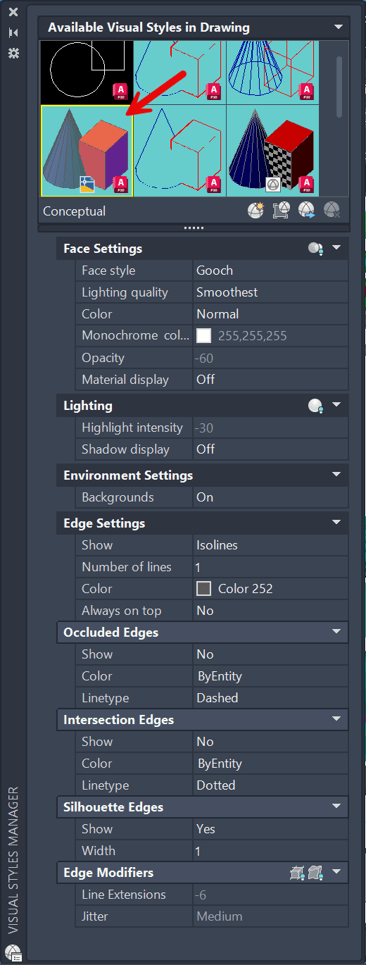
Below are the visual style settings for Conceptual shading.
About the Author
Follow on Linkedin More Content by Paul Sills


