

Issue
How to add a new/missing scale to the scale bar in AutoCAD.
Cause
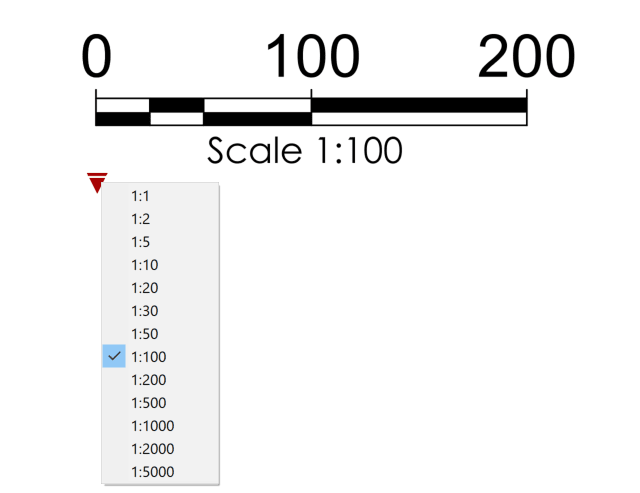
The scale bar from AutoCAD tool palettes is a dynamic block that uses Visibility parameters to define a list of commonly used scales.
Sometimes, a desired scale may not be on the list and needs to be included.
Solution
Take the following steps to add a new scale:
-
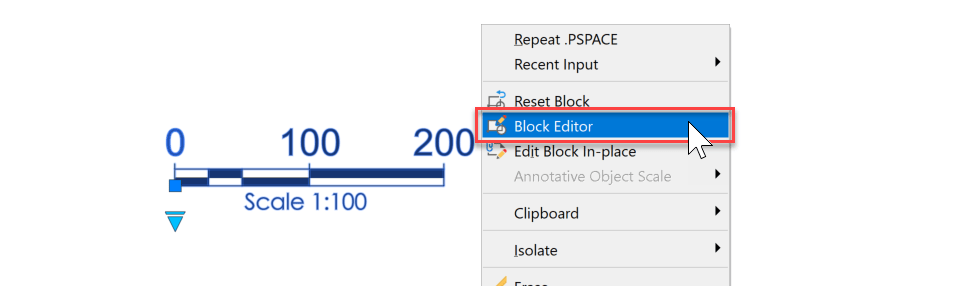
- Select the scale bar, right click and choose ‘Block Editor’ from the context menu.
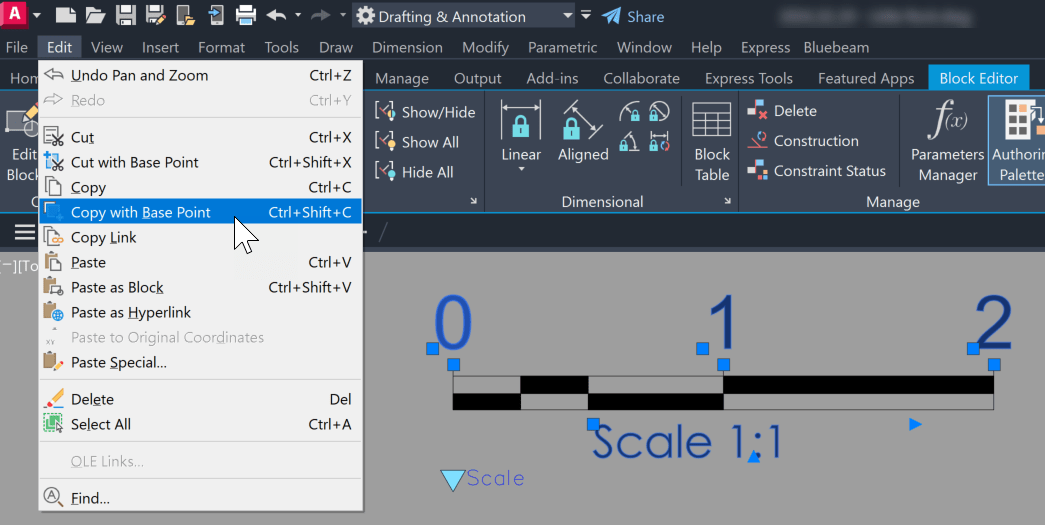
- Once in the Block Editor, select all the text objects, and press ctrl+shift+c to Copy with Base Point.
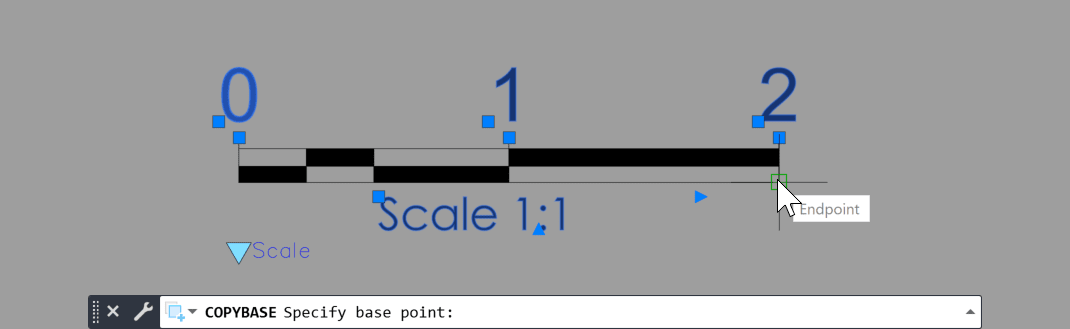
- Pick a Base Point. Preferably endpoints from any corner of the scale bar graphics (useful since the graphics will remain visible in all states).
- Open the Visibility States dialog from the Ribbon or by double-clicking on the Visibility Parameter.
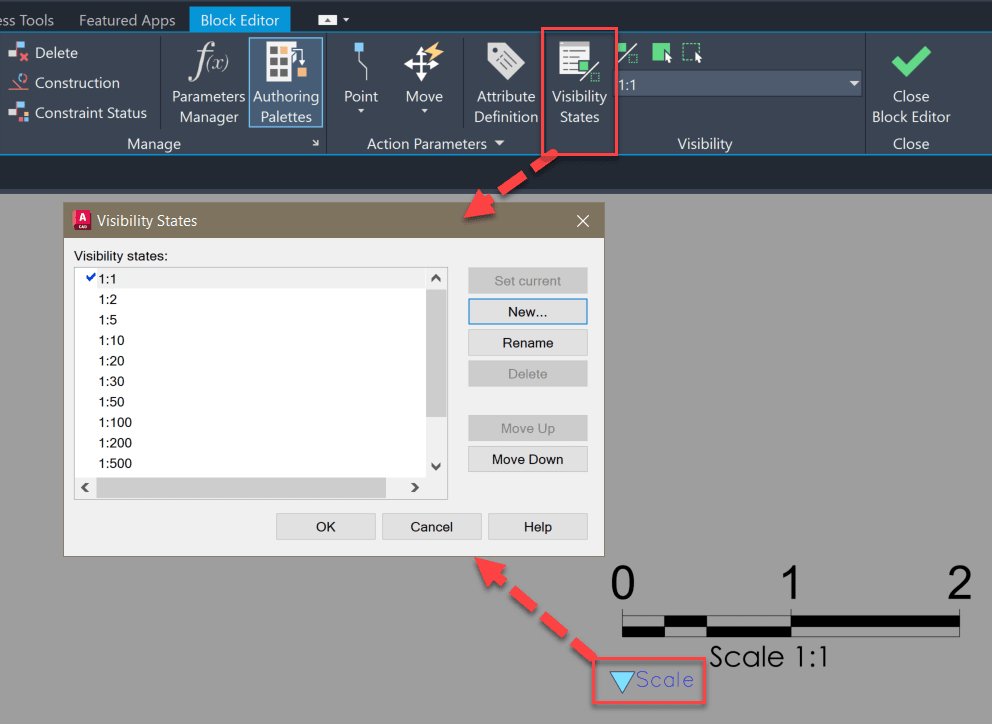
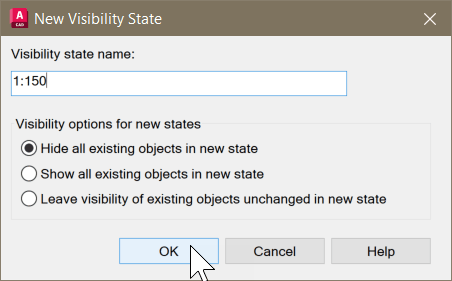
- Click on ‘New’ to create a new Visibility State, and change the Visibility state name to new scale you wish to add, for example, 1:150.
- Select the option to ‘Hide all existing objects in new state,’ and click OK twice to finish creating the Visibility State.
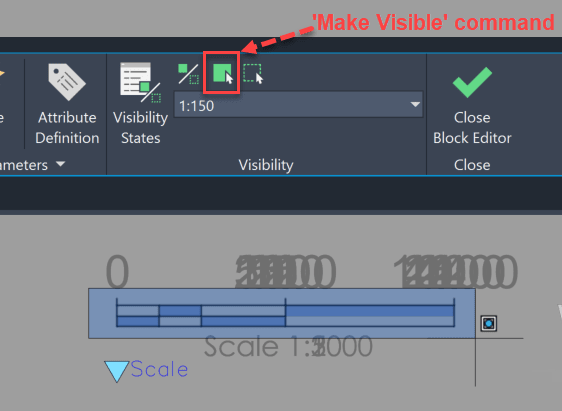
- Activate the ‘Make Visible’ command from the Visibility Panel on the Ribbon or enter the Command BVSHOW.
- Carefully highlight the scale bar graphics without the texts and hit ENTER to make them visible.
- Paste the text copied earlier in step 2 from the clipboard, and reference the same Base Point used in step 3.
- Now edit the text to reflect the values of the new scale.
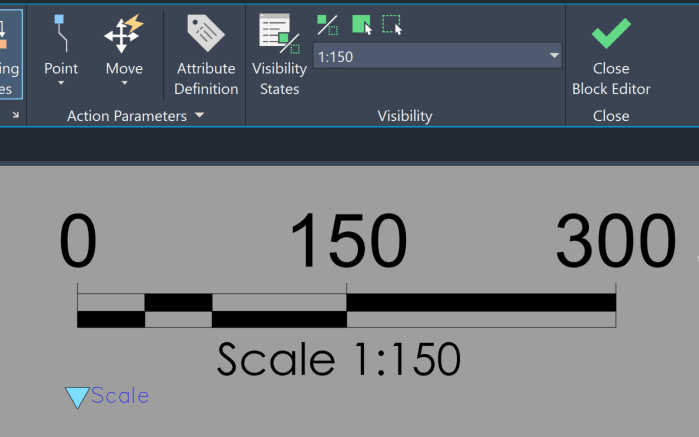
- Note that new Visibility States will be placed at the bottom of the list by default. Open the Visibility States dialog and move the new state up or down as may be necessary.
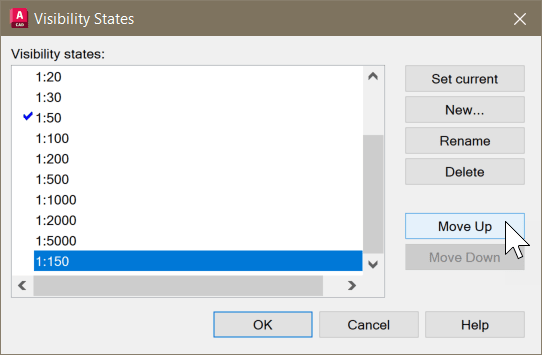
- Close the Block Editor and save changes.
- The newly added scale should now be available for selection after clicking on the Visibility Grip.
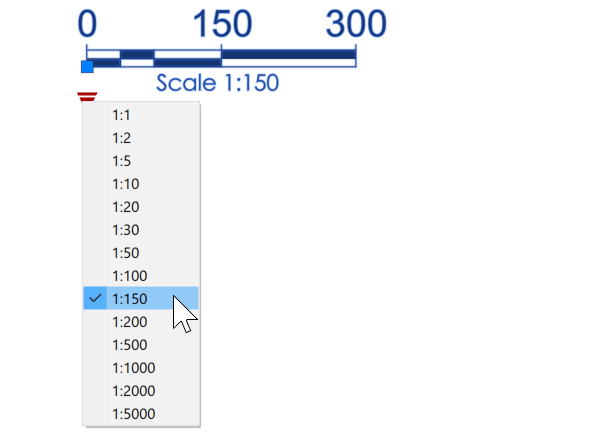
- Select the scale bar, right click and choose ‘Block Editor’ from the context menu.


