

Configured Subassembly Labels are generated automatically in Civil 3D. However, when two subassemblies share the same link code, Civil 3D treats them identically, making it impossible to hide the label for just one of them through the Code Set Style alone.
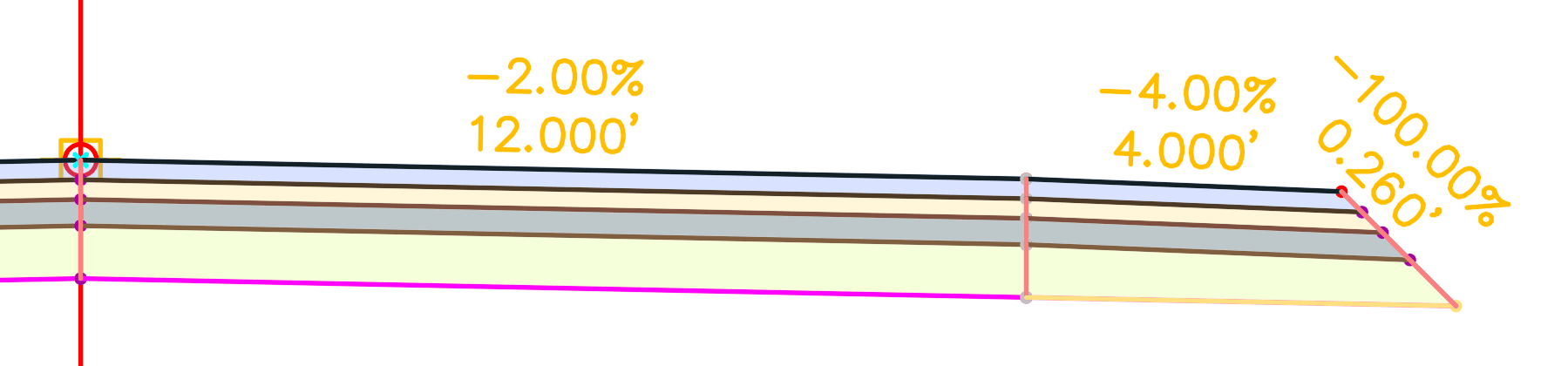
THE ISSUE:
Many of the default Civil 3D subassemblies use the same link codes. A common example is the combination of Lanes and Sholders:
| Lane Superelevation AOR | Shoulder Extend All |
|
From the ToolSpace > Lanes tab
This subassembly creates a paved travel lane using the appropriate outside or inside superelevation slope.
|
From the ToolSpace > Shoulders tab
This subassembly creates a paved shoulder, extending the pavement, base, and subbase layers to the daylight slope.
|
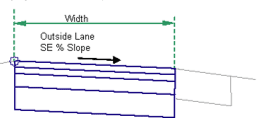

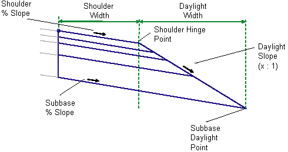
Although these subassemblies perform different functions, Autodesk Civil 3D assigns the same top link codes to both: (L1): Top, Pave
| Lane Superelevation AOR | Shoulder Extend All |
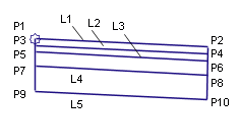 |
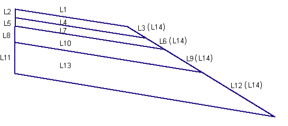 |
Because the link code Pave is shared, any Link Label Style assigned to that code is applied to both subassemblies, resulting in duplicate labels in section views.
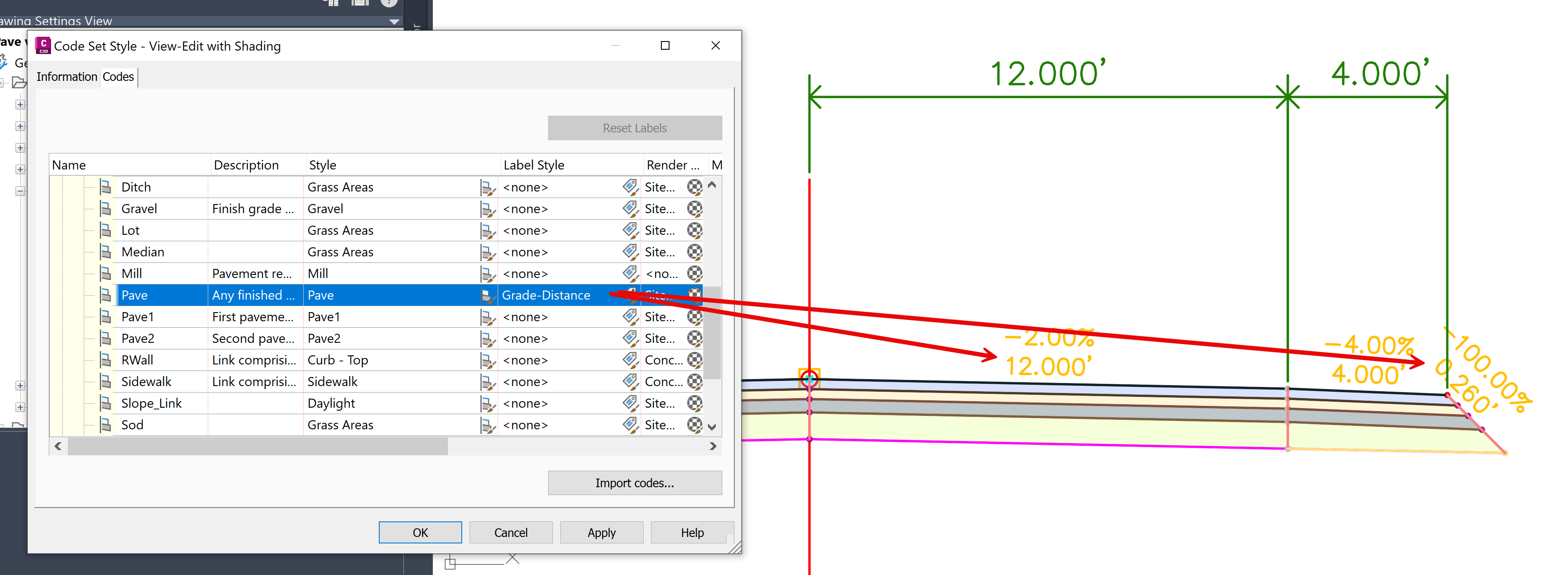
THE SOLUTION:
One way to selectively hide labels is to use a Label Style Expression that evaluates the length of the link. In this example:
• Lane width = 12 ft
• Shoulder width = 4 ft
Since the lane is significantly wider than the shoulder, link length can be used to determine which label should be displayed. First, create a Link Label Expression (named Length Check in this example): IF({Link Length}>10,0.0008,0)
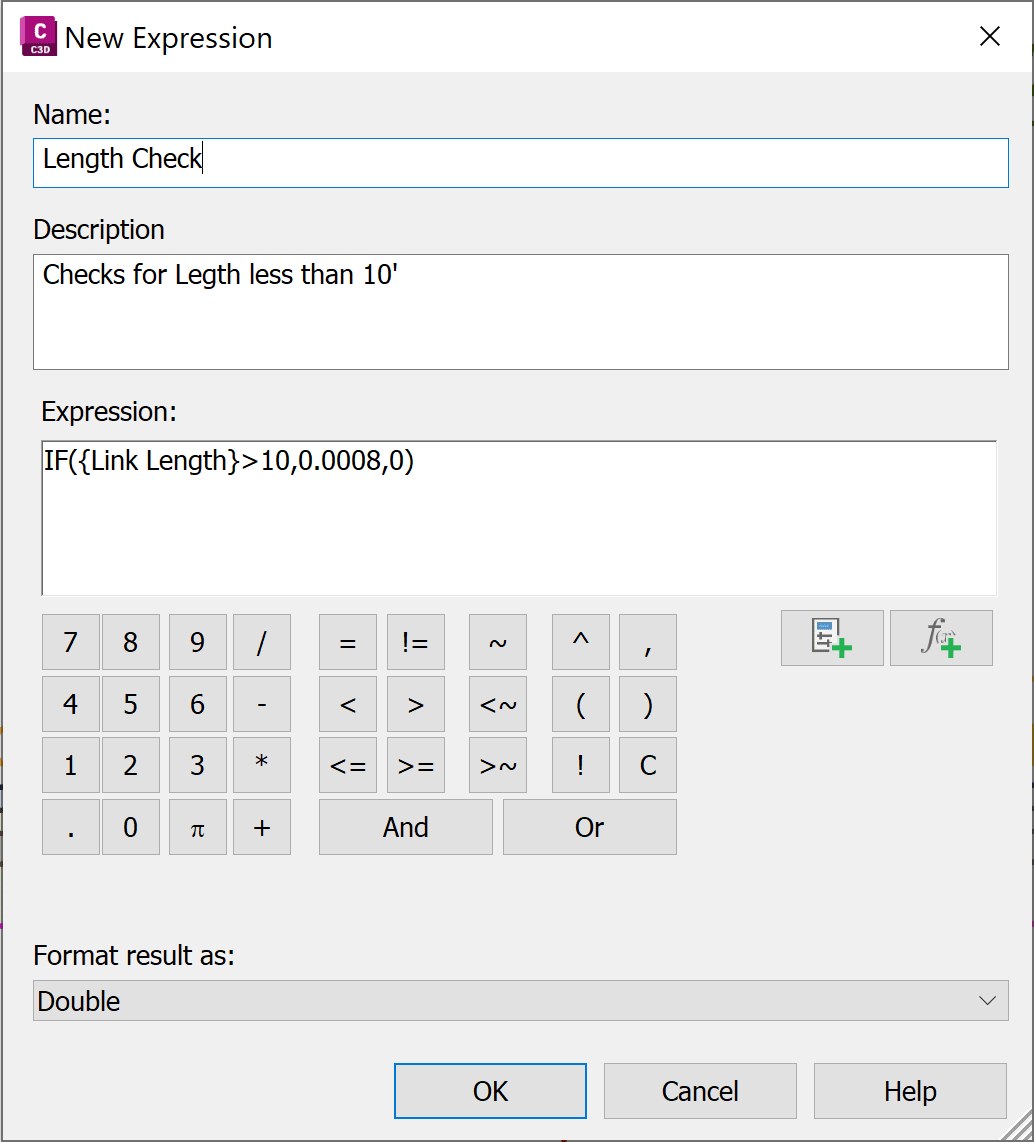
Next, assign the Length Check expression to the Text Height property in the Label Style Composer.
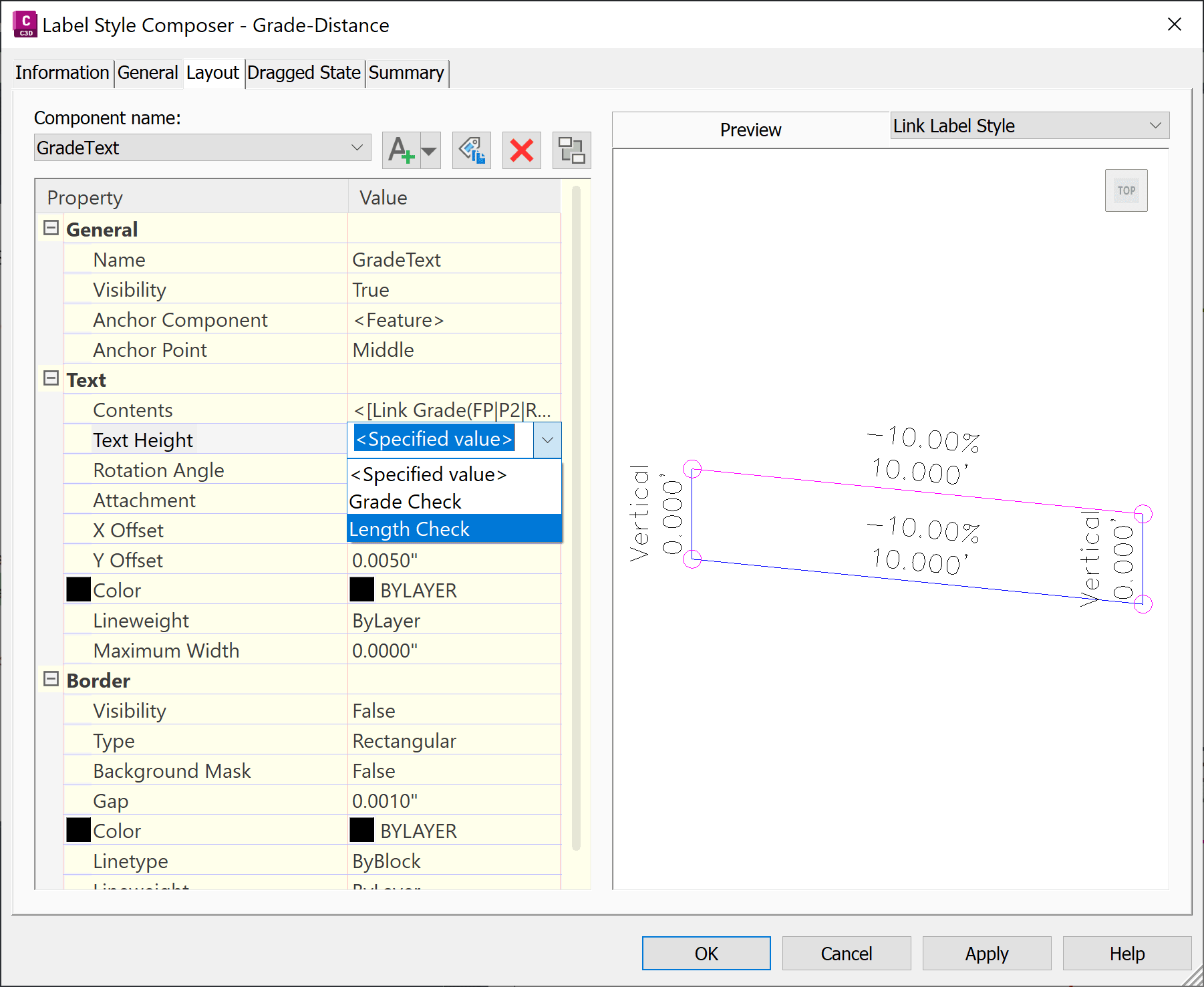
With this configuration, links shorter than approximately 10 feet (such as the shoulder) are no longer labeled, while the wider pavement links continue to display their labels.
| Before Expression | After Expression |
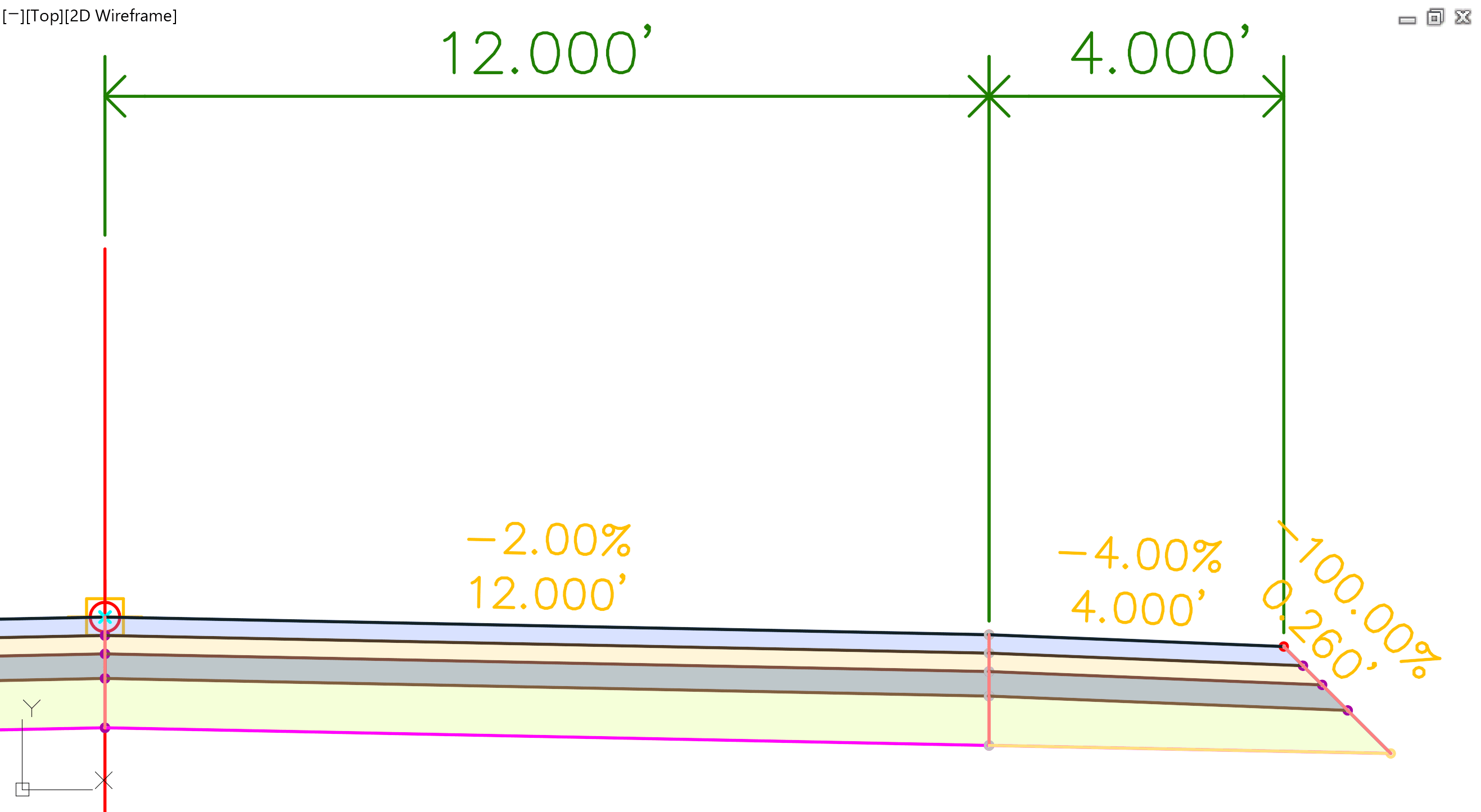 |
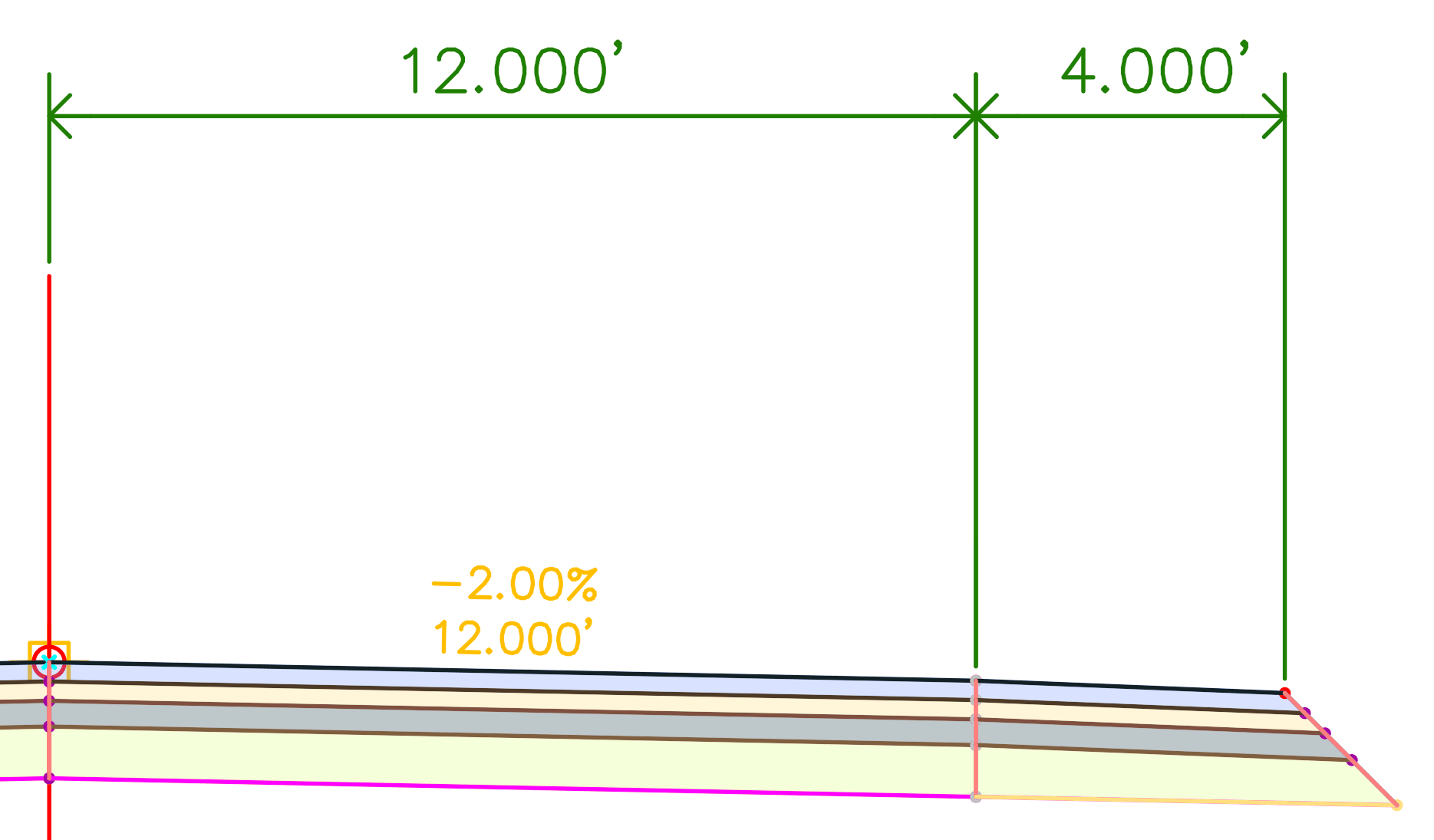 |
The result is a much cleaner section view with short labels removed. The threshold value in the expression can be adjusted to match your project's lane and shoulder widths. You can also create multiple expressions for different roadway standards or design scenarios.
If you enjoyed this post, you might enjoy some of our other posts where expressions are applied to Civil 3D Labels:
• Hiding Zero Length Corridor Lables
• Hiding Corridor Vertical Labels
• Dynamically Spaced Line bearing & distance
• Slope Arros that Alwasy point Downhill
About the Author
More Content by Leo Lavayen


