

When Civil 3D subassemblies share the same underlying link code, label styles assigned through a Code Set Style are applied to every matching link. This can result in duplicate labels and makes it difficult to display different slope formats for different parts of an assembly - for example, showing pavement grades as a percentage while displaying shoulder slopes as a rise-to-run ratio.
Example:
In this example, a Lane subassembly is paired with a Shoulder subassembly. The goal is to display format as:
• Lane links: as Grade (%)
• Shoulder links: as Slope (X:1)
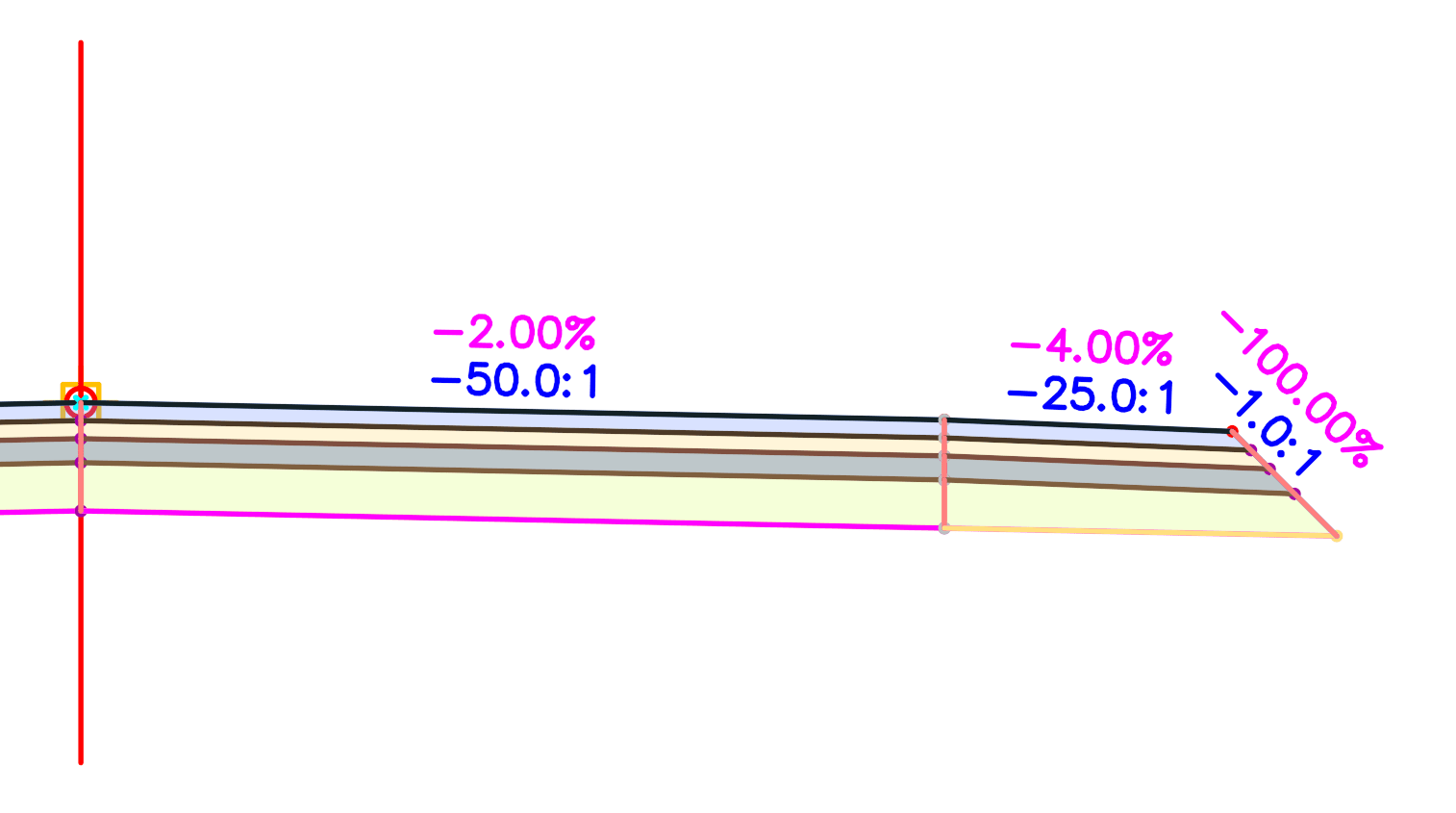
THE PROBLEM:
Reviewing the Autodesk Help documentation shows that both the Lane Superelevation AOR and Shoulder Extend All subassemblies assign the same codes to their top links (L1)
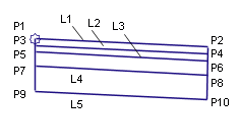

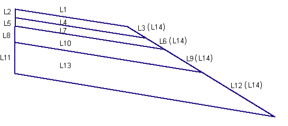
Because both subassemblies use the Pave link code, any label style assigned to that code through the Code Set Style is applied to both links. The result is duplicate labels using the same formatting, even though different formats are desired.
THE SOLUTION:
The solution is to create two expressions that control the visibility of label components based on the slope value:
| Grade Show | Slope Show |
|
This expression displays labels only when the slope is less than 10%, making it ideal for pavement grades displayed as a percentage.
|
This expression displays labels only when the slope is 10% or greater, allowing steeper shoulder slopes to be shown in a rise:run.
|
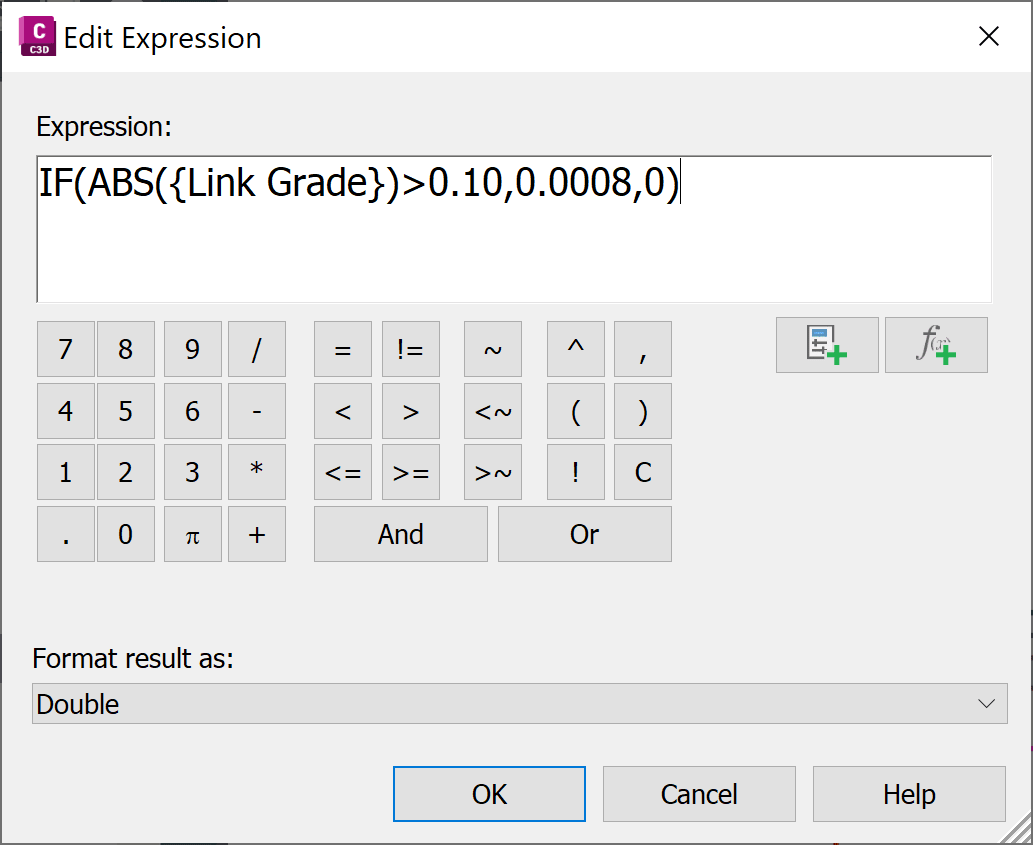
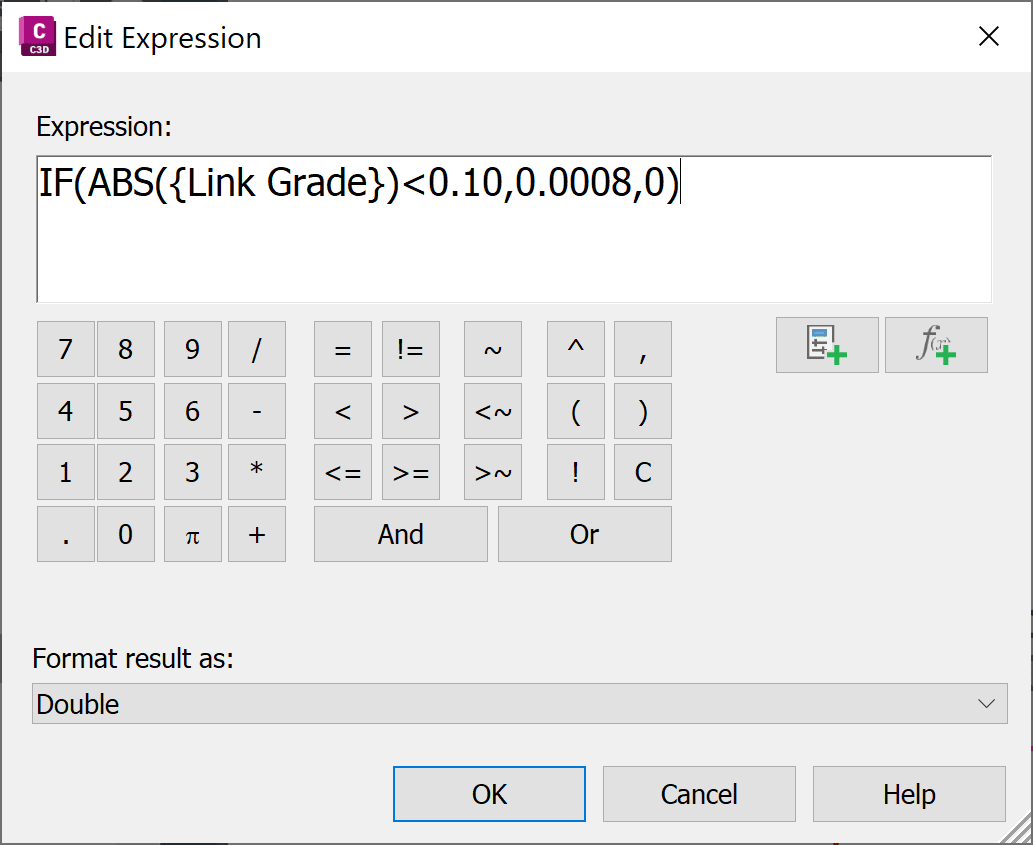
Once both expressions have been created, use a single label style containing two text components:
| Grade Text Component | Slope Text Component |
|
Assign the Grade Show expression to the component's Text Height property.
|
Assign the Slope Show expression to the component's Text Height property.
|
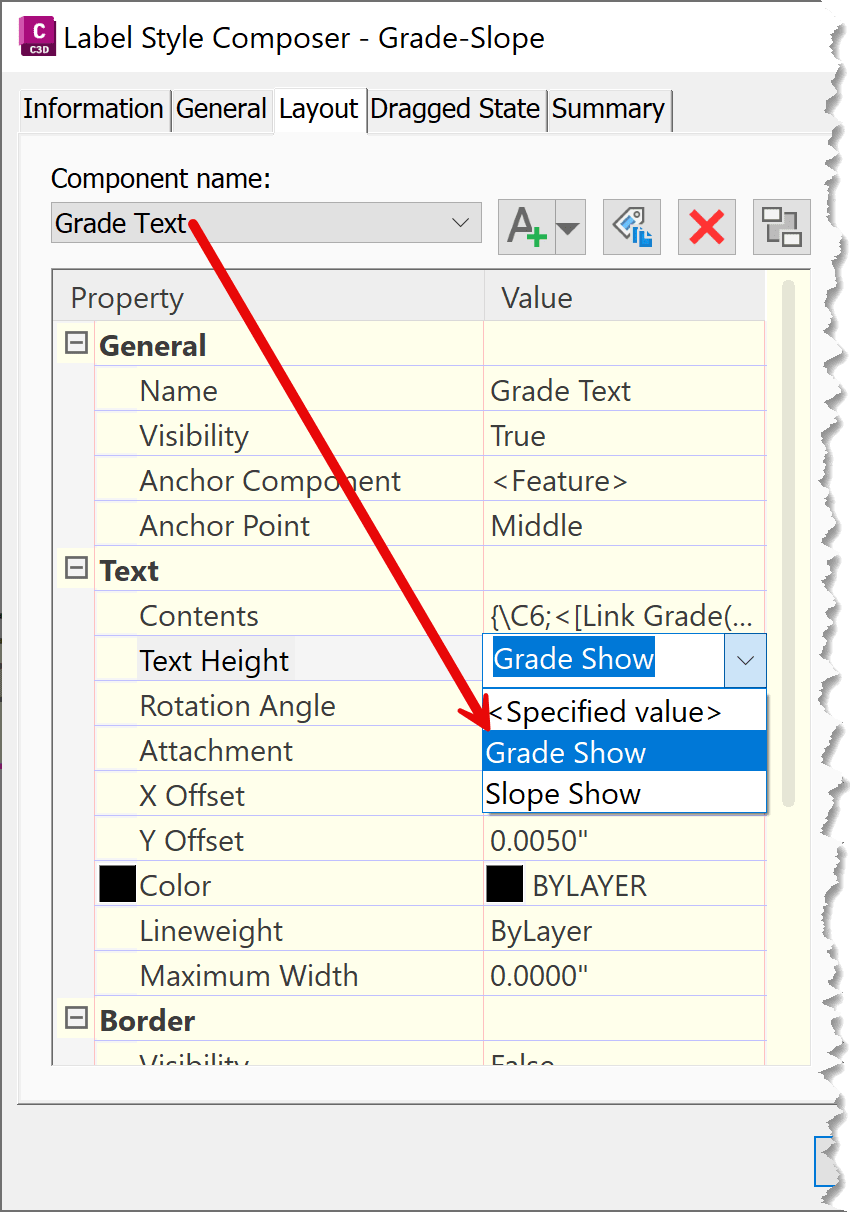
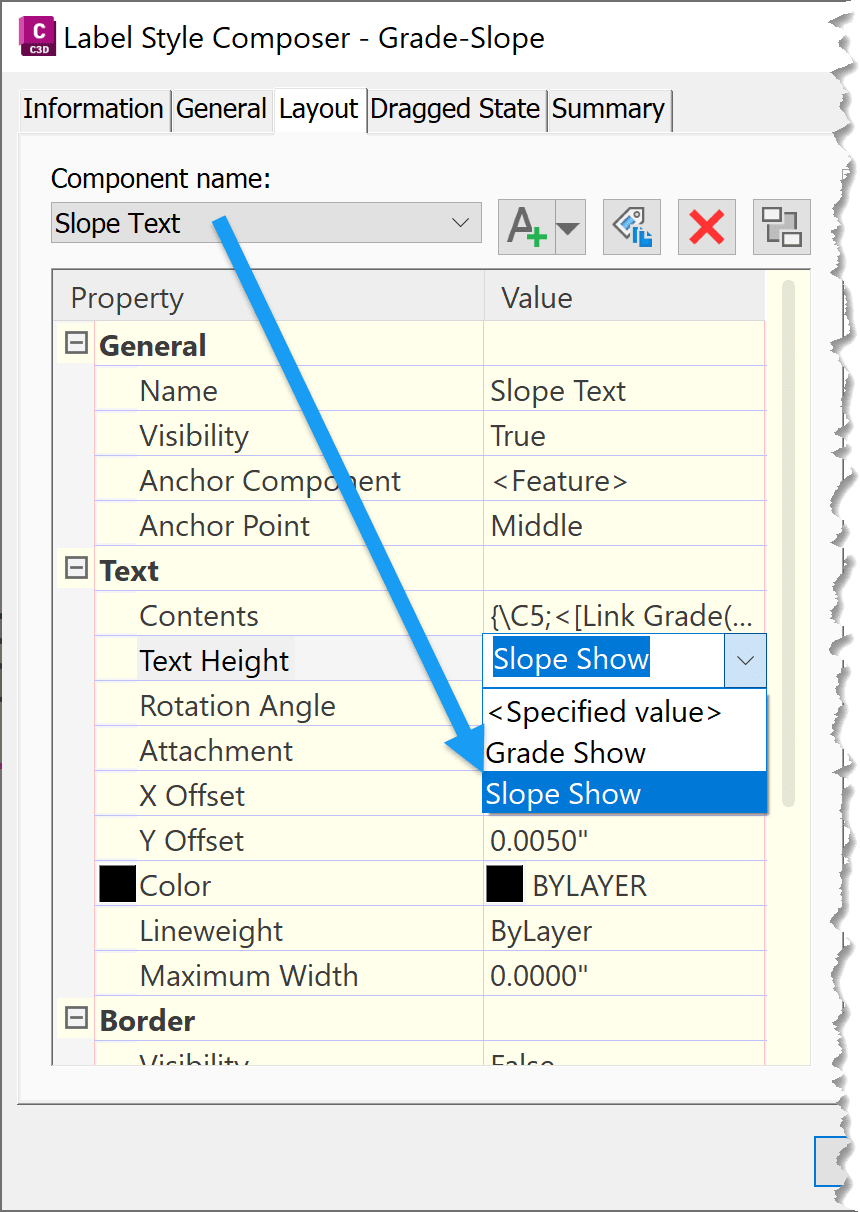
As the assigned slopes within the subassemblies change, the labels automatically switch between displaying Grade (%) for flatter pavement links and Slope (X:1) for steeper shoulder links. 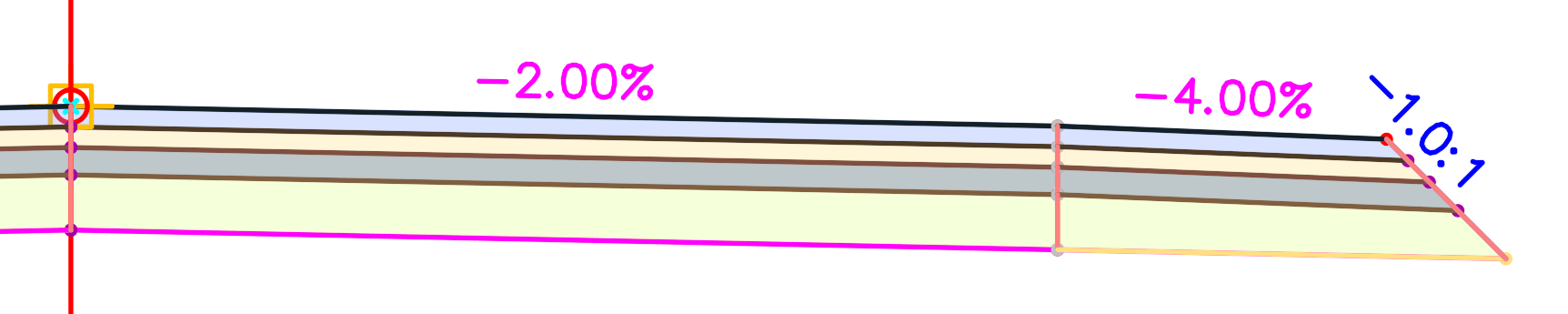
This approach produces cleaner sections and more accurately communicates the design intent without requiring separate label styles or manual editing.
If you enjoyed this post, you might enjoy some of our other posts where expressions are applied to Civil 3D Labels:
• Hiding Zero Length Corridor Lables
• Hiding Corridor Vertical Labels
• Dynamically Spaced Line bearing & distance
• Slope Arros that Alwasy point Downhill
About the Author
More Content by Leo Lavayen


