

Issue:
During the installation of Revit, the following error appears:
“PACR.msi was not found.”
The installation fails and cannot proceed.
Causes:
This issue occurs when a previous Revit installation or update was not fully removed.
During installation, the Revit installer checks for existing components. If the previous PACR.msi file was deleted, but the registry still references it, the new installer cannot locate the expected file, resulting in an installation failure.
This mismatch between the registry and existing files prevents the installation from completing.
Solution:
Perform a clean uninstall of the previous Revit installation and remove all PACR-related registry entries before reinstalling.
Follow the steps below:
1. Navigate to the Autodesk Uninstallers Folder:
2. Locate the Folder for the Version You Are Installing:
Example:
If you are installing Revit 2026, locate:
Autodesk Revit 2026
Autodesk Revit 2026.x Update folders
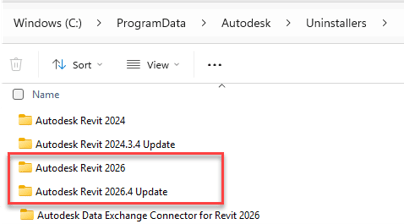
3. Uninstall the Latest Update First
a. Open update folder,
b. Run AdskUninstallHelper.

c. This will initiate the uninstall of Autodesk Revit 2026.4 update
4. Uninstall the Base Version.
After uninstalling the newest update:
a. Open the previous update folder, if one exist, and run AdskUninstallHelper.exe again.
b. If no earlier update exists, open the main folder:
Autodesk Revit 2026

c. Run AdskUninstallHelper.exe to remove the base installation.
5. Confirm Revit is Uninstalled
Open control panel → Programs and Features and verify that Revit is no longer listed.
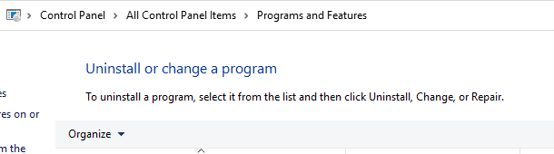
6. Uninstall Personal Accelerator for Revit (PACR)
Still in Programs and Features, search for:
Personal Accelerator for Revit
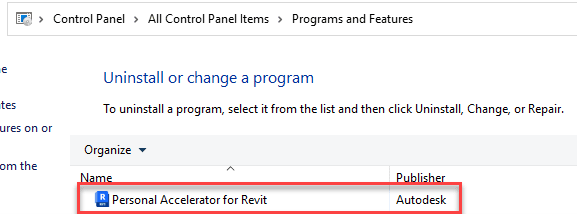
If it appears, uninstall it as well.
7. Remove PACR Registry Entries
a. Open Registry Editor with Administrator privileges.
b. Check the following locations for PACR-related entries and delete them:
Warning: Be careful when editing the registry. Deleting unrelated keys can affect system behavior.
8. Restart the Computer
9. Reinstall Revit
About the Author
Follow on Linkedin More Content by Gregory Lee


