

Issue:
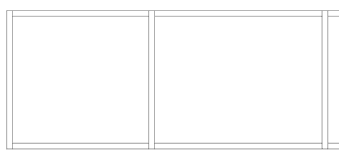
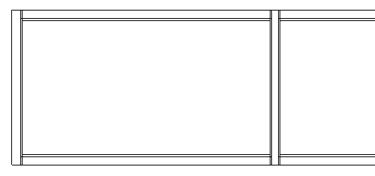
In a Revit elevation view, model elements appear transparent even though no transparency settings have been modified.
Normal:
Affected by view corruption:
Causes:
Revit enforces a maximum distance limit for model geometry. If any model element is located beyond this allowable range, Revit may exhibit unexpected behavior, including:
- Transparent model elements
- Limited zoom functionality
- Dimension misalignment
- Other display or graphical anomalies
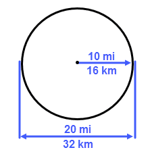
Help | About the Maximum Distance Limit | Autodesk
This issue is most commonly caused by imported DWG files that contain geometry located far from the internal origin.
Solution:
Identify and remove any elements located outside Revit’s maximum distance limit.
1. Create a default 3D view.
2. Disable crop view.
3. Apply Zoom Extend (ZE).
4. If the model appears extremely far away or difficult to locate, this is an indication that elements exist outside the maximum distance limit.
5. Create a selection marquee across the entire screen to select all visible elements. This will help identify where the model is positioned relative to the view.
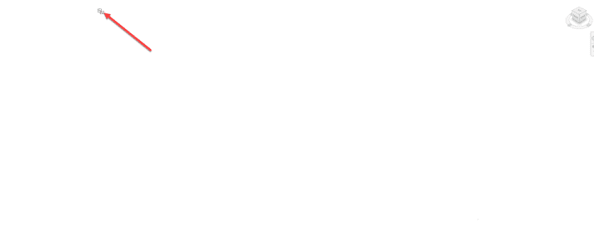
6. Use the Selection Filter to narrow down the selection and identify the element(s) causing the issue (often an imported DWG).
7. Delete the offending object and apply Zoom Extents (ZE) again to confirm that the maximum distance limit issue has been resolved.
About the Author
Follow on Linkedin More Content by Gregory Lee


