

Issue:
Many AutoCAD users face difficulties with Autodesk Desktop Connector due to various reasons such as synchronization failures, file locking issues, and performance problems.
Causes:
The primary cause is users' lack of understanding of the capabilities and workflows of the Desktop Connector, leading to frustration and inefficiency.
Solution:
A thorough understanding of Autodesk Desktop Connector and its functionality is critical to preventing many issues. Desktop Connector was originally developed for Revit, primarily to link files uploaded to BIM 360 document management. Over time, Autodesk has improved its functionalities and expanded its usage within the Autodesk Cloud ecosystem.
Since the version 16 update, Desktop Connector has become more seamlessly integrated with AutoCAD. However, the tool has limitations when reading and writing files. Although Desktop Connector acts as a bridge between the local file system and data in the Autodesk Cloud, there are still challenges, especially when working with large sets of files. A significant difference between Revit and AutoCAD in terms of file systems is the number of file transactions in the folder. Revit typically uses Desktop Connector for linking reference files with minimal read and write operations, whereas AutoCAD requires frequent file transactions directly via Desktop Connector. This is why AutoCAD users encounter more issues with Desktop Connector compared to Revit users.
Here are a few best practices that AutoCAD users can follow to minimize these issues:
Accessing DWG files:
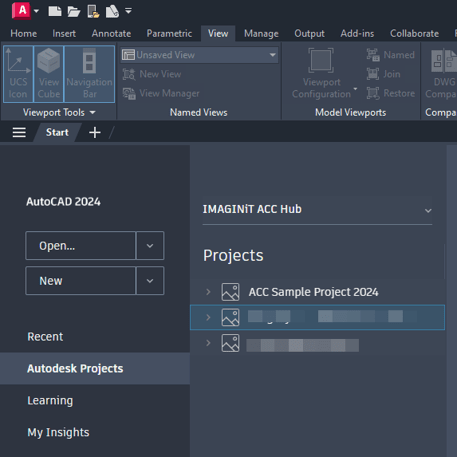
1. Access DWG Files from the AutoCAD Home Screen:
-
- Accessing files from the AutoCAD Home Screen rather than Windows File Explorer reduces the processing steps, making the process more efficient.
2. Restructure Office Folder Standards:
-
- There is a 244-character limit for file paths. Many companies use long file naming conventions, which can quickly exceed this limit. Desktop Connector requires a fixed file path that uses a minimum of 25% of this character limit, leaving a maximum of 190 characters for folder and file names.
- Example of a minimum required file path:
C:\Users\[User]\DC\ACCDocs\[Company Hub]\[Project Name]\Project Files.
3. Minimize the Number of Files in a Folder:
-
- The more files you have in a folder, the longer Desktop Connector will take to sync, which becomes more challenging with larger file sizes.
4. Limit Opening Multiple DWG Files in One Session:
-
- Opening multiple DWG files in a single session can slow down Desktop Connector and increase sync times.
5. Reduce the Number of Xrefs When Using AutoCAD Sheet Set Manager (SSM) to Extract Sheets into BIM 360 / Autodesk Forma
-
- Review and modify the external reference (Xref) links associated with the drawing file in AutoCAD to ensure the total number of Xrefs is below the 200-reference limit.
Troubleshooting File Locking
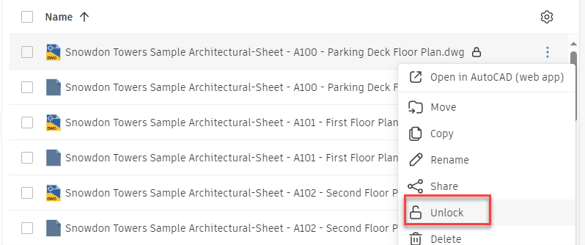
As you work with Desktop Connector, user will faces with file locking issue randomly. This is due to Desktop Connector not able to communicate with Construction Cloud server well. When this happens, user needs to manually override the file lock by going to Docs web page.
About the Author
Follow on Linkedin More Content by Gregory Lee


