

Applies to:
Vault
Issue:
After switching from HTTP to HTTPS users started receiving 500 – Internal Server Error.
Causes:
HTTP working without issues, after configuring an SSL certificate on the server and updating the network settings in the ADMS Console users began receiving 500 – Internal Server Error.
Solution:
After switching from HTTP to HTTPS users started receiving 500 – Internal Server Error when select to view the file.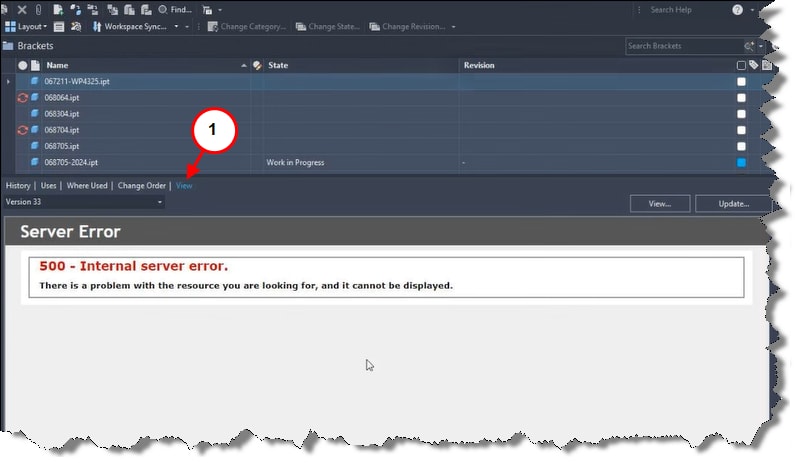
1. Selecting the View tab produces a 500 – Internal Server Error in the Vault Client.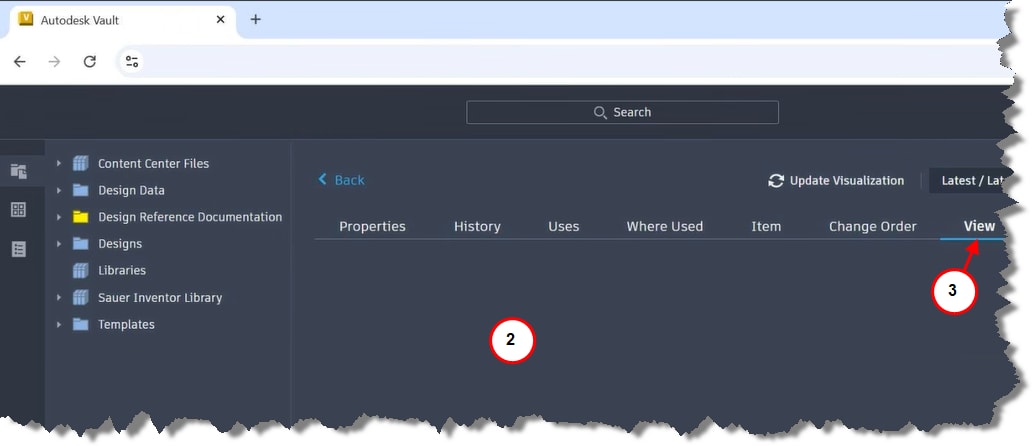
2. Viewing area is blank in the Vault Thin Client.
3. Selecting View.
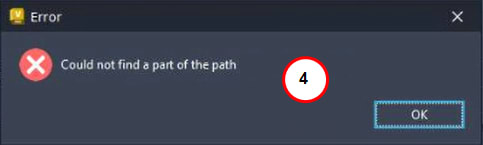
4. Presents Error: Could not find a part of the path is presented, select OK to accept.
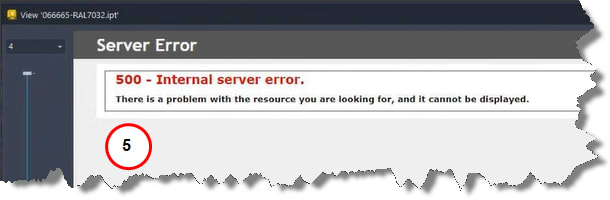
5. View interface produces a 500 – Internal Server Error in the Vault Thin Client.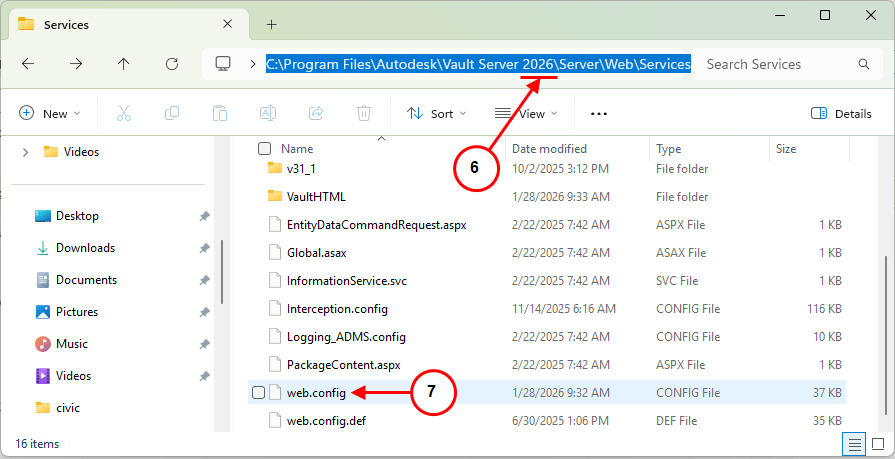
6. Open File Explorer and navigate to C:\Program Files\Autodesk\Vault Server 2026\Server\Web\Services.
7. Open the web.config to verify the following is set correctly.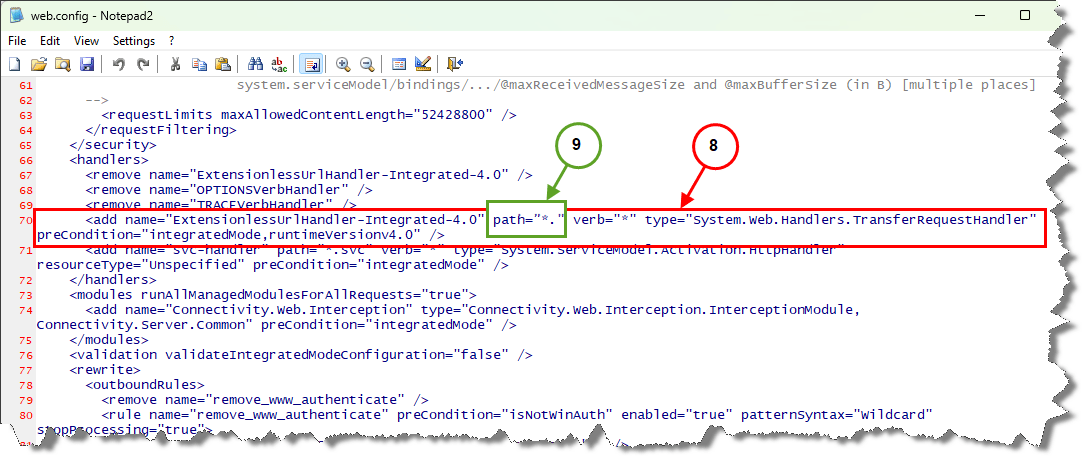
8. Search for highlighted line by searching for <add name="ExtensionlessUrlHandler-Integrated-4.0".
9. The path must be set to path="*.", if not users will receive the error.
Once path is corrected the 500 – Internal Server Error will be resolved.


