

ISSUE
AutoCAD drawings may become unnecessarily large over time, potentially affecting drawing management and performance. Users may notice increased DWG file sizes and longer opening and saving times.
CAUSES
As drawings are edited and reused across projects, AutoCAD may retain unused drawing definitions, including:
-
- Unused blocks
- Unused layers
- Unused linetypes
- Unused text styles
- Unused dimension styles
Although these definitions may no longer be required, they can remain in the drawing database and contribute to unnecessary file content.
SOLUTIONS
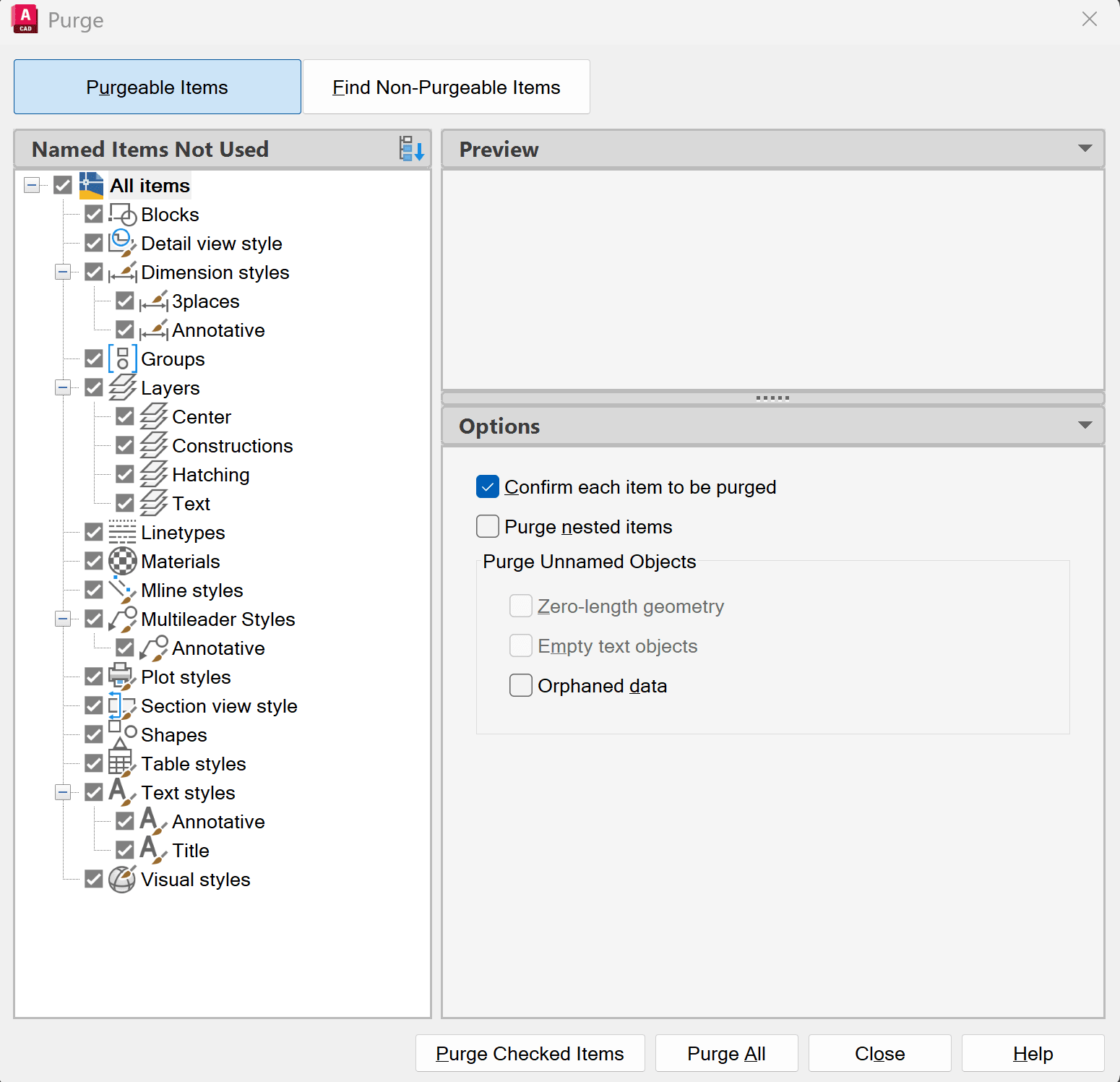
Use the PURGE Command
-
- Open the drawing in AutoCAD.
- Type PURGE in the command line and press Enter.
- The Purge dialog box will display the unused items available for removal.
- Expand the categories to review the unused definitions.
- Select Purge All to remove all eligible unused items.
- Repeat the process if additional unused items become available.
- Save the drawing.
Additional Cleanup Using -PURGE
-
- To remove unused registered application data:
- Type -PURGE in the command line and press Enter.
- Enter R for RegApps.
- Enter * to select all registered application names.
- Follow the prompts to complete the operation.
NOTE: Always create a backup before performing cleanup operations. PURGE removes unused definitions but does not guarantee improved drawing performance.
About the Author
More Content by Harpreet Waraich


