Inventor: Remove Save As Data Standard Dialogue

Applies to:
Inventor

Issue:
File Save As produces Data Standard Dialogue

Causes:
Enabled Vault Data Standard

Solution:
Disable the Vault Data Standard 
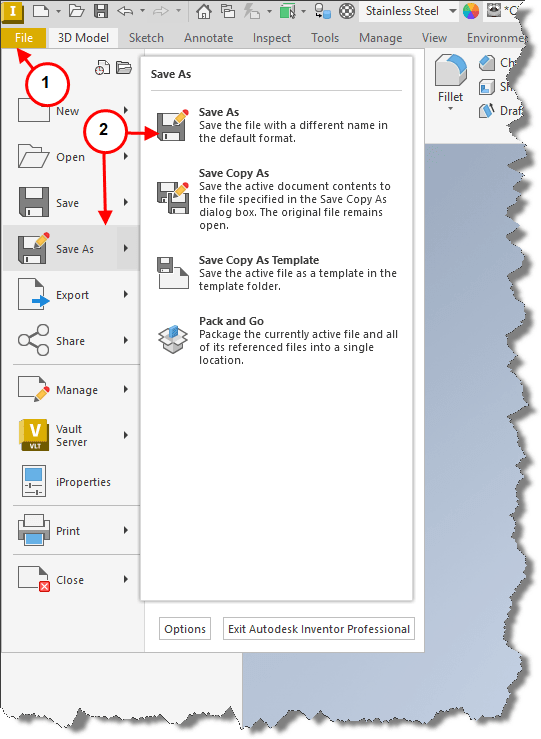
 
1.    Selecting File tab.
2.    Followed by Save As.
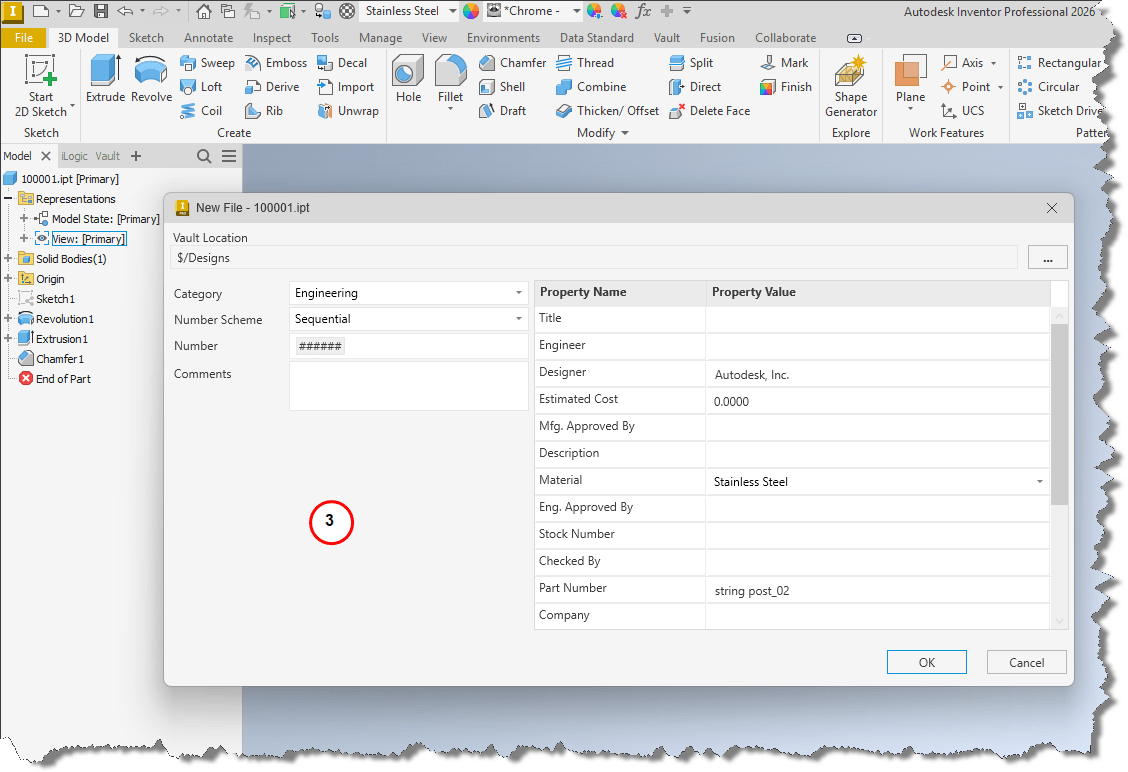
3.    Displays the Vault Data Standard New File menu.
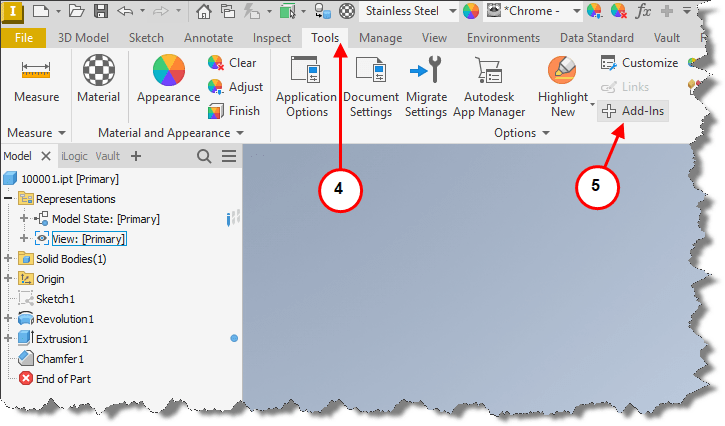
 
4.    To disable Vault Data Standard, select the Tools tab.
5.    Followed by Add-Ins in the Options section.
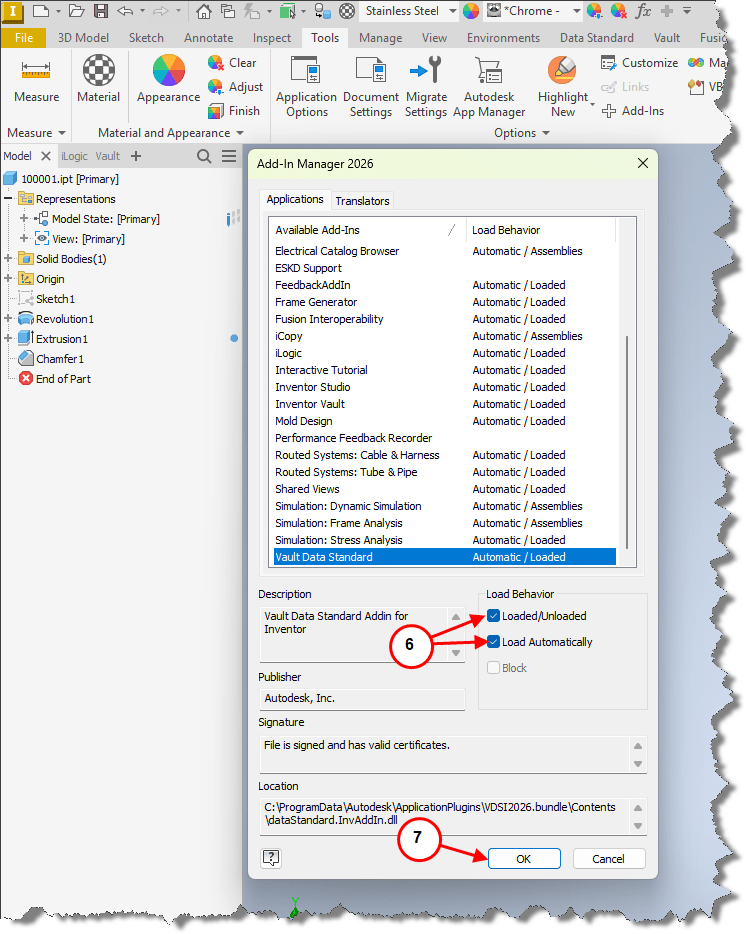
 
6.    Scroll to and highlight the Vault Data Standard Add-In, uncheck Loaded/Unloaded and Load Automatically.
7.    Select OK.
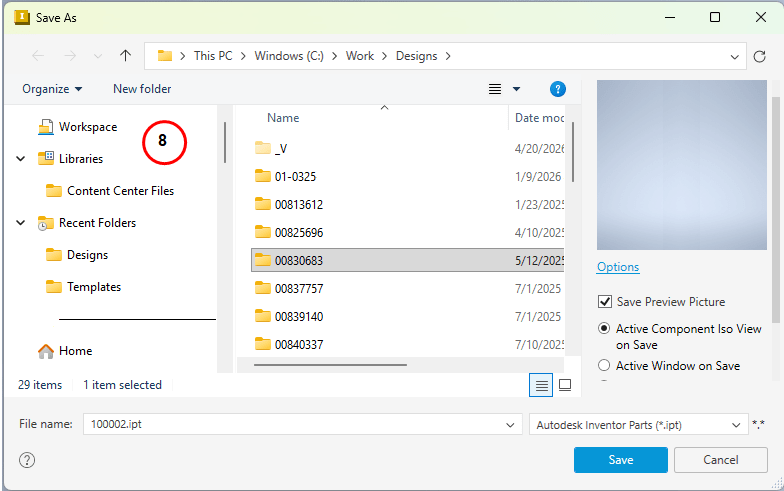
 
8.    Selecting File tab followed by Save As will produce standard Save As menu.

Previous Article
Copy AutoCAD Mechanical Workspace from one system to another

You would like to copy a custom AutoCAD Mechanical Workspace from one system to another to share with anoth...

Next Article
Fabrication Oval to Rectangle fitting Grayed out in Revit

In the current Fabrication CADmep content, the tap for an oval main to a rectangular branch does not exist.

Need tech support? Let us help!

Learn More