

Applies to:
Inventor
Issue:
Ability to add design notes and documentation to parts (IPT) and assemblies (IAM) files.
Causes:
Track design changes with notes and documentation at the file level
Solution:
Create notes in the design file using Engineers Notebook.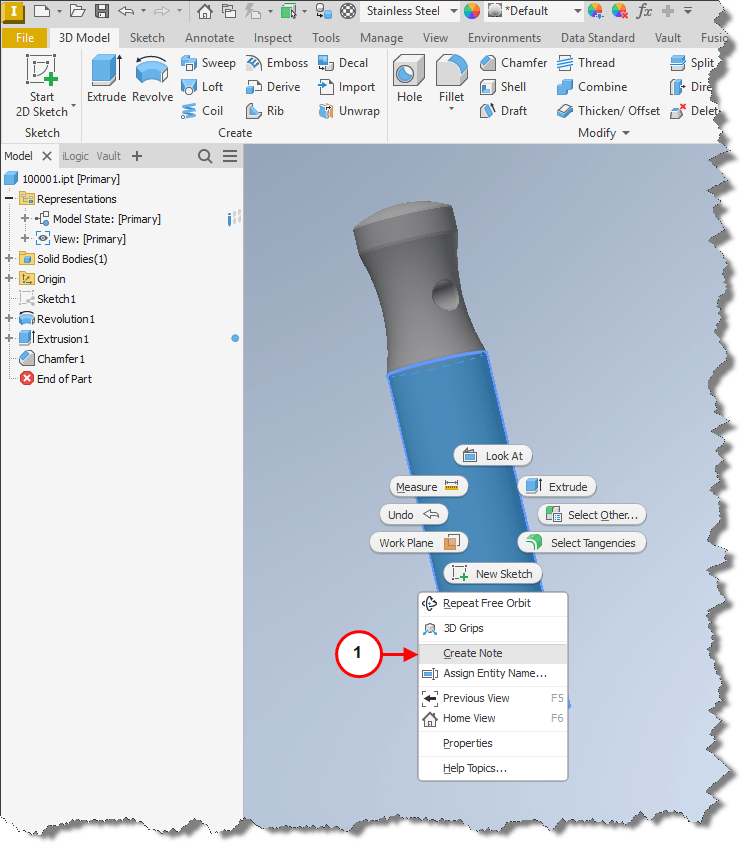
1. Right click on a surface or edge of a part or assembly and select Create Note. 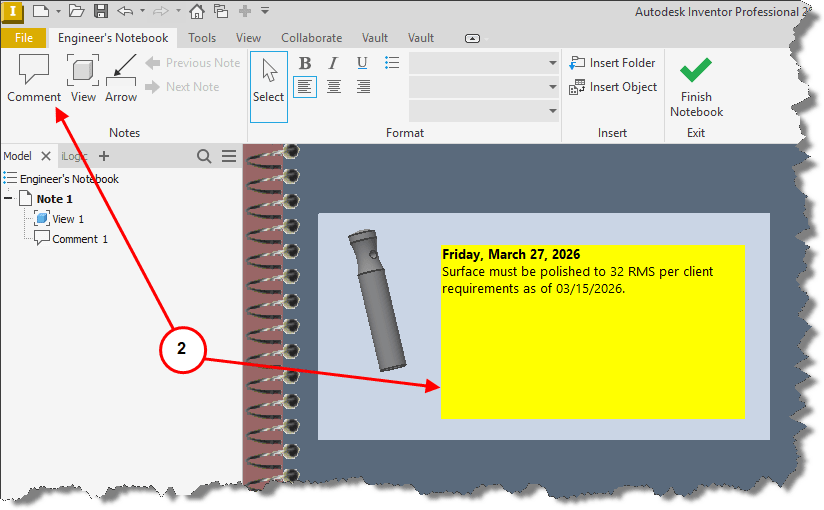
2. Comment allows user to apply a window that will show as a yellow note field.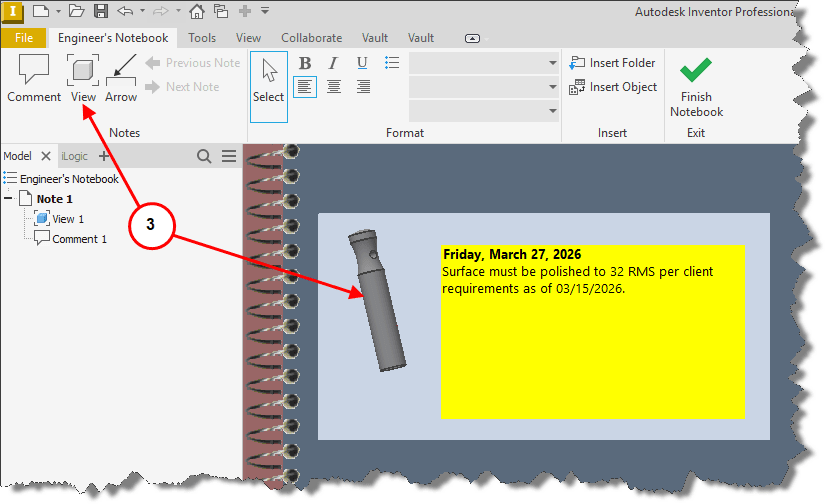
3. View inserts a view in the Engineers Notebook.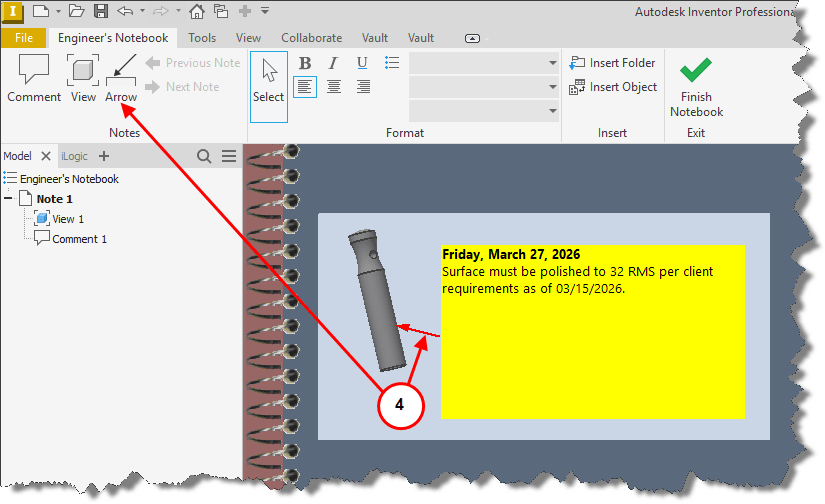
4. Arrow, ability to draw an arrow from what surface or edge is indicated and terminates at the note. 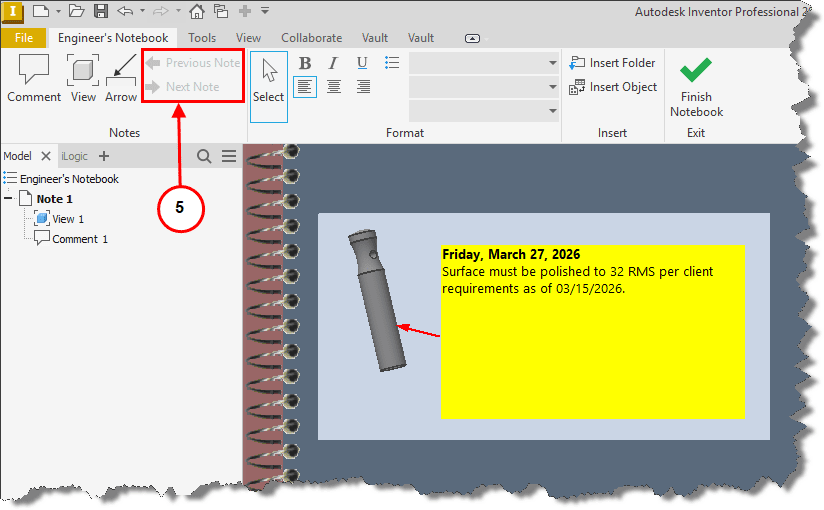
5. Shows the Previous Note in the Engineers Notebook or Next Note.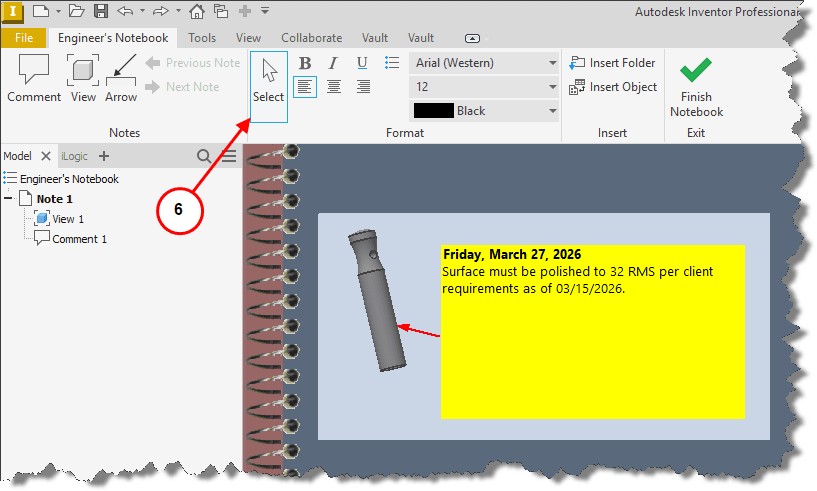
6. Selects existing notebook text for formatting.
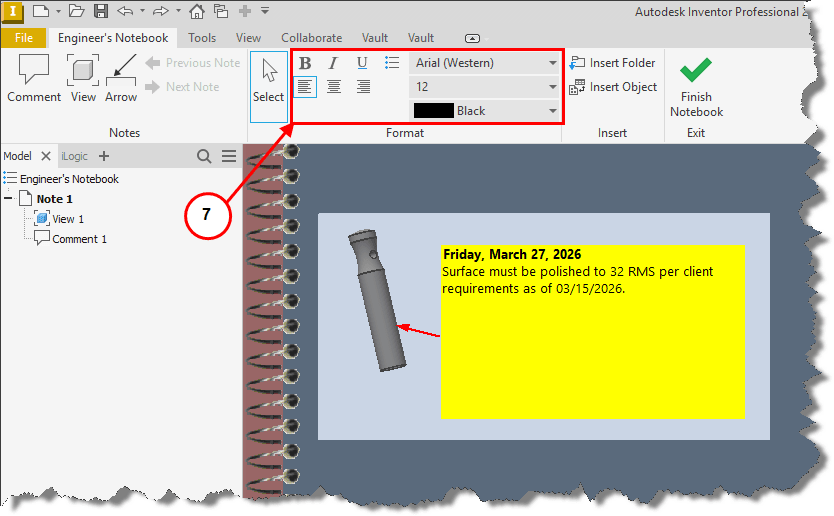
7. Text formatting tools.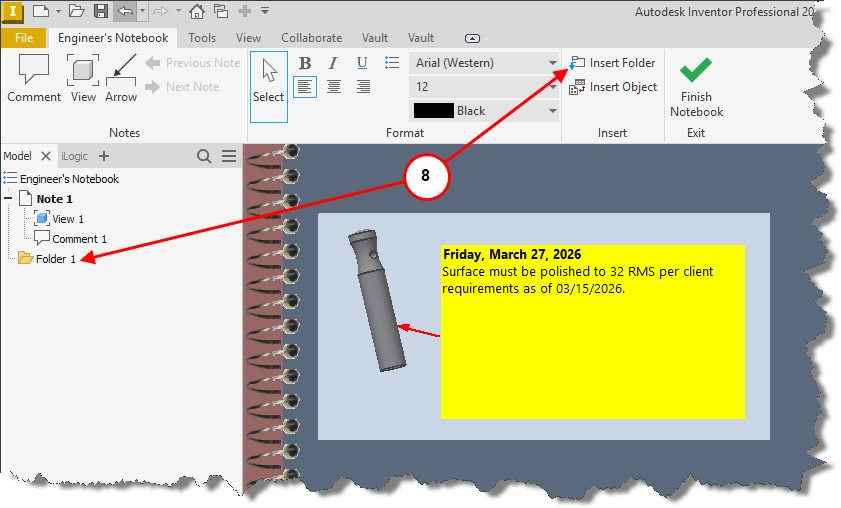
8. Insert Folder, allows file folder creation for design details to be stored.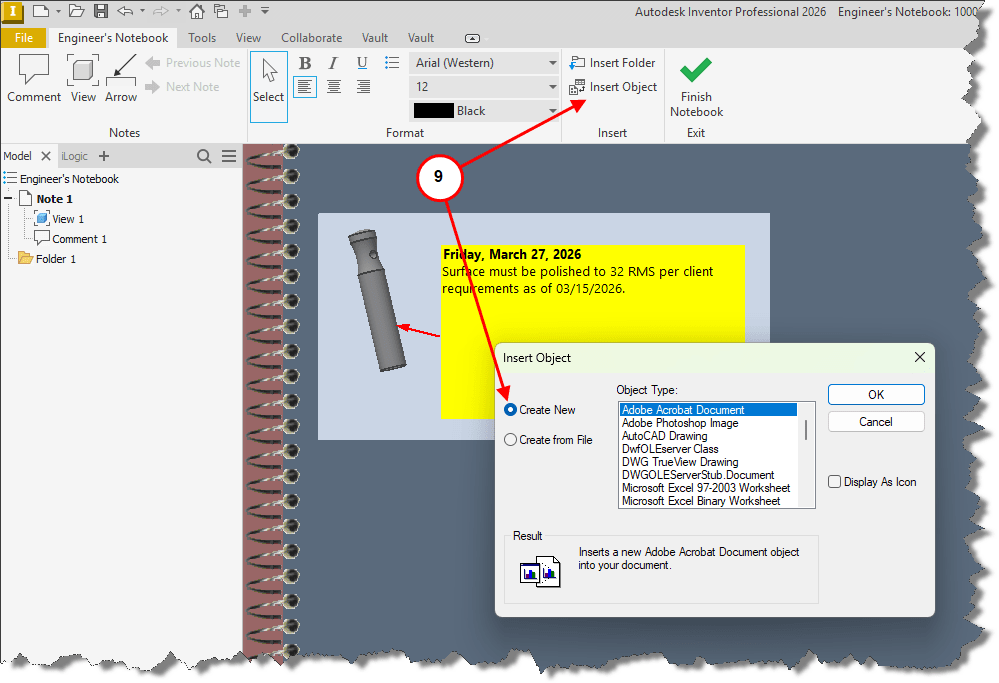
9. Insert Object allows users to create and add a new file by type to the notebook.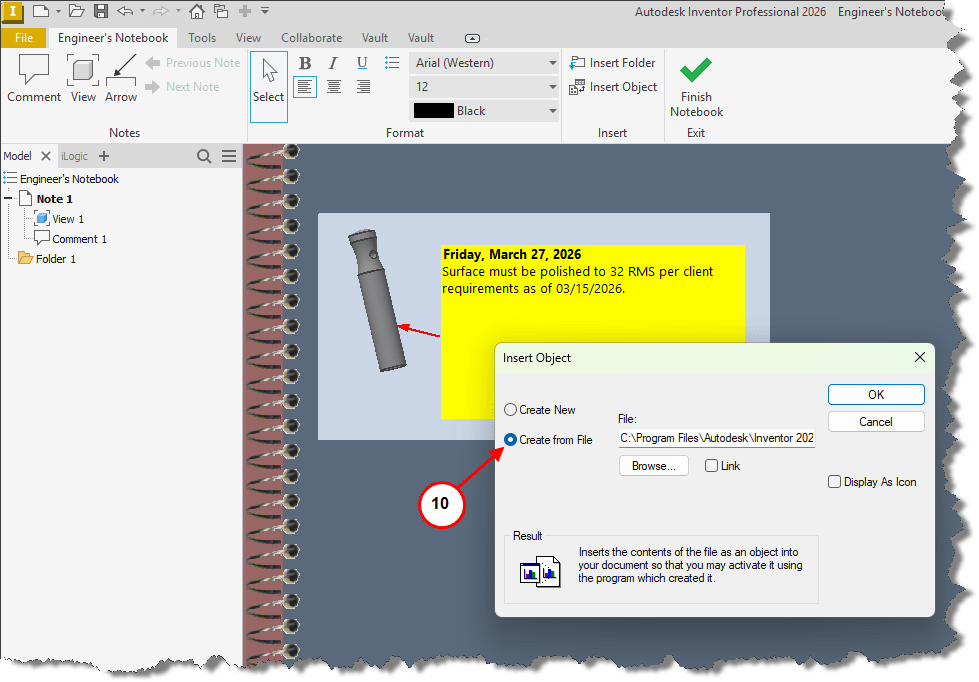 10. Insert Object allows users to insert a file to the notebook.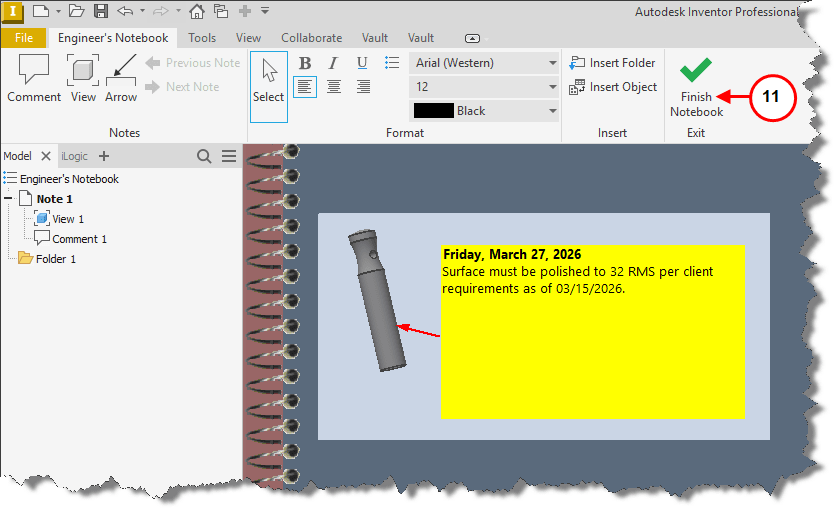
11. Select OK to close notebook. 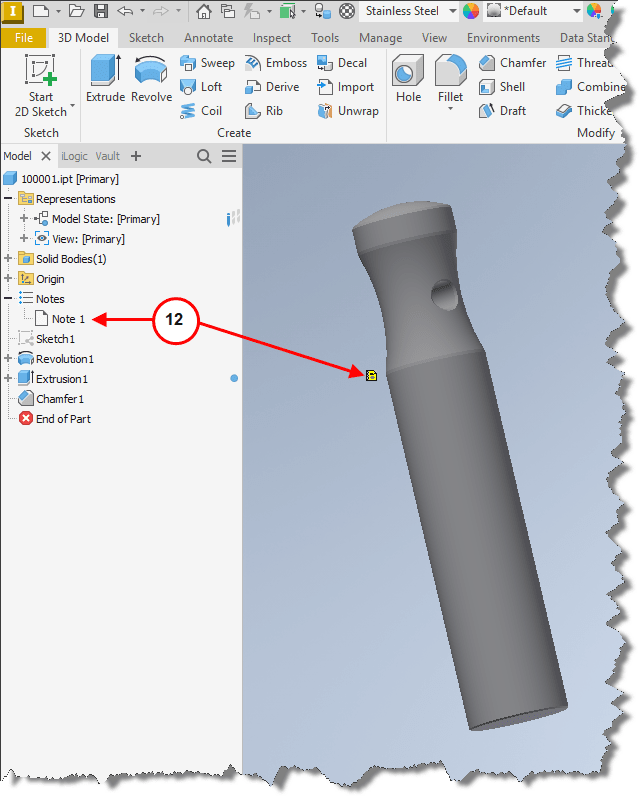
12. Double clicking the note folder in the browser or double clicking the note icon in the modeling area will open the notebook.


