

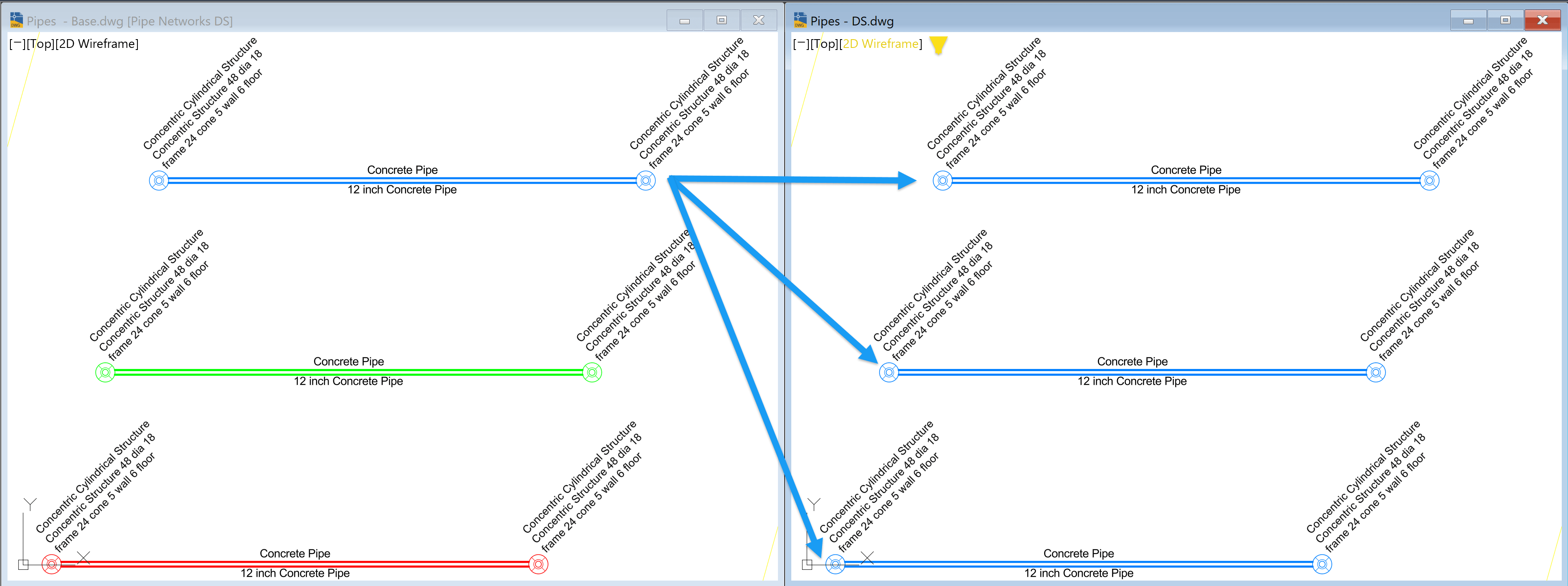
Pipes or structures may not appear as expected when referenced from a source (base) drawing into Data Shortcut drawings.
The Issue
This issue is caused by how the Parts List is configured. If duplicate parts share identical parameters and dimensions, Civil 3D defaults to the first assigned style in the list.
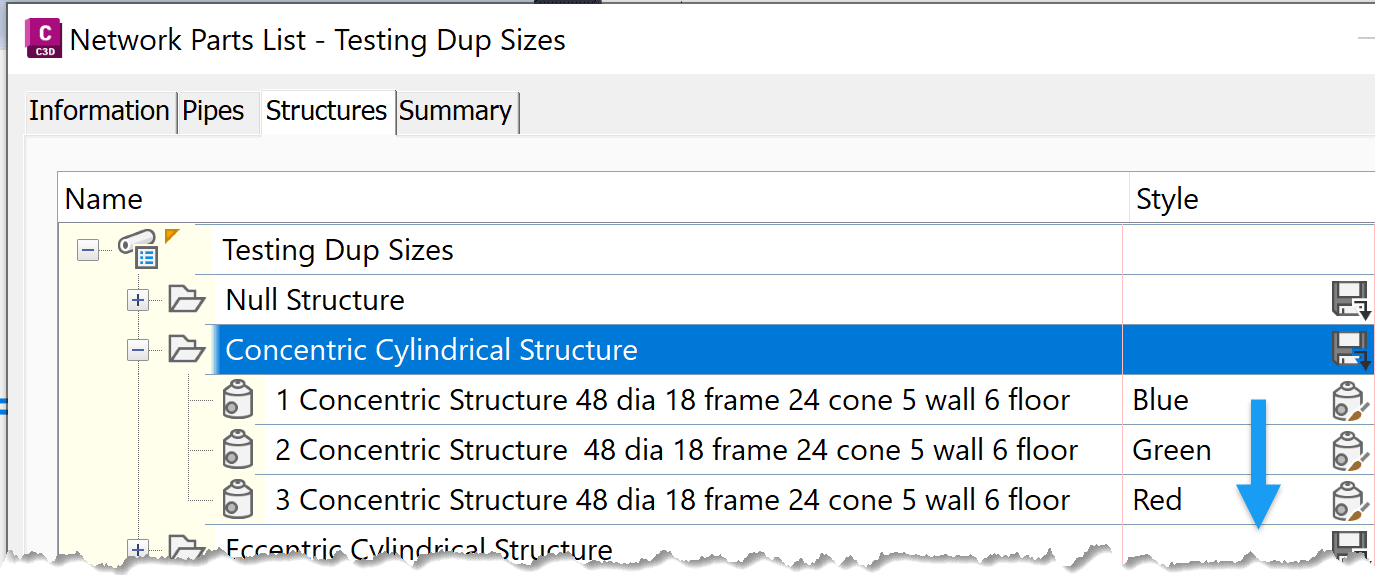
For example, multiple “Concentric Cylindrical Structure” parts may have identical parameters. As a result, the style of the first listed part (e.g., Blue) is applied to all matching parts in the Data Shortcut drawing.
Simply renaming parts or adding numerical prefixes is **not enough** to differentiate them.
The Solution
Each part in the Parts List must have at least **one unique parameter value** (for both pipes and structures). This ensures that styles assigned in the base drawing are preserved in Data Shortcut drawings.
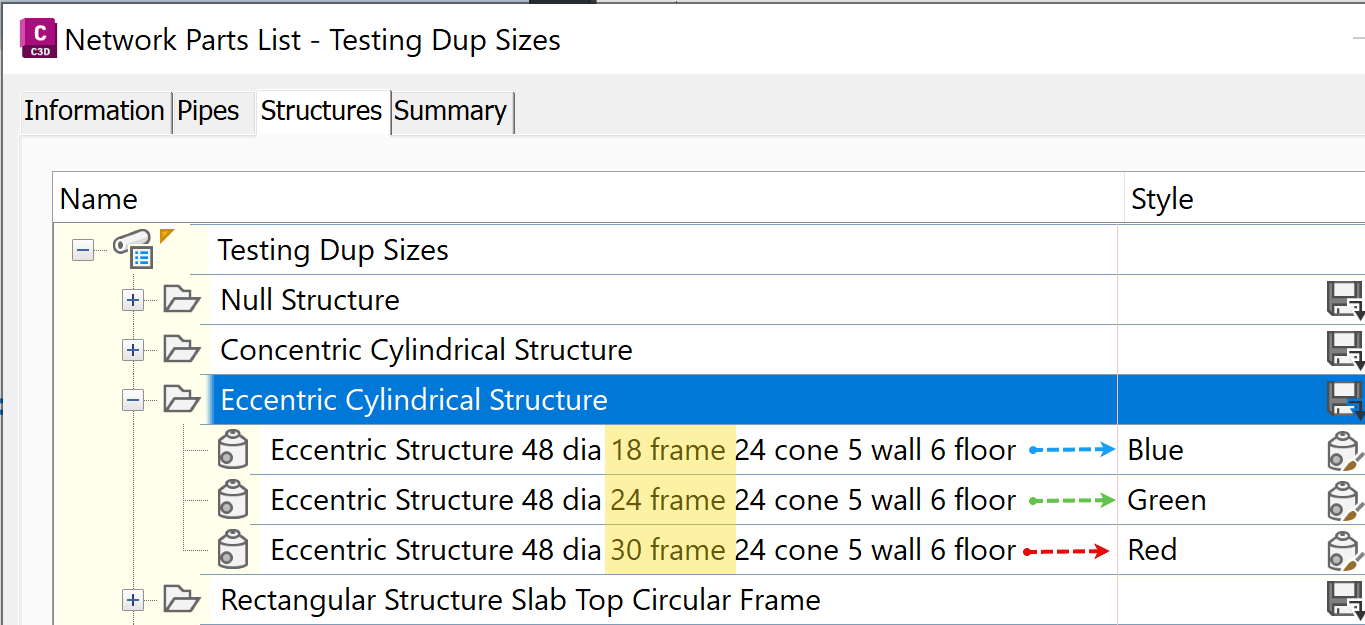
For example, using “Eccentric Cylindrical Structures”:
-
- 18” frame → Blue style
- 24” frame → Green style
- 30” frame → Red style
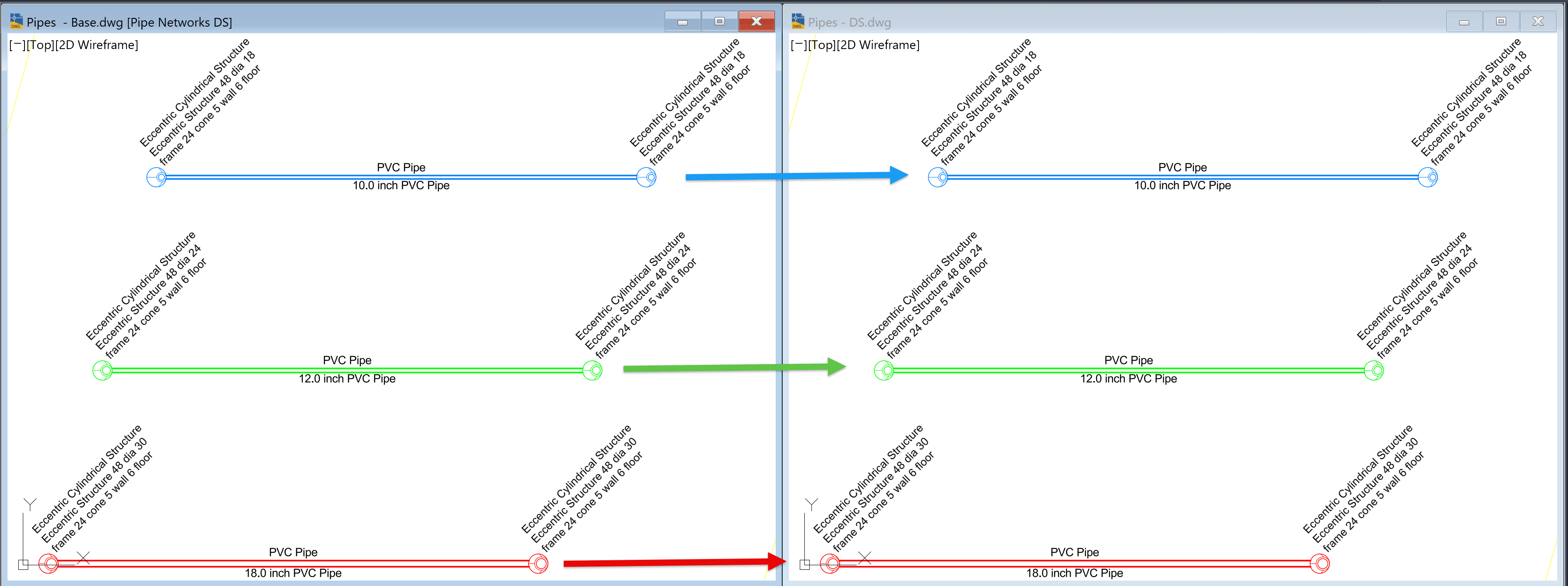
Because each part has a distinct parameter, Civil 3D correctly maintains the assigned styles across drawings.
NOTE:
The Parts List and styles must exist in both the base and referenced drawings.
This simple adjustment can resolve most style mismatch issues in Data Shortcuts.
For more tips like this, visit the Civil Solutions Blog:
https://resources.imaginit.com/civil-solutions-blog
About the Author
More Content by Leo Lavayen


