

After kicking the tires and taking Autodesk Assistant Tech Preview for a spin I've come up with a few tips and tricks that I'd like to pass along.
Tip #1: Use ctrl c and ctrl v to copy and paste into the text prompt box. There is no right-click menu.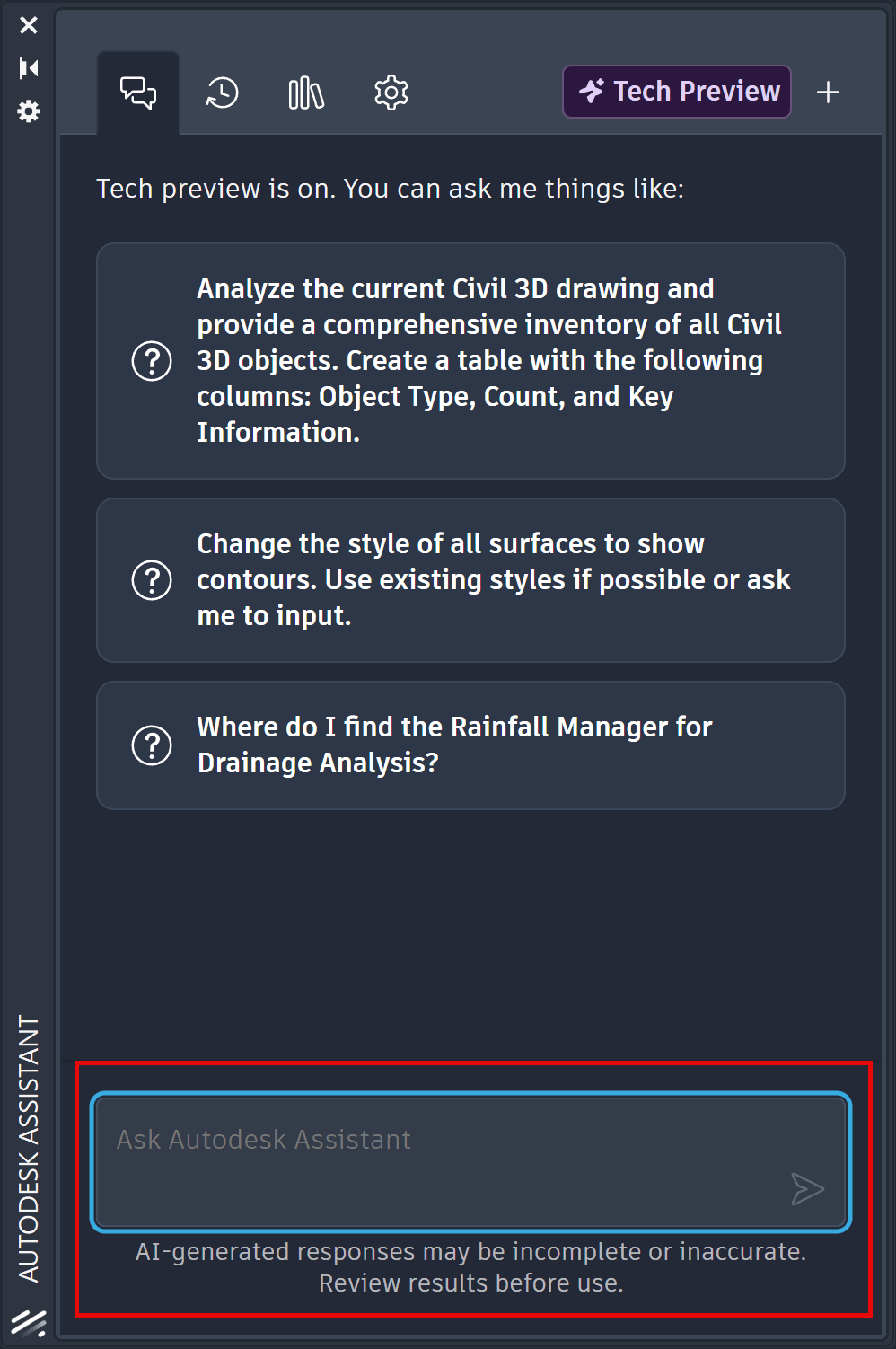
Tip #2: Analyze one Civil 3D object type at a time.
One of the example prompts available in Tech Preview is:
Analyze the current Civil 3D drawing and provide a comprehensive inventory of all Civil 3D objects. Create a table with the following columns: Object Type, Count, and Key Information.
This sounds promising, however, when I ran this prompt twice on the same drawing file I received inconsistent report formatting and a discrepancy in the number of total Civil 3D Objects.
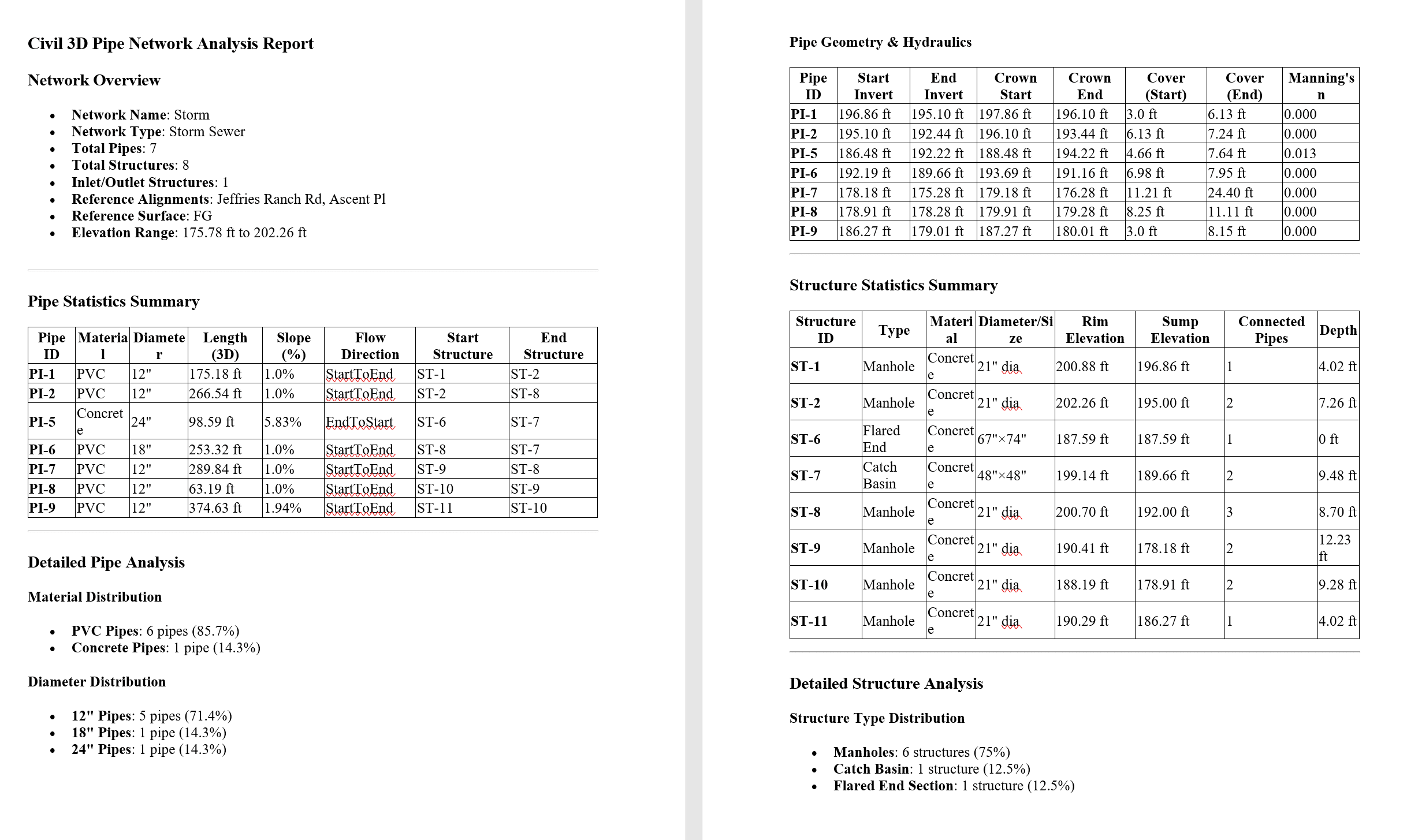
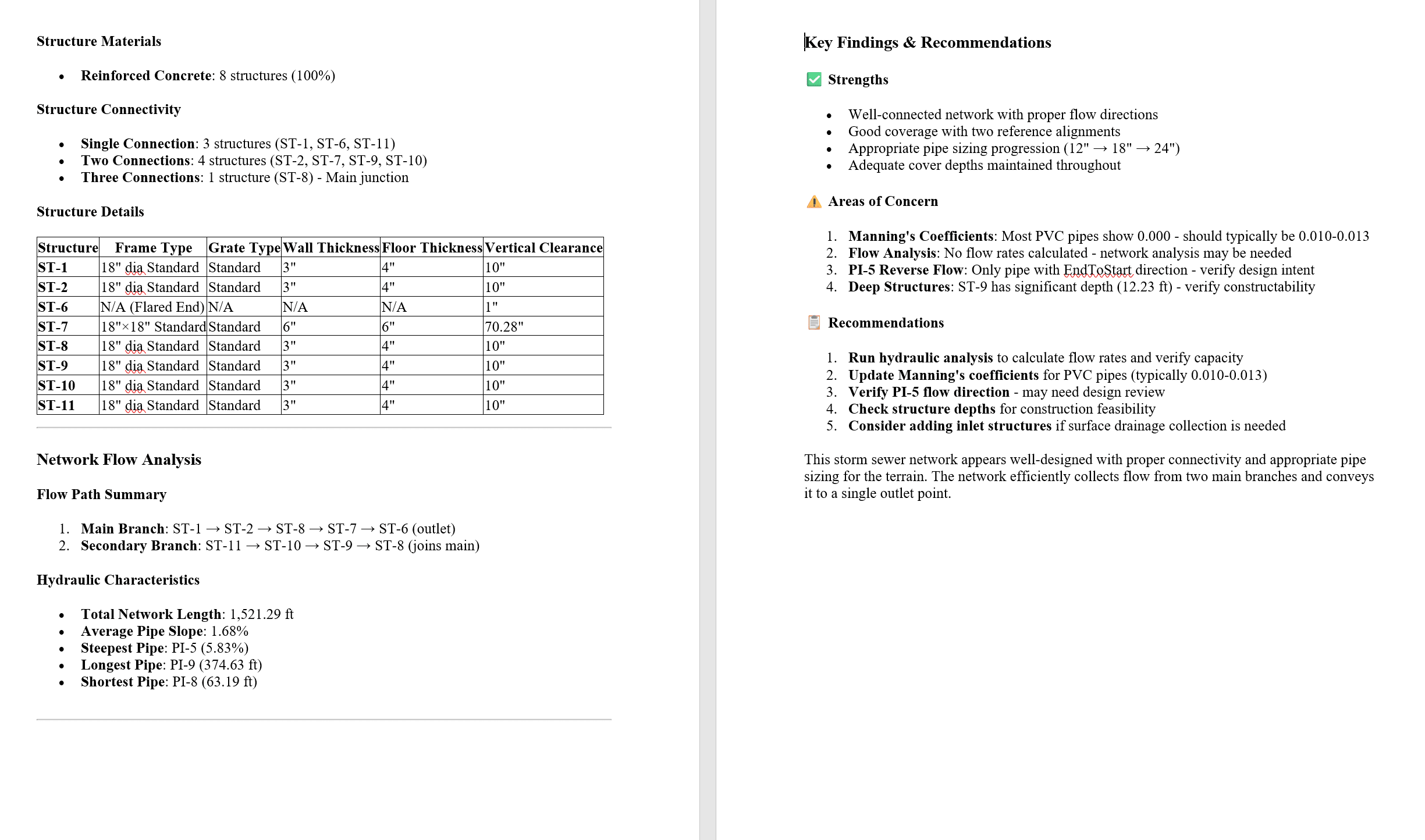
A better approach is to Analyze one Civil 3D Object type at a time. I have an example below of a Civil 3D Pipe Network Analysis Report generated from this prompt:
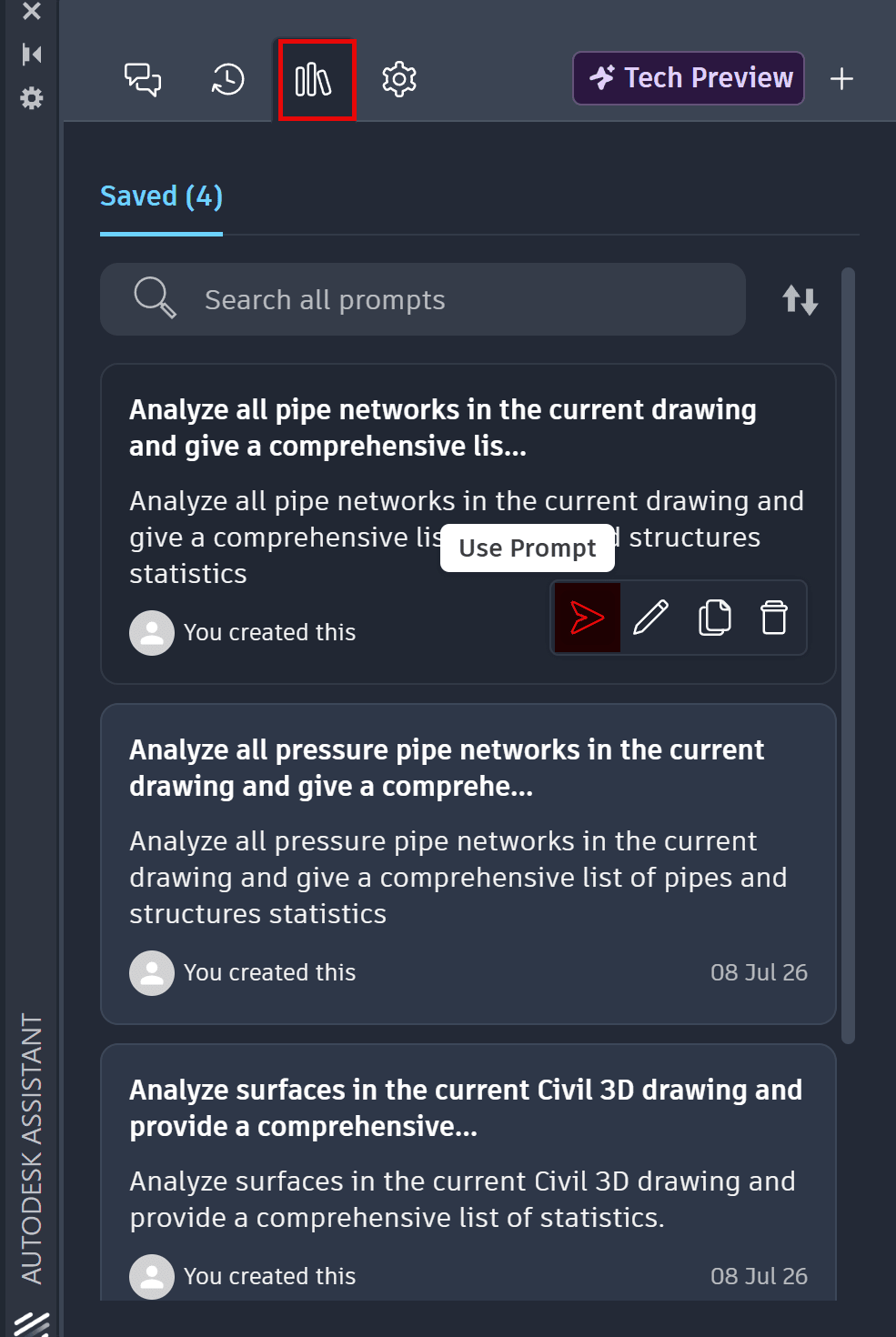
Analyze all pipe networks in the current drawing and give a comprehensive list of pipes and structures statistics.
Tip #3: Use the Prompt Library
Once you've crafted a successful prompt you can Save Prompt.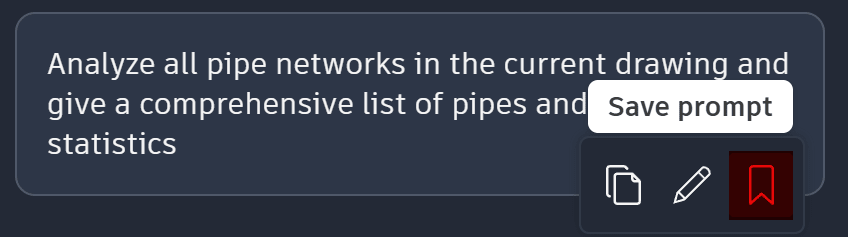
This will save it to the Prompt Library where you can Use Prompt.
I would encourage you to explore the Autodesk Assistant Tech Preview, but remember to fully read the responses to your prompts and verify the reports generated.
About the Author
Follow on Linkedin More Content by Dana Rice


