

Standards creation is the easy part...enforcement can be a real bear. Autodesk Assistant, with Tech Preview turned on, has the ability to check any drawing file against your company standards file and run a drawing standards report that will include recommendations.
Autodesk Assistant is available within Civil 3D 2027 and is an excellent resource for online Autodesk research.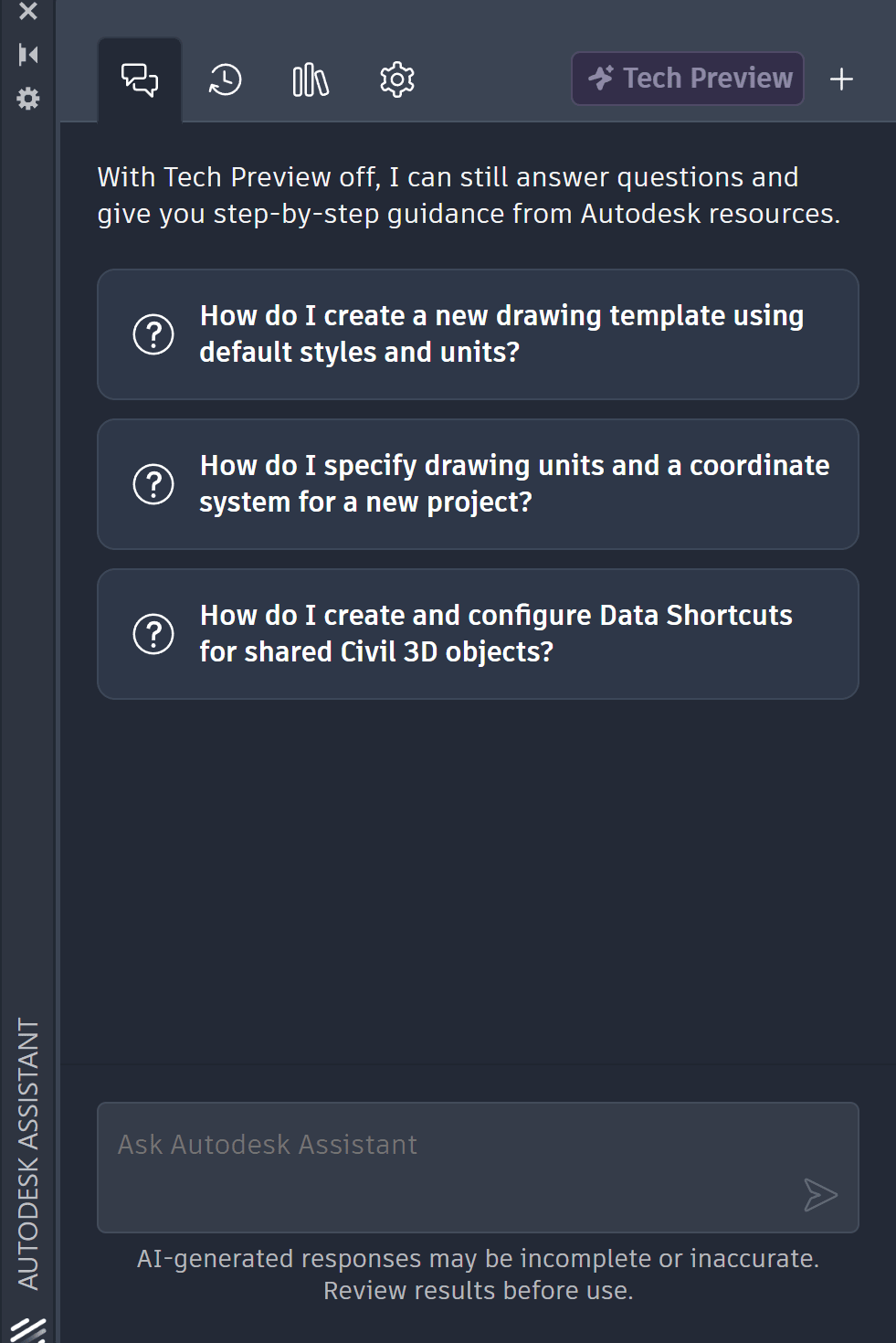
When Tech Preview is turned on, Autodesk Assistant gains some analysis functionality.
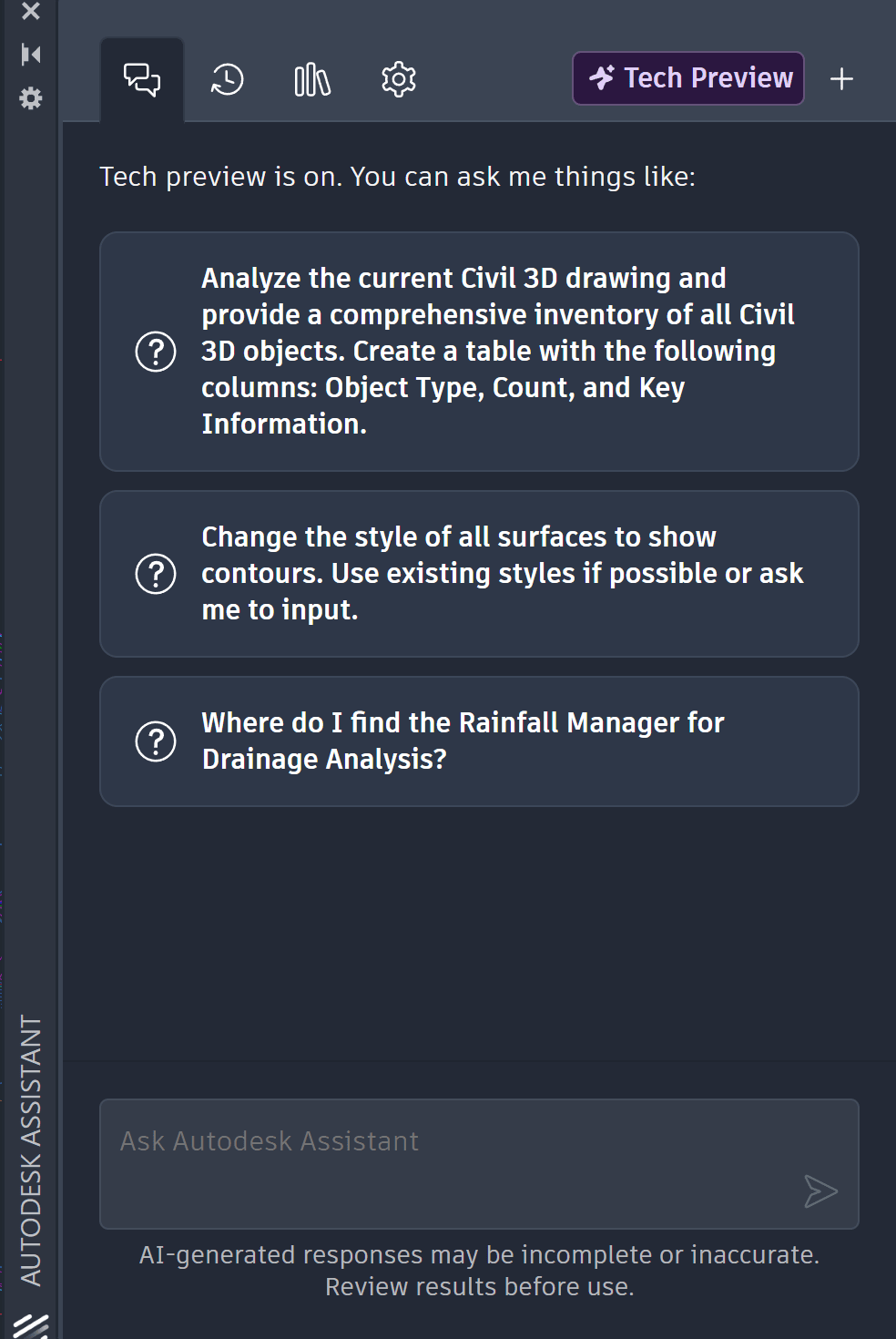
I would like to stress the word assistant.
Autodesk Assistant does not replace you as the intelligent designer/creator. My example today will be a prompt requesting Autodesk Assistant to check the current drawing against a standards file. This tool can quickly compare layers, styles, linetypes, and text objects against your company standard .dwt file in order to generate a report of discrepancies, but it will not change the drawing file. All recommendations should be reviewed before making the changes yourself.
Lets look at the steps required to run this workflow and the resulting report.
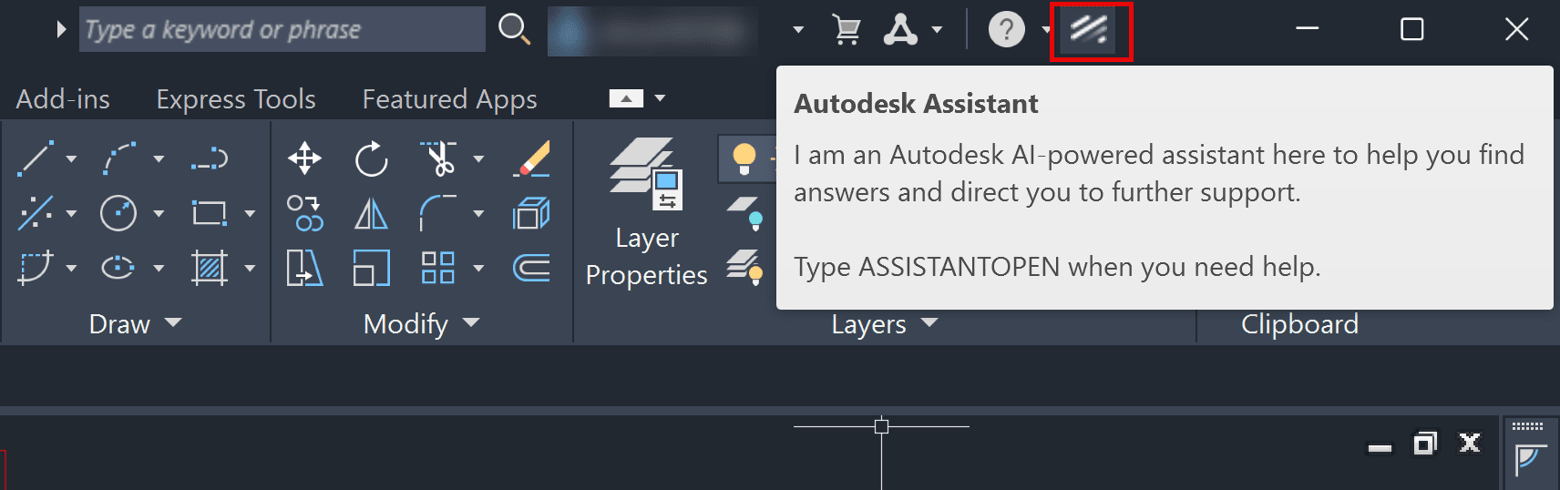
Autodesk Assistant is accessed in the top-right corner of the Civil 3D 2027 interface.
Type the following sentence into the prompt: Check the current drawing against a standards file.
Read the response generated in the chat box. Autodesk Assistant relies on you to provide a .dwt or .dwg file as a standards file. Copy and paste the url of your company .dwt into the text prompt.
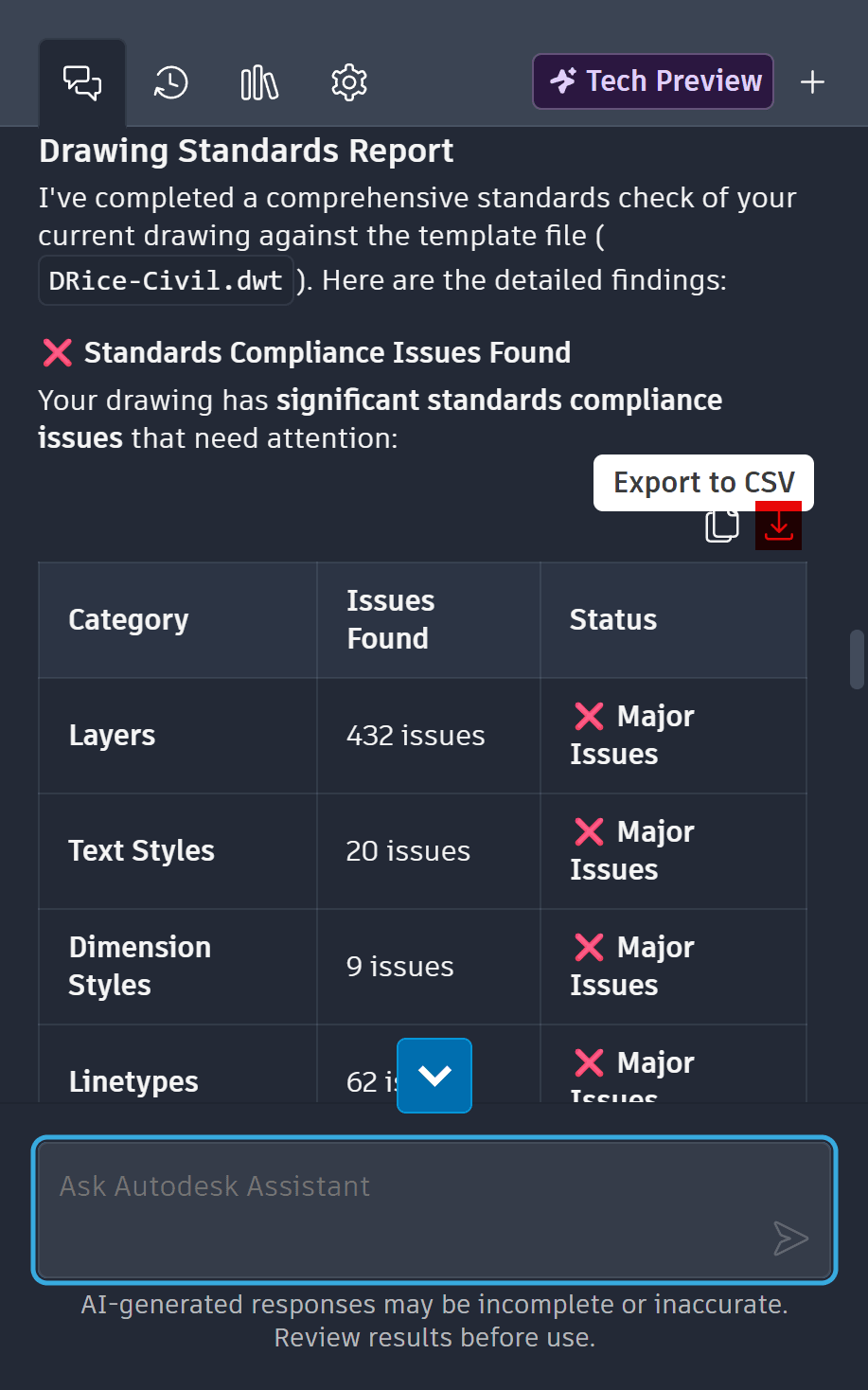
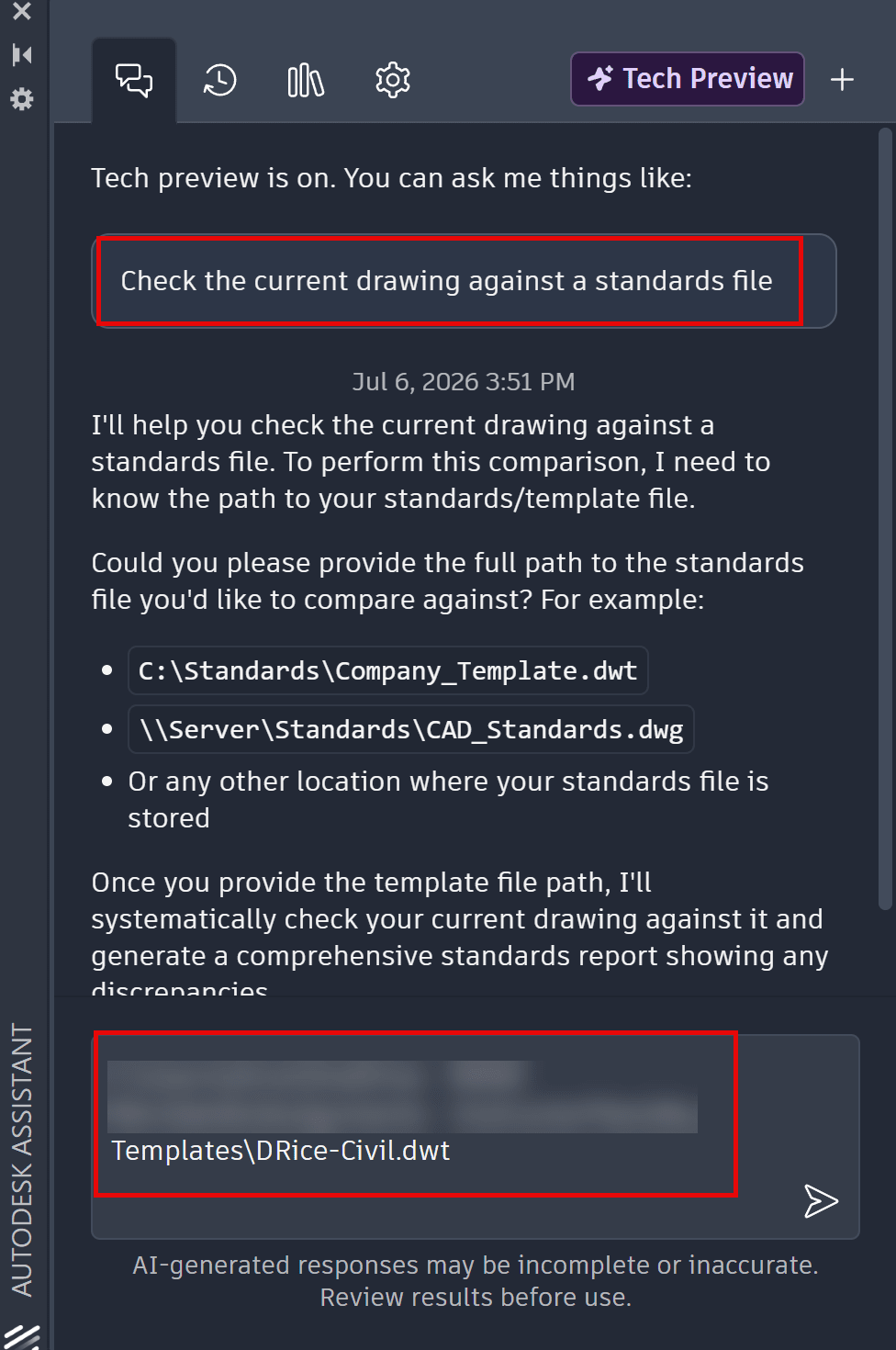 After you provide the necessary information Autodesk Assistant will fulfill your request to check the current drawing against a standards file and generate a report. The process is lightning fast.
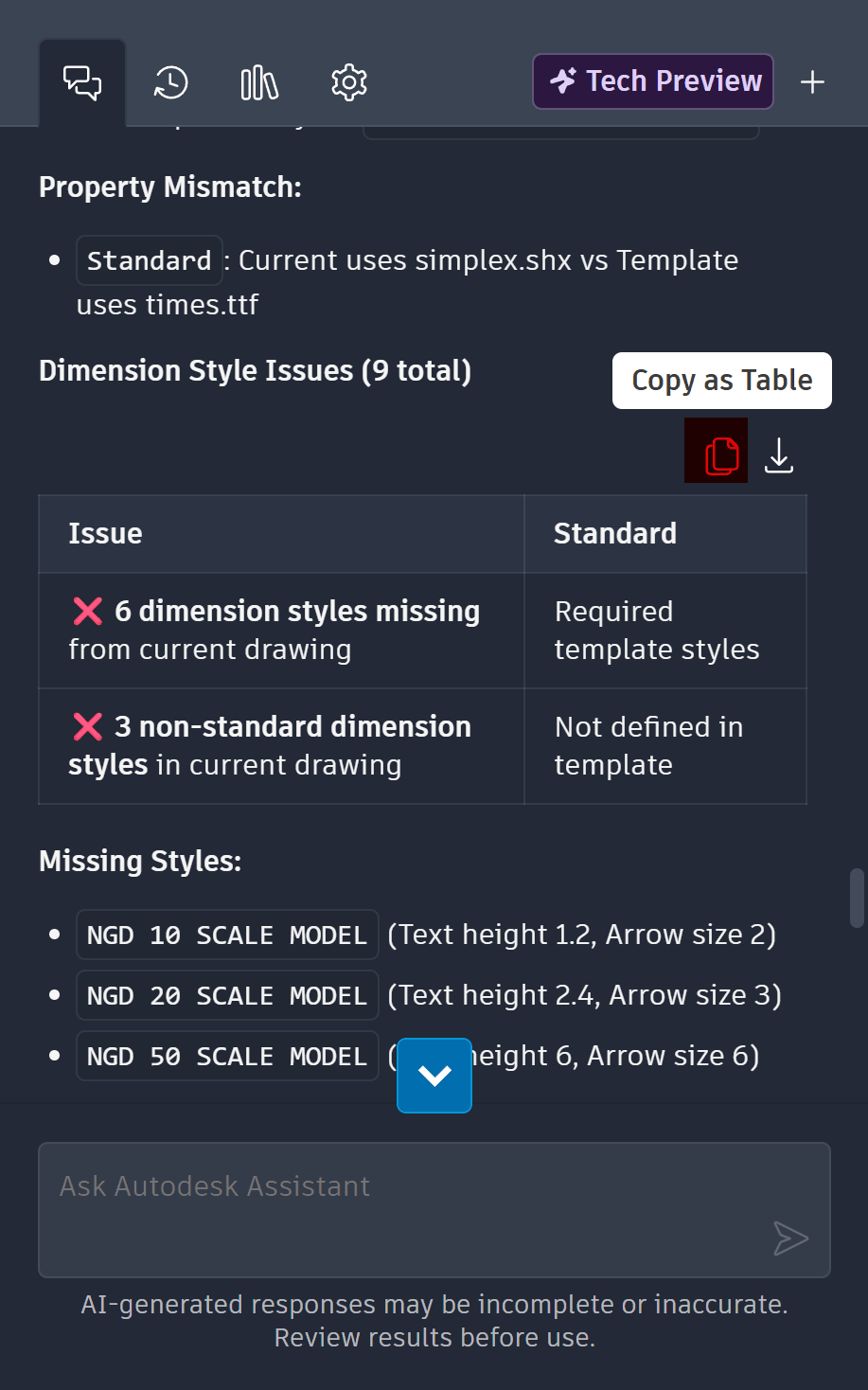
The finished report can either be exported to a CSV file or copied as a table:
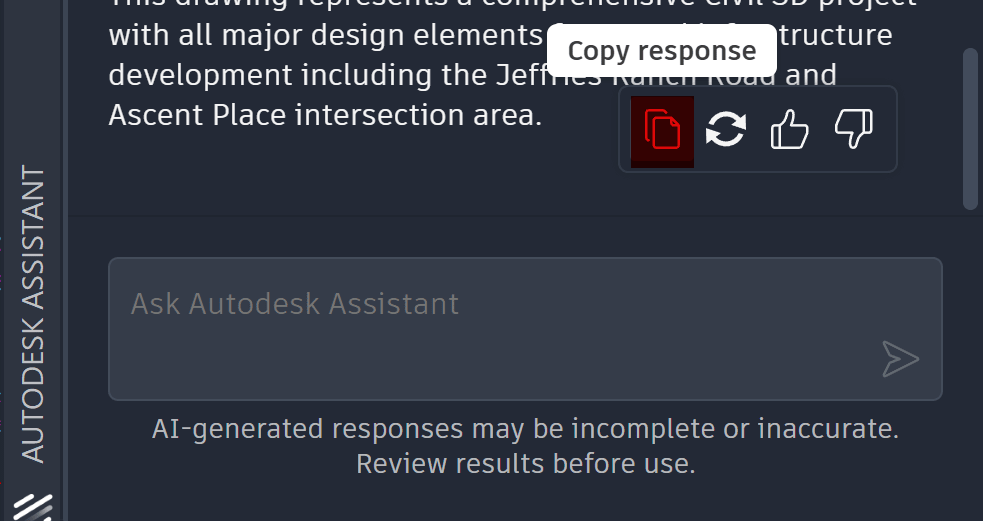
You can also scroll to the bottom of the response to copy it into a Word document. That is what I have done in this example. The screenshots of the copied response are shown below.
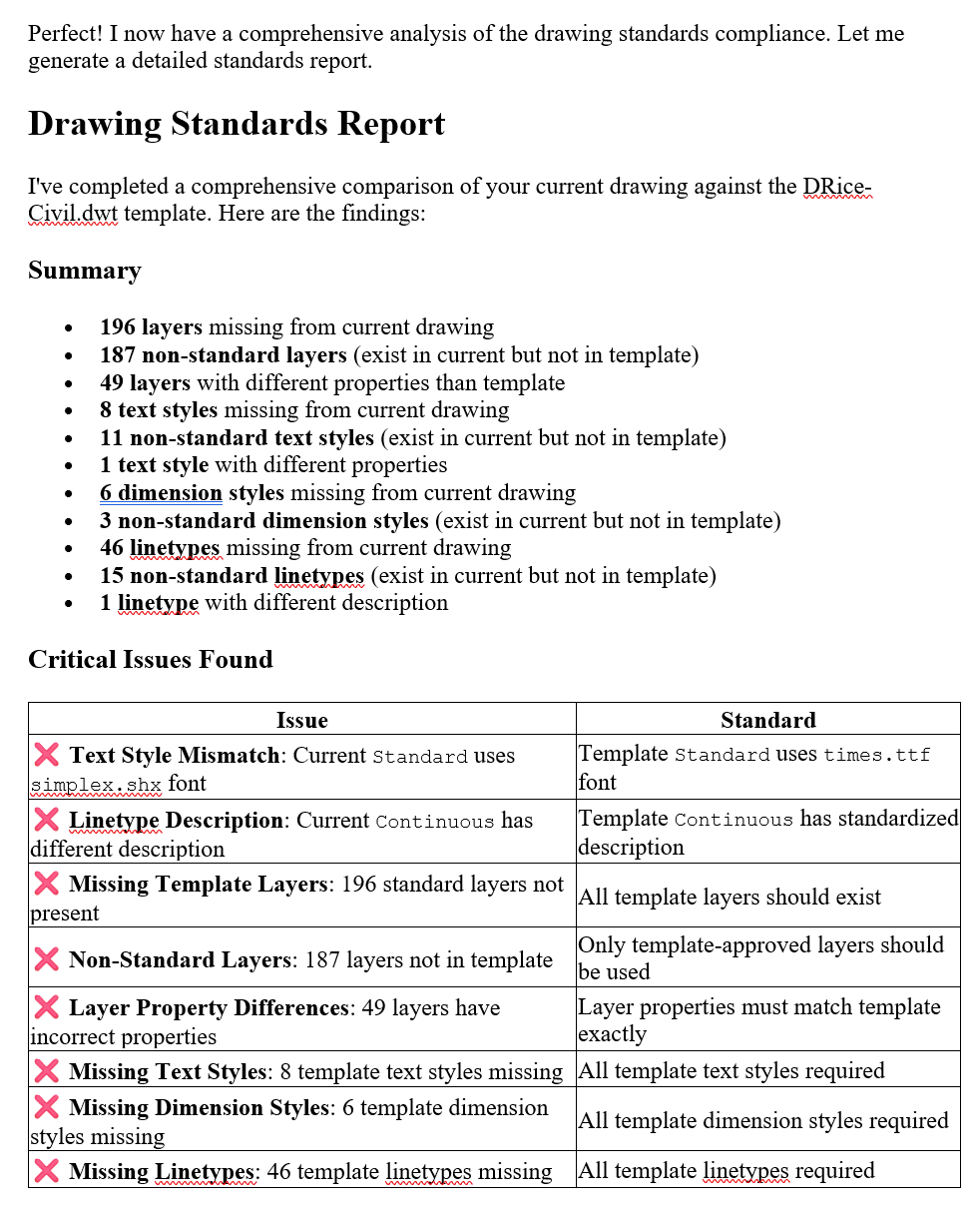
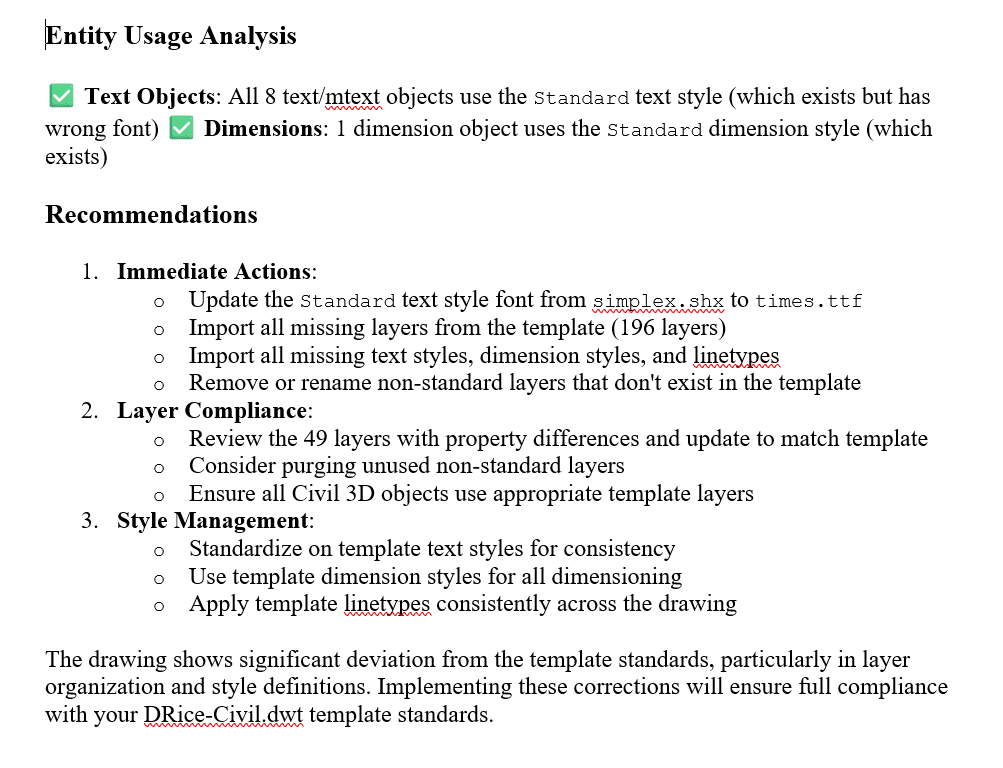
Recommendations must be performed manually.
I will explore the capability of Tech Preview in a subsequent blog post during the month of August so stay tuned for any tips and tricks I learn.
About the Author
Follow on Linkedin More Content by Dana Rice


