

Issue:
After installing the AutoCAD Plant 3D 2026.2 Update, launching the software results in DLL exception errors. The following error messages are displayed:
• Exception in pnpdatalinks.dll
ARX Command: "Unhandled Exception c000027h (c000027h) at address d871b6ah"
• Exception in pnpcommonarx.arx
ARX Command: "Unhandled Exception c000027h (c000027h) at address d871b6ah"
These errors appear in dialog boxes immediately after starting the application.
Solution:
AutoCAD Plant 3D will need to be uninstalled the reinstalled following these steps.
1. Uninstall AutoCAD Plant 3D 2026.
2. If they exist, delete the following folders:
• C:\Program Files\Autodesk\AutoCAD 2026\PLNT3D
• C:\Users\Username\AppData\Local\Autodesk\Autodesk AutoCAD Plant 3D 2026
• C:\Users\Username\AppData\Roaming\Autodesk\Autodesk AutoCAD Plant 3D 2026
Warning! Problems caused by improperly editing the Windows registry could render your computer/operating system unusable. Microsoft provides a wealth of critical information that you need to know about the registry in the Microsoft Knowledge Base. Use the Microsoft® Registry Editor only at your own risk and only after backing up the registry as well as the system.dat and user.dat files as outlined for your operating system in the Microsoft Knowledge Base. Additional information about the registry is also contained in the Help topics in the Microsoft Registry Editor.
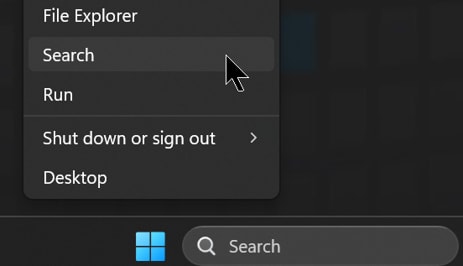
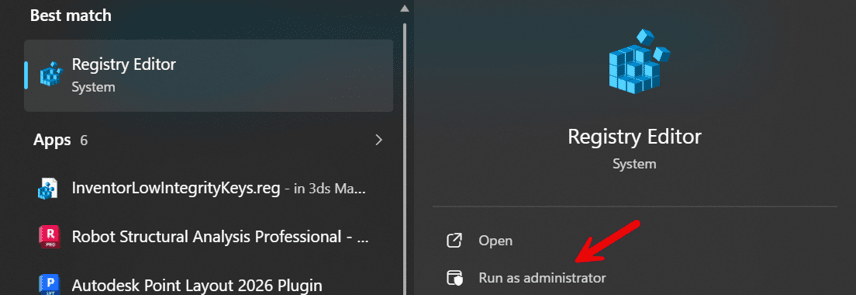
3. Open the Windows Registry Editor by typing Regedit in the Windows Search box, or right-click the Start button and select Search. Then select Run as administrator.

4. If the following registry keys exist, delete ACAD-9117:409:
• HKEY_CURRENT_USER\Software\Autodesk\AutoCAD\R25.1
• HKEY_LOCAL_MACHINE\SOFTWARE\Autodesk\AutoCAD\R25.1
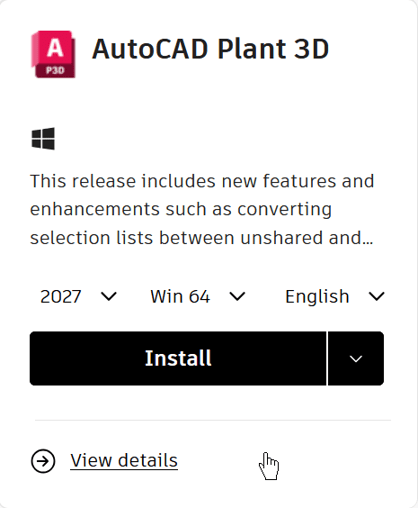
5. Download AutoCAD Plant 3D 2026.0.0:
• Sign in to manage.autodesk.com.
• Select Products and Services.
• Select AutoCAD Plant 3D.
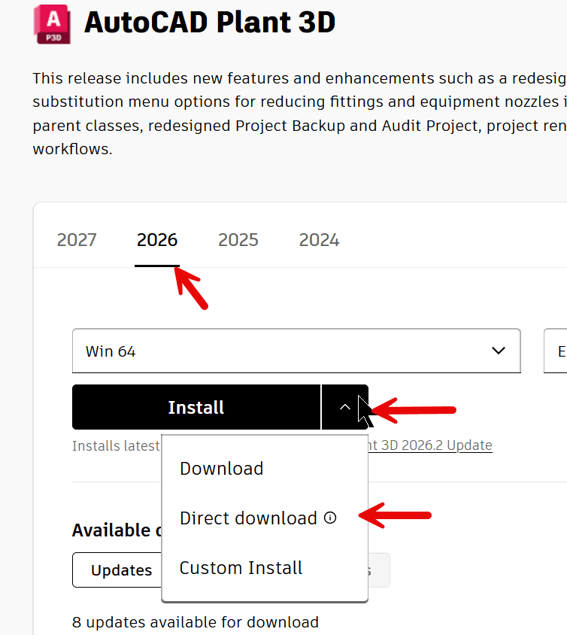
• Choose Version 2026.
• Click the down arrow next to the Install button and select Direct Download.
This will download the original AutoCAD Plant 3D 2026.0.0 release without any updates.

6. Two files will be downloaded:
a. ACD_2026_english_us_win_db_001_002.exe
b. ACD_2026_english_us_win_db_002_002.7z
7. Double-click ACD_2026_english_us_win_db_001_002.exe to extract the installation files to:
C:\Autodesk\WI\ACD_2026_english_us_win_db_002_002\image
8. After the extraction is complete, run Setup.exe from the extracted folder to reinstall AutoCAD Plant 3D 2026. You may receive the same errors with the DLL and ARX file, Install the AutoCAD Plant 3D 2026.2 update.
About the Author
Follow on Linkedin More Content by Paul Sills


