

Applies to:
All Civil 3D Versions
Issue:
You want to export your pipe networks as an IFC format file to use with Revit and are unsure of the process or aren’t getting actual 3D pipes when exporting.
Causes:
This starts with having the IFC Extension installed for Civil 3D
Solution:
It’s not normally installed, so you will need to install that using your Autodesk account.
Here’s how to locate the extension and download it:
https://resources.imaginit.com/manufacturing/where-to-find-and-download-product-updates-from-your-autodesk-account
Once installed, you can find the IFC Export in the Add-ins ribbon:

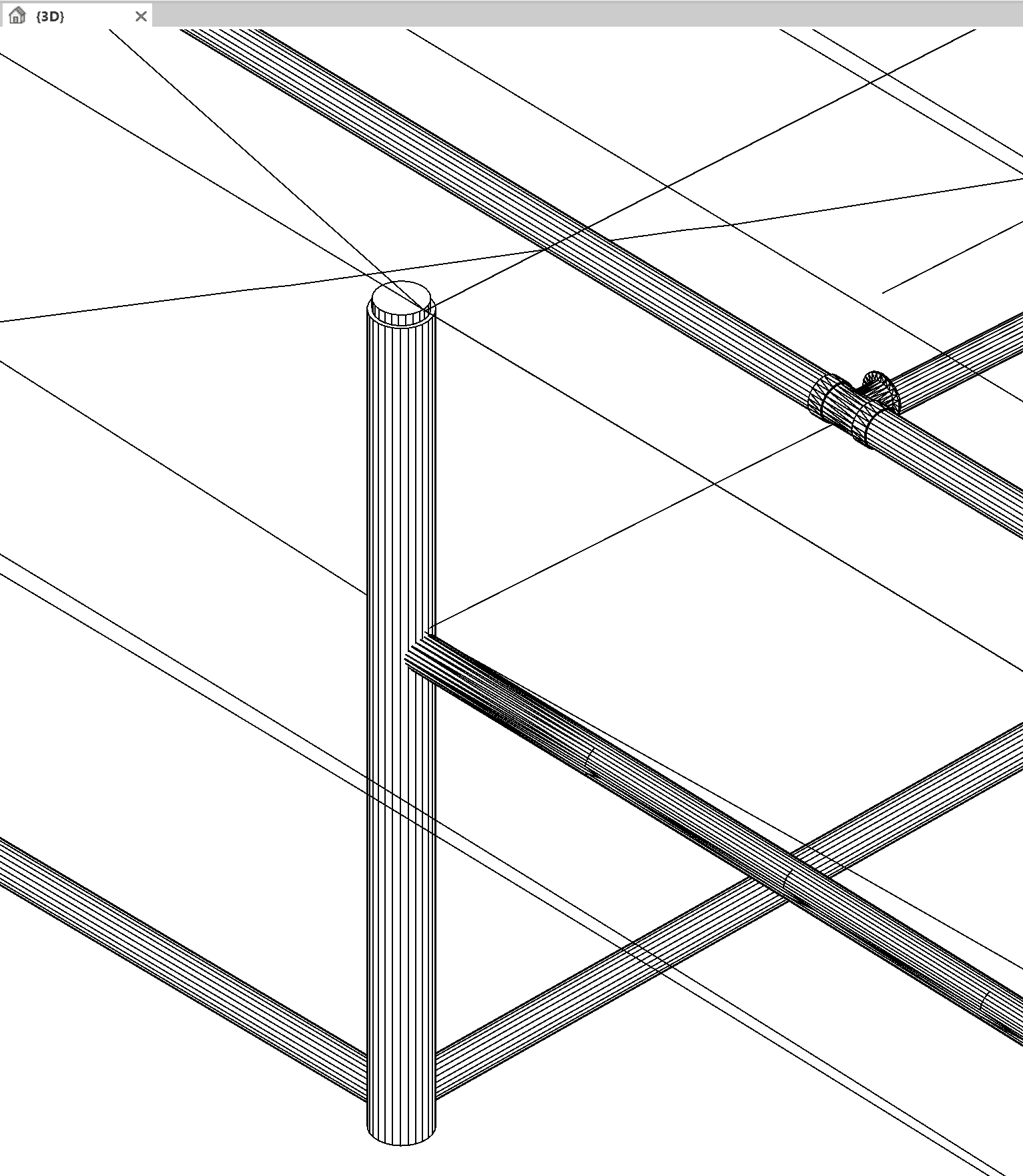
Next, if that’s installed, you will need to set the model space in the Civil 3D drawing to a 3d View (typically I use one of the built-in Isometric view) and run the Export to IFC. Failure to place the model space tab in a 3D view may result in the pipe linework being flattened and only showing lines, may only show fittings and appurtenances (for pressure networks), and not the full pipes. To ensure you get a complete IFC Export of gravity and pressure networks, this is the recommended workflow:
See also this block on the IFC format if using Revit 2024 or earlier:
https://resources.imaginit.com/support-blog/civil-3d-ifc-to-revit-issues
About the Author
Follow on Linkedin More Content by Ryan Wunderlich


