

Issue:
When printing from Revit using Bluebeam Revu 21.11, and configuring the output to use Sheet Number Only, the PDF file name is left blank.
To reproduce the issue:
1. Open the Print dialog in Revit and select Change Settings.
2. In the Print Setup dialog, under General, select One file per view/sheet.
3. Under What to Print, choose Selected views/sheets and click Select.
4. Select the sheet(s) to print and click OK.
5. Click Create Files.
6. In the Output File List dialog, enable Use view/sheet name, then select Use sheet number only.
Expected result:
• The PDF file name should be generated using the sheet number (for example, A101.pdf).
Actual result:
• The file name is blank, displaying only the output path followed by .pdf, instead of the sheet number and .pdf (for example, A101.pdf).
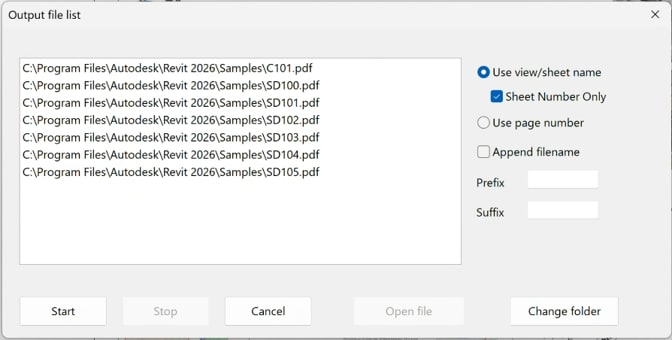
Version 21.10
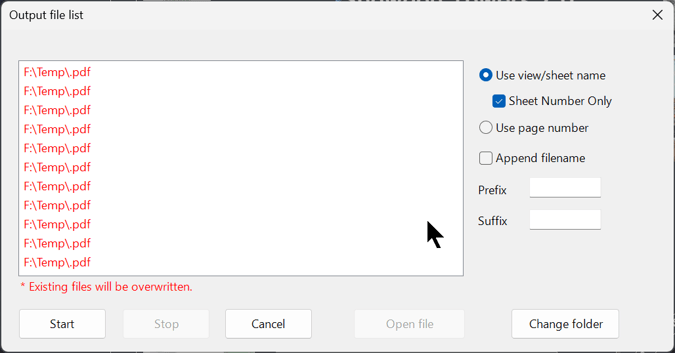
Version 21.11
Solution:
Reinstalling Bluebeam back to 21.10 from 21.11.
Step 1: Back Up Your Custom Settings
Before removing the current version, back up your custom tools, profiles, and configurations to ensure they aren't lost during the process.
1. Open Bluebeam Revu.
2. Go to Revu > Preferences (or press Ctrl + K).
3. Select Admin on the left menu.
4. Click the Options tab at the top, then click Backup.
5. Save the generated .zip backup file to a secure location (like your Desktop).
Step 2: Uninstall Bluebeam Revu 21.11
1. Close all open instances of Bluebeam Revu.
2. Click the Windows Start menu and type Control Panel, then press Enter.
3. Under Programs, click Uninstall a program.
4. Locate Bluebeam Revu in the list, right-click it, and select Uninstall.
5. Follow the on-screen prompts to completely remove the application.
Step 3: Download and Install Revu 21.10
Because you cannot perform in-app downgrades, you must download the exact installer archive for the older point release.
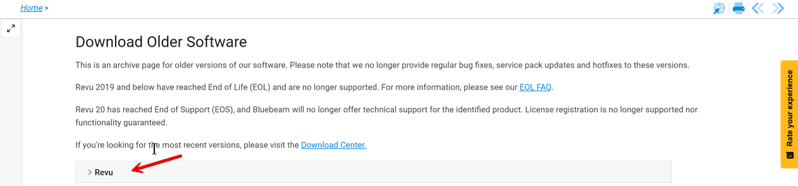
1. Go to the Bluebeam Technical Support Download Archive.
2. Select Revu to list the pervious versions available.
3. Download the installer package specifically labeled 21.10.0.
4. Run the downloaded executable file to install version 21.10 onto your system.
5. Open Revu and log in with your Bluebeam ID (BBID) to automatically reactivate your plan.
About the Author
Follow on Linkedin More Content by Paul Sills


