

Applies to:
All AutoCAD-based Products
What is an ARG file
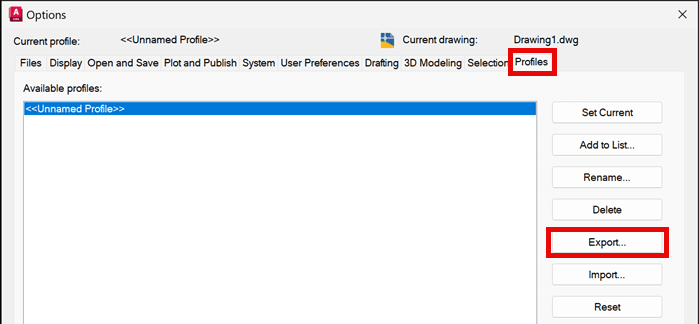
An ARG file is an exported AutoCAD-based software User Profile, which is divided into two primary sections that save your working environment settings. You can create an ARG file inside the options dialog box, by going to the Profiles tab and Exporting the Profile:
Part 1: Profile-Specific Registry Data
This section contains registry entries used to build your profile, primarily capturing settings from the Options Dialog or other system variable changes.
• Options Settings: Most general settings from the Options dialog are saved, including environment changes like background colors and crosshair size.
o Not Saved: Graphics configuration and drawing-specific variables (variables that are not profile-dependent) are not included.
o Some preferences and changes are not stored in the ARG, like Layer Isolate preferences and some other command preferences.
• Recent File History: The profile also stores a running record of recently accessed files and paths, such as:
• Last used template and recent DWG files.
• The last path used for external reference (XREF) data.
• Recently opened Sheet Sets.
• Files opened in the session when the ARG was created (displayed in the Start tab).
• The last-saved publish path.
• These are stored as registry entries in the file that are applied to your system under the HKEY_CURRENT_USER for the version you are applying the custom settings to.
Important ARG Data Transfer Warning: Registry entries are a direct snapshot of the source machine. Any user-specific or machine-dependent customizations, such as usernames or file paths, may transfer to the new machine and cause unexpected behavior.
Part 2: Workspace Environment Data (profile.aws)
This section saves the configuration of your AutoCAD user interface.
• UI Layout: It records the locations and sizes of most:
• Dialog boxes.
• Palettes.
• Workspace Data: Other workspace configurations (dialog boxes and palette locations) are also saved here, including Tool Palette Groups, and previous Sheet sets that have been opened.
• The actual configured Workspace is not stored here, that is stored in the main CUIX file.
Best Practice: Avoid Reusing ARG Files for New Versions
Do not reuse older ARG files for newer AutoCAD versions. This is a frequent cause of instability and unexpected issues because:
• Older files may contain version-specific data (especially with vertical products like Civil 3D, AutoCAD Architecture, and any other verticals) that is incompatible with the new release.
• Older ARG files can also contain paths and entries that either point to the older version pathing, older version of registry keys, and older paths that conflict with the current version, causing excessive crashing and product instability.
Recommended Migration Steps
• Always start with a clean, fresh install of the newer AutoCAD version.
• Rebuild your profile settings from scratch to avoid carrying over corrupted or incorrect data.
• As you configure your new profile, avoid including user-specific settings where possible.
• Ensure all dialogs and palettes are initially positioned on the same screen as your main drawing window. This can prevent items from being off-screen for other users.
What the ARG File Does NOT Store
An ARG file manages your profile and workspace layout (dialog box locations and sizex), but it is not a complete customization backup:
• CUIX Files (Custom User Interface): These store the actual data for menus, toolbars, Ribbon, and workspaces.
• Tool Palette Content: Only the location of the tool palettes (and any tool palette groups) is stored in the ARG; the actual tool palettes and data are stored separately.
About the Author
Follow on Linkedin More Content by Ryan Wunderlich


