

Applies to:
Vault
Issue:
Need to modify Design Data and Templates stored in Vault.
Causes:
Design Data and Templates must be checked out of Vault to be modified.
Solution:
Close all files in the Inventor instance and open Vault instance.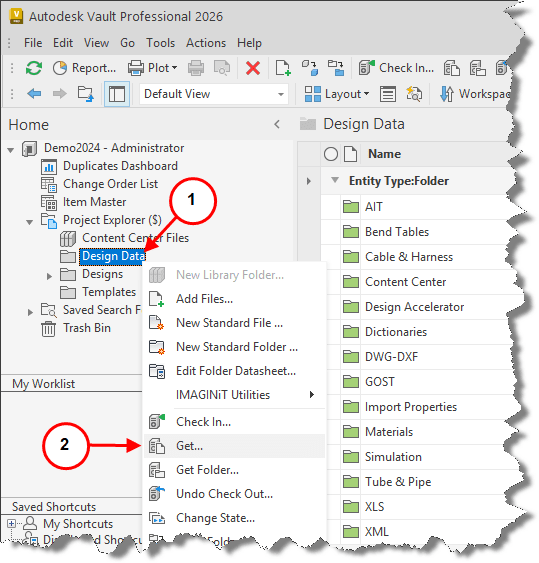
1. Right click Design Data folder.
2. Select Get. 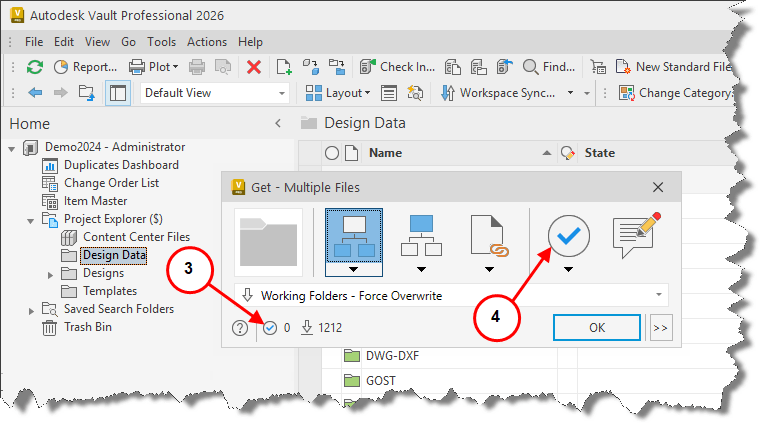
3. Checking out 0 files, Downloading 1, 212 files.
4. Select the Checkout Files Icon. 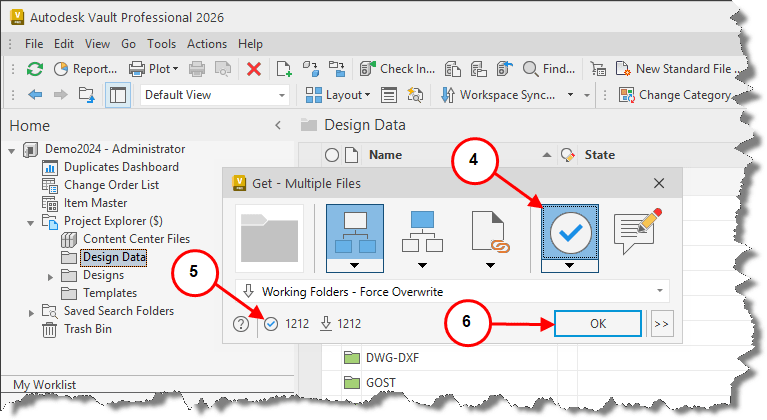
5. Notice 1,212 files will now be Checked Out and Downloaded.
6. Select OK. 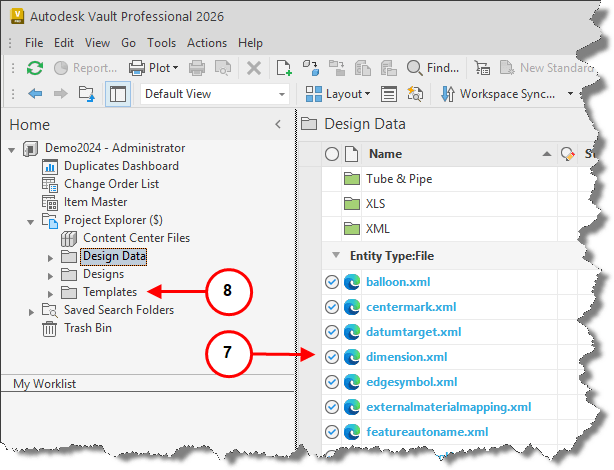
7. All 1,212 files have been Checked Out and Downloaded to the local drive.
8. If Templates require editing and do not reside under Design Data folder perform the same Checkout and Download process above.
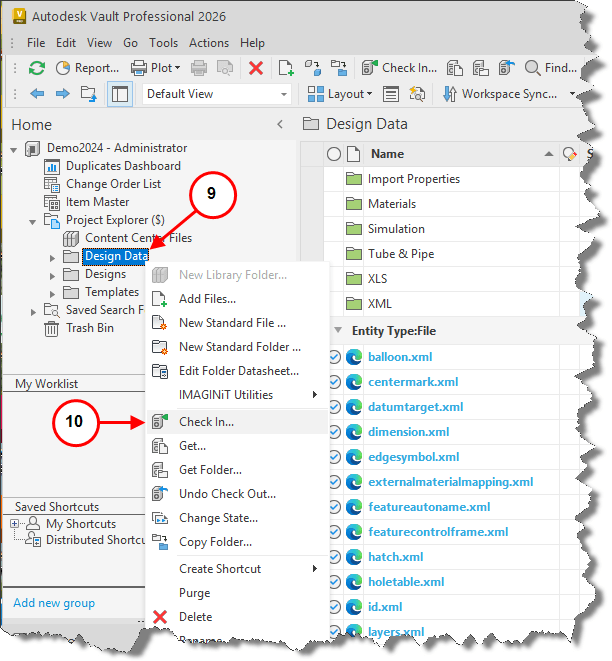
9. Once all Design Data modifications have been completed and files closed, right-click on the Design Data folder.
10. Select check In.
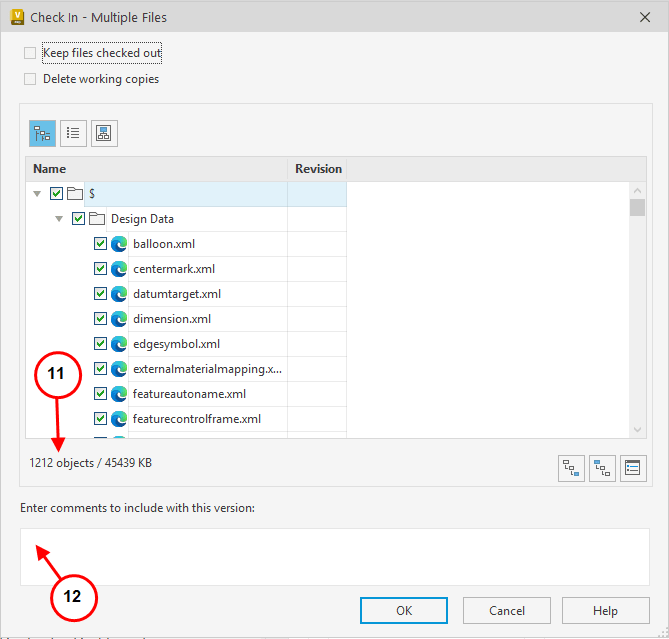
11. Check In – Multiple Files Menu will present a list of files that will be Checked In with the total of 1,212 files.
12. Suggest entering a comment to highlight the changes to the Design Data.
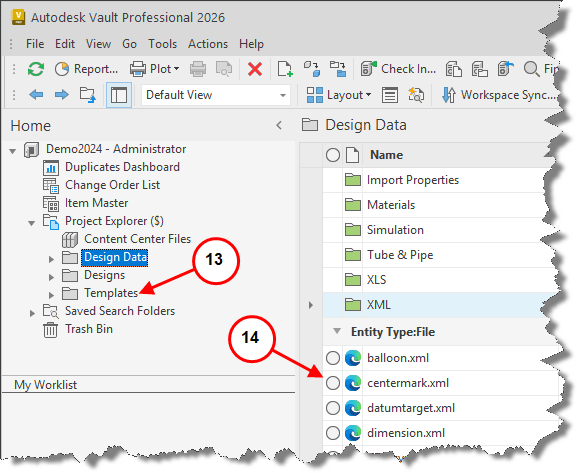
13. All Design Data files have now been checked back into Vault.
14. If Templates required editing and did not reside under Design Data folder perform the same Check In process above.



