

Hey AutoCAD users,
Did you know that Automatic Layering—that time-saving superpower long reserved for the vertical flavors of AutoCAD—has quietly made its way into our beloved basic Vanilla AutoCAD?
If you’ve been using AutoCAD Mechanical, Architecture, Electrical, or Civil 3D for years and loved how objects magically landed on the correct layer, you might be surprised to learn the same capability has been slowly added to the core product over the past decade.
Don't worry if you haven't heard about it. Autodesk never really advertised it much. So most users, even long time veterans, don’t know about this hidden gem.
In this post, I will be pulling back the curtain so you can start using this functionality immediately.
How to Turn On Automatic Layering in Vanilla AutoCAD
It’s actually incredibly simple. Everything is controlled by a small set of system variables. Set them once in your company template (.dwt) and every new drawing will behave exactly the way you want.
Here are the variables and what they control:
- TEXTLAYER – Specifies the default layer for single-line text and multiline text objects
- DIMLAYER – Specifies the default layer for new dimensions
- HPLAYER – Specifies the default layer for new hatches and gradient fills
- MLEADERLAYER – Specifies the default layer for new multileaders
- CENTERLAYER – Specifies the default layer for new center marks and centerlines
- TABLELAYER – Specifies the default layer for new tables
- REVCLOUDLAYER – Specifies the default layer for new revision clouds
- VIEWPORTLAYER – Specifies the default layer for new viewports created with Rectangular, Polygonal, or any viewport command (except the Object option)
How to Set Them
- Open your template file (or the current drawing).
- Type the variable name at the command line (e.g., TEXTLAYER).
- Enter the exact layer name you want (case-sensitive).
- Press Enter.
Want to go back to “use current layer” behavior? Just set the value to a period: "."
Pro tip: Any value other than "." will override whatever layer is current when you create the object. You can still select the object afterward and move it to a different layer manually—no problem at all.
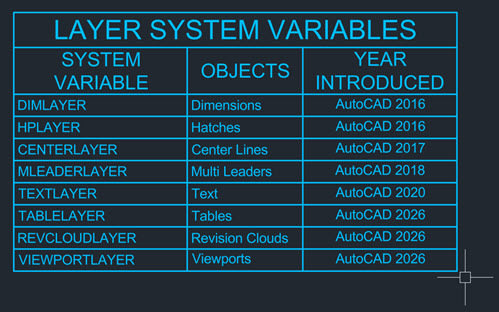
Here is a table showing the system variables and the years they were introduced.
About the Author
Follow on Linkedin More Content by Rusty Belcher


