

Issue:
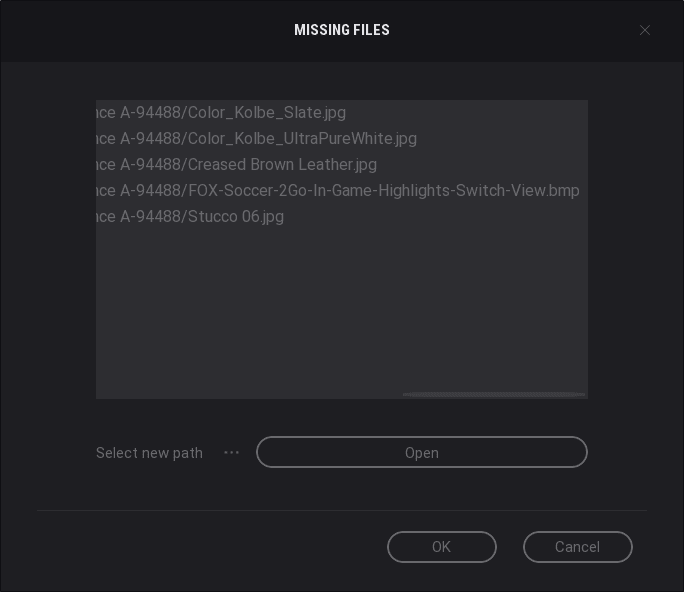
When opening a new Revit view in Twinmotion using Direck link, you may receive a warning dialog, or notice that some materials are missing or were not imported.
Cause:
Listed render appearance image files are missing from the Revit model.
Solution:
To resolve the issue, find and fix the missing render appearance images in Revit.
-
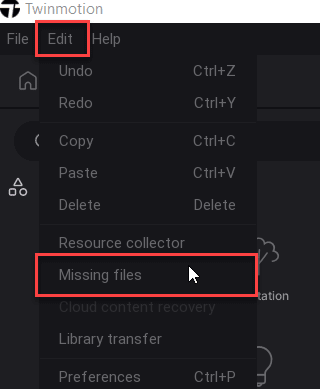
- First, find and make a list of the missing image files in Twinmotion. If you skipped or did not receive the warning dialog, go to the ‘Edit’ tab on the menu bar and select ‘Missing files’.
- Open the Revit model, and launch the Material Browser.
- In the material browser, find the materials with the missing render appearance images.
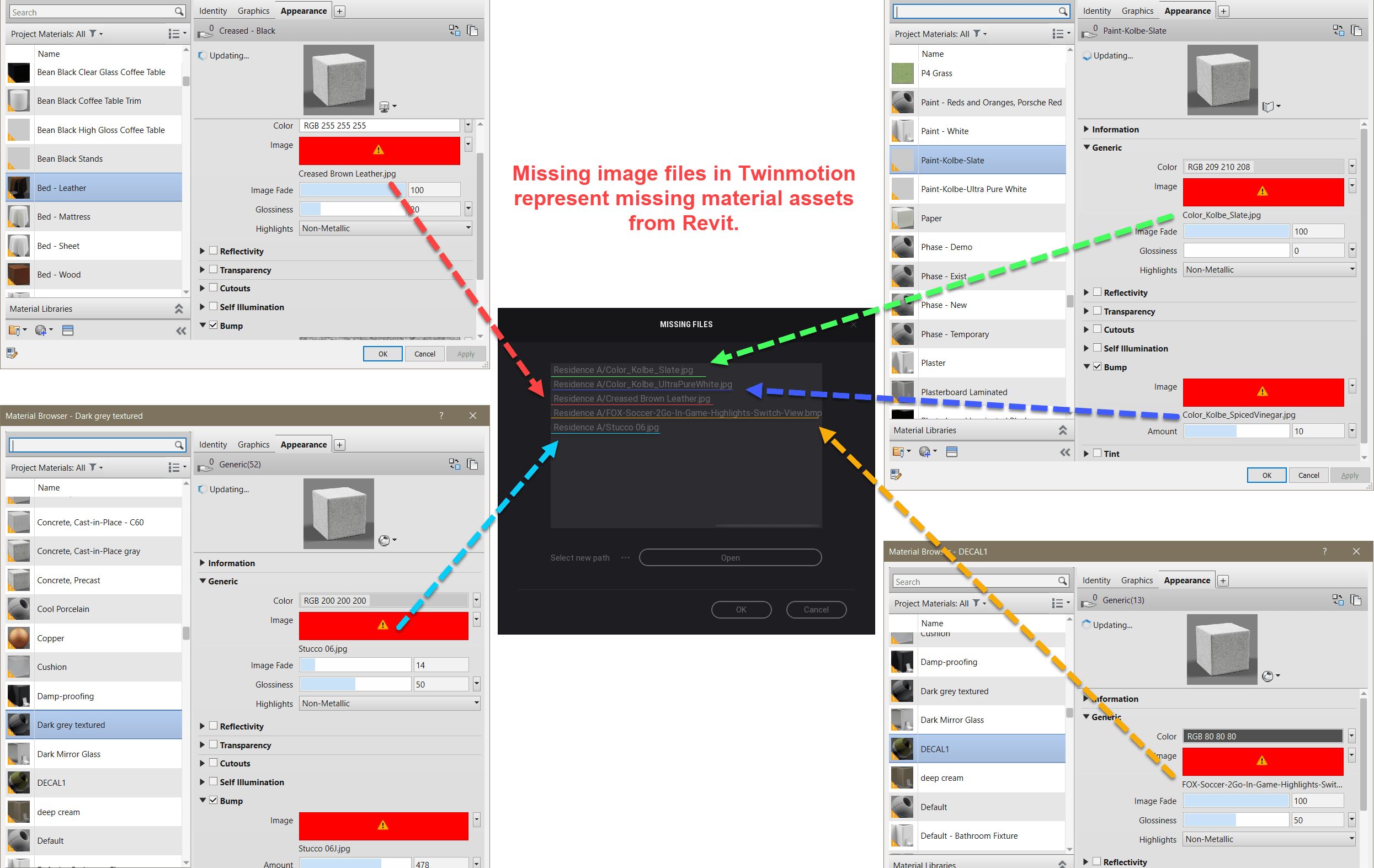
- Follow the instructions in the guides below to remove, replace or resolve the missing render appearance image path:
- Save the Revit model and synchronize the changes to the project in Twinmotion.
- First, find and make a list of the missing image files in Twinmotion. If you skipped or did not receive the warning dialog, go to the ‘Edit’ tab on the menu bar and select ‘Missing files’.


