

Issue:
How to generate an Autodesk network license file from an Autodesk account at manage.autodesk.com.
Solution:
1. Log into https://manage.autodesk.com as Contract Manger or Software Coordinator and go to “All Product and Services”.
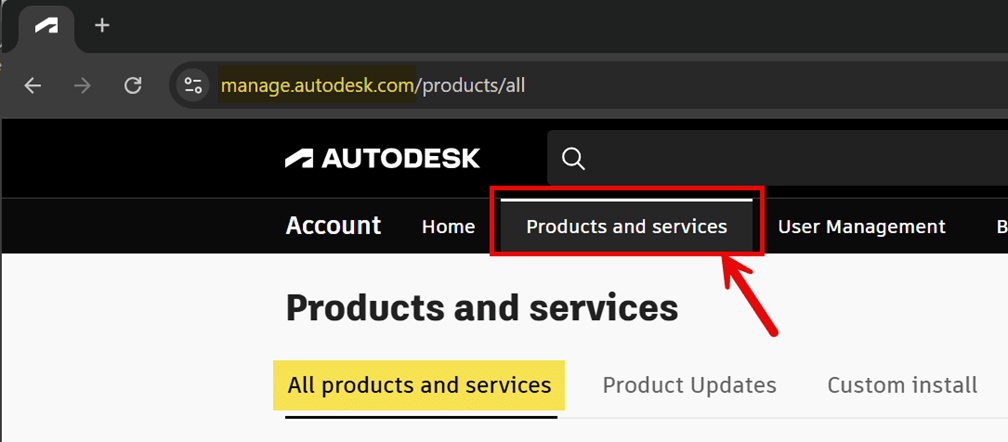
2. Choose any product and select View Details. The example below is for AutoCAD.
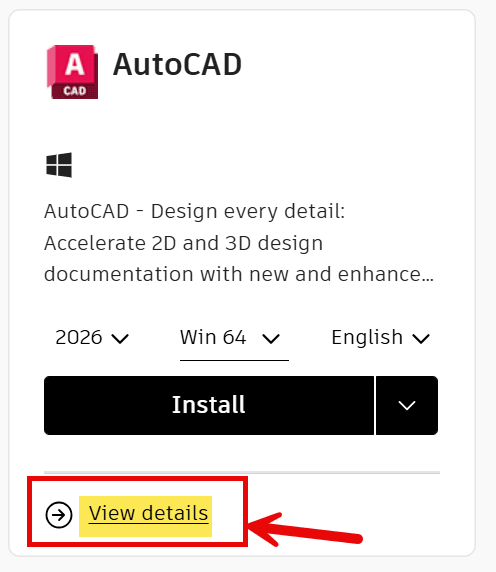
3. Select “License Details” on the right side of the screen.
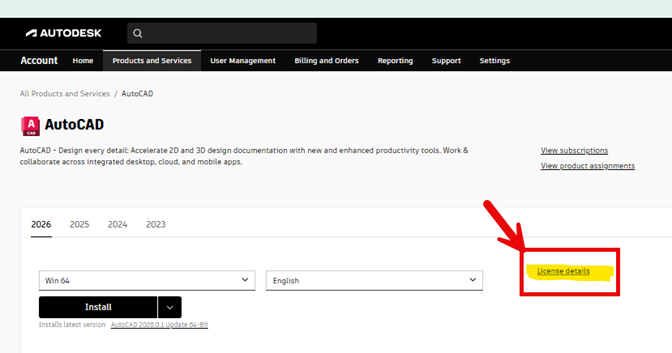
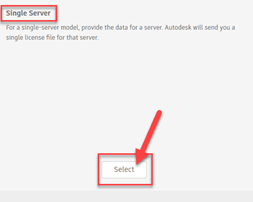
4. Choose Single server (if you have 1 server) and then click select.
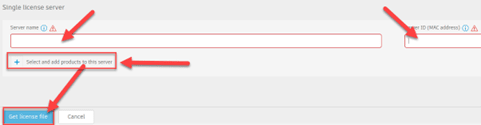
5. Input the server name and the MAC address of the license server. Select products you would like included in the license. It is recommended to choose all the products unless you are splitting licenses among multiple servers. Select Get License File.
6. You can download the license and email the file. We recommend both downloading the license file and emailing the license file to ensure you obtain a copy.


