

Issue:
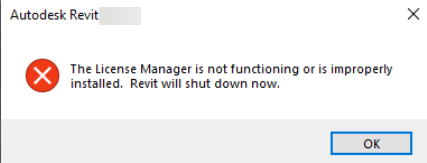
Revit stops working and closes with an error after installing Autodesk Licensing Service version 16.2.
Causes:
The exact cause is unknown; however, the issue began affecting some users after updating to Autodesk Licensing Service version 16.2.
Solution:
The only known fix is to roll back the Autodesk Licensing Service to version 16.0.
1. Uninstall Autodesk Desktop Licensing Service by navigating to:
C:\Program Files (x86)\Common Files\Autodesk Shared\AdskLicensing
2. Right-click uninstall.exe and select Run as Administrator.
3. Wait until the folder becomes empty.
4. Use following link to download v16 (https://damassets.autodesk.net/content/dam/autodesk/www/files/AdskLicensingInstaller-win-16.0.3.14414.zip)
5. Search for Autodesk Desktop Licensing Service from the Project Updates tab.
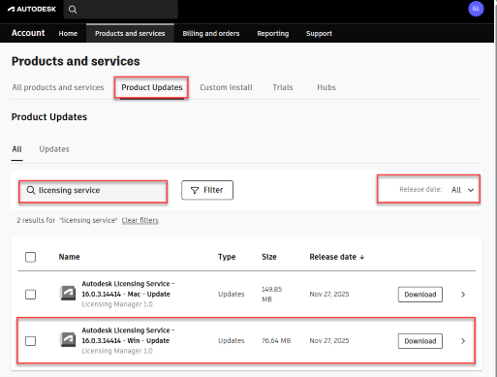
6. Download version 16.0.
7. Install the downloaded version.
About the Author
Follow on Linkedin More Content by Gregory Lee


