

Problem:
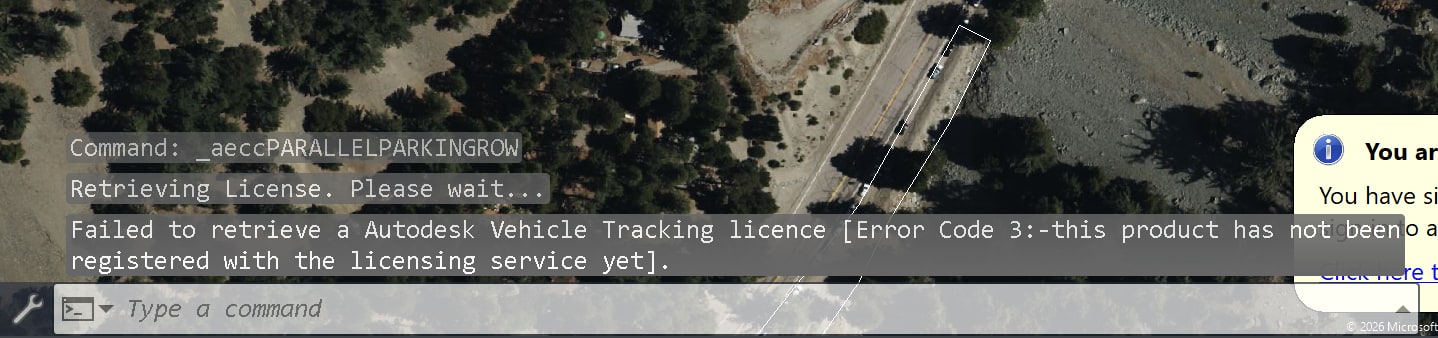
When launching Vehicle Tracking withing AutoCAD or Civil3D you receive the error message below.
Solution:
Vehicle Tracking will need to be registered with the licensing service manually.
Manually register a product with the licensing service:
-
- Locate the Autodesk Vehicle Tracking installation files on your machine. If they are no longer available, re-download the install package from the Autodesk Portal using the Download option from the install dropdown.
- In File Explorer, navigate to the folder containing your Vehicle Tracking install files. Using the search bar in the top-right corner, search for
*.pitfiles. You are looking for VehicleTrackingConfig.pit. - Copy VehicleTrackingConfig.pit and paste it into:
C:\Program Files (x86)\Common Files\Autodesk Shared\AdskLicensing\Current\helper\ - Open Command Prompt as an administrator and enter the following command, replacing
product keywith your Vehicle Tracking product key andyearwith the applicable year:"C:\Program Files (x86)\Common Files\Autodesk Shared\AdskLicensing\Current\helper\AdskLicensingInstHelper.exe" register -pk product key -pv year.0.0.F -cf "C:\Program Files (x86)\Common Files\Autodesk Shared\AdskLicensing\Current\helper\AutoCADConfig.pit" -el US - Your final command should look similar to the following (this example is for Vehicle Tracking 2022):
"C:\Program Files (x86)\Common Files\Autodesk Shared\AdskLicensing\Current\helper\AdskLicensingInstHelper.exe" register -pk 955N1 -pv 2022.0.0.F -cf "C:\Program Files (x86)\Common Files\Autodesk Shared\AdskLicensing\Current\helper\VehicleTrackingConfig.pit" -el US - After running the command, open AutoCAD or Civil 3D and attempt to use Vehicle Tracking again.
About the Author
Follow on Linkedin More Content by Derek Piccininni


