Autodesk Desktop Connector: Files where not syncing how can I sync all my missing files?

Issue:
Autodesk Desktop Connector: Files where not syncing how can I sync all my missing files?:
You find that your files have not been syncing. You fix the issue however; how do I sync the ones that were missing?


Causes:
Issue with Desktop Connector syncing.

Solution:

1.    Go to Windows “Time” in the lower right corner of your Windows screen.
2.    Select the up arrow and find your Desktop Connector icon. (See Figure 1)
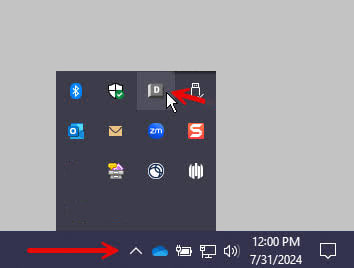


Figure 1

3.    Right click on the icon and select Trouble Shooter. (See Figure 2)
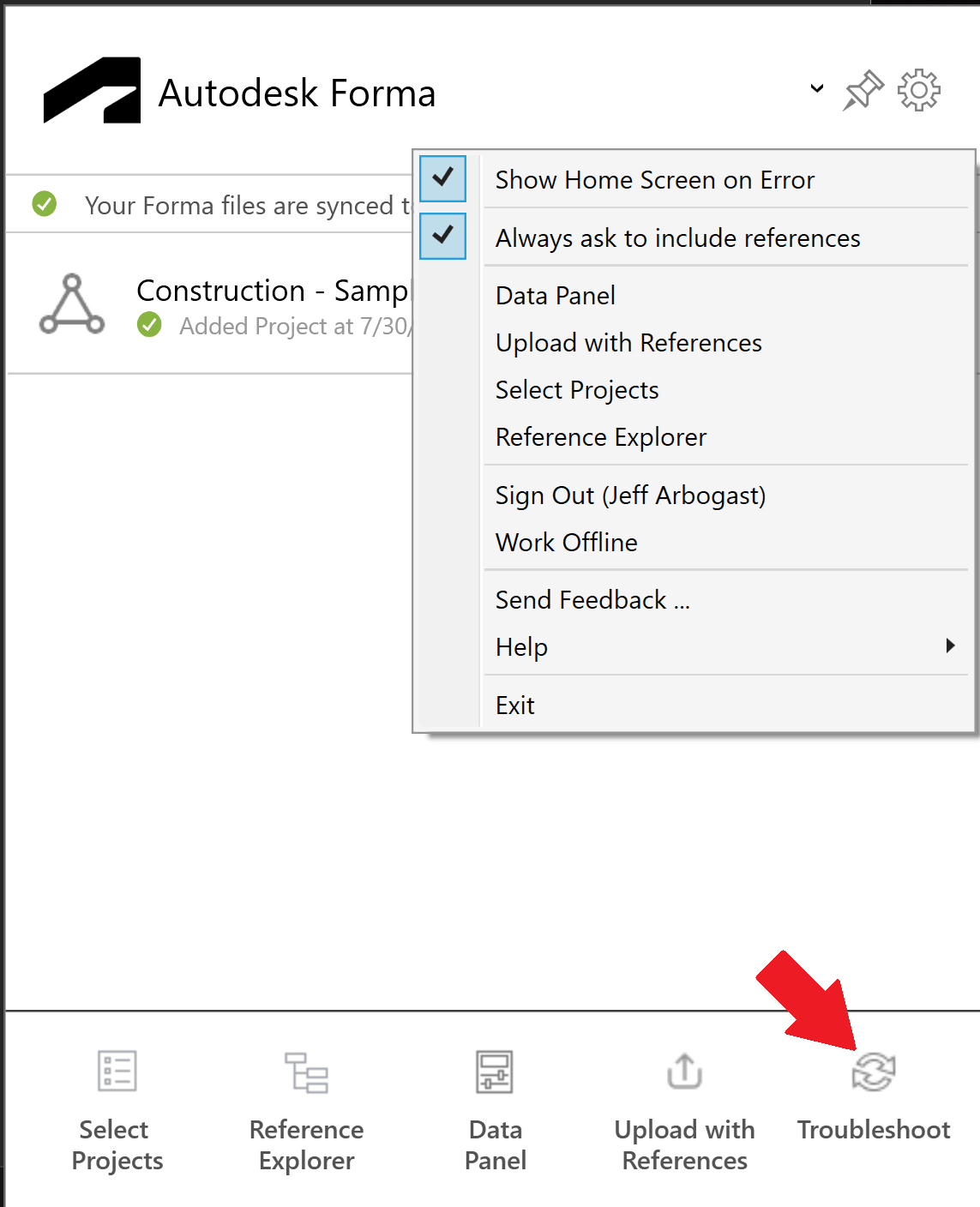


Figure 2

4.    Select your Project from the drop-down menu.
5.    Select “My Unsynced Changes” tab.
6.    This list will explicitly isolate every local part file that is newer than what is currently in the Project.
7.    Click Fix All to force-sync those changes directly to the cloud.

Your files should now be current on the project between your local system and the Cloud Project.

About the Author

Jeff Arbogast

Manufacturing Solution Center Team Lead<br><br>Jeff is responsible for manufacturing Technical Support for both internal staff and customers. In addition to the daily activities of the support center, he helps write for the National Support Center blog, and has written online classes for the IMAGINiT training on demand site.

Follow on Linkedin More Content by Jeff Arbogast
Previous Article
How to find the Autodesk product code for the Detection rule in Intune

When creating a Microsoft Intune application deployment for an Autodesk product, you may need the MSI Produ...

Next Article
Autodesk Scheduled Updates - Network Requirements

What Network Settings Are Required for Autodesk Access and Scheduled Updates to Work Properly?

Need tech support? Let us help!

Learn More