“An Error Was Encountered” with IMAGINiT Network Utilities License
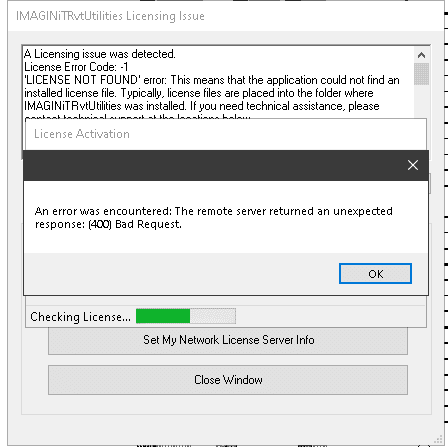
When trying to activate or update an IMAGINiT Utilities License you receive the following error: "An Error Was Encountered"
Read
IMAGINiT Utilities: How to see if your dynamic port was successfully updated
Causes: You have set your dynamic port to static and would like to see if the new port is being seen.
Read
IMAGINiT Utilities: How to see if network licenses are available
Causes: You have set up the license manager and would like to know if the licenses are being seen and available.
Read
IMAGINiT Utilities: How to Authorize your IMAGINiT utilities (Client side)
When you install the Utilities on the user system. You will be asked to Authorize the Utilities
Read
IMAGINiT Utilities Reprise License Manager: How to Change default Port 27051
When using the Reprise License Manager with the IMAGINiT Utilities there are 4 ports that must be open. 5054, 5053, 27051
Read
IMAGINiT Utilities Reprise License Manager: How to hardcode the dynamic Port
When using the Reprise License Manager with the IMAGINiT Utilities there are 4 ports that must be open. 5054, 5053, 27051
Read
Top 5 IMAGINiT Utilities Features Civil 3D Teams Love
Top 5 IMAGINiT Utilities for Civil 3D that teams love—automate points, sheets, cleanup, and survey tasks to deliver projects faster.
Read
Streamline Your Civil 3D Projects with 2026 Utilities Enhancements
In this blog, see what’s new in Utilities for Civil 3D 2026. Explore new tools, enhancements, and workflows that help civil teams work faster and smarter.
Read
Vehicle Tracking: “Failed to retrieve a Vehicle tracking license [Error Code -3]
Issue: Vehicle Tracking: “Failed to retrieve a Vehicle tracking license [Error Code -3: User canceled authorization]”. Here's what you need to know and do.
Read
How to Install IMAGINiT Utilities for Civil 3D 2025 Standalone
You need to install the Standalone IMAGINiT Utilities for Civil 3D 2025-2020 and want to know how. Here's the step-by-step guide.
Read
IMAGINiT Utilities for Civil 3D 2025 released!
Our utilities run directly inside Autodesk Civil 3D and are designed to remove redundancies and rework, by automating repetitive tasks, saving your team time and effort.
Read
IMAGINiT Utilities - This installation package could not be opened error
Move the downloaded IMAGINiT Utilities install files to a folder on the local drive on the machine, such as c:\temp.
Read
IMAGINiT Utilities silent install switch
You would like to install the IMAGINit Utilities silently with no user interface
Read
How to Activate the Standalone IMAGINiT Utilities Using a Batch File
If you are familiar with creating and using batch files, then you can activate / generate the Standalone IMAGINiT Utilities during installation using a batch file.
Read
IMAGINiT Utilties: “A Licensing issue was detected”
WRONG HOSTID' error: This means that your license for IMAGINiTC3DUtilities does not match the information for the current machine
Read
IMAGINiT Utilities License Error Code: -6 'WRONG VERSION' error
The license error dialog should show you where to find the license. You will need to scroll down a little bit in the dialog to find it.
Read
IMAGINiT Utilities License Activation Error System.Web.Services.Protocols.Soapexception
This soap exception happens due to some back-end issues. Here's what you need to know and do.
Read
Bad Request Licensing error 400 activating the IMAGINiT Utilities
When attempting to activate the IMAGINiT Utilities, you receive the following error. “Utilities licensing error was encountered: The remote server returned an unexpected response: (400) Bad Request”
Read


Follow on Linkedin More Content by Derek Piccininni


![Vehicle Tracking: “Failed to retrieve a Vehicle tracking license [Error Code -3]](https://content.cdntwrk.com/mediaproxy?url=https%3A%2F%2Fres.cloudinary.com%2Fuf-554092%2Fimage%2Fupload%2Fv1743601839%2FENH_AdobeStock_144632327_1_rpuoqp.jpg&size=1&version=1760657444&sig=efdcd313a7f1e5a0503a6b6e23b34c8e&default=)


